
Template Types
Each of the five template types maps to a moment in your candidate pipeline:
Manage templates in the Templates section of your account, and attach one to each stage in the pipeline builder.
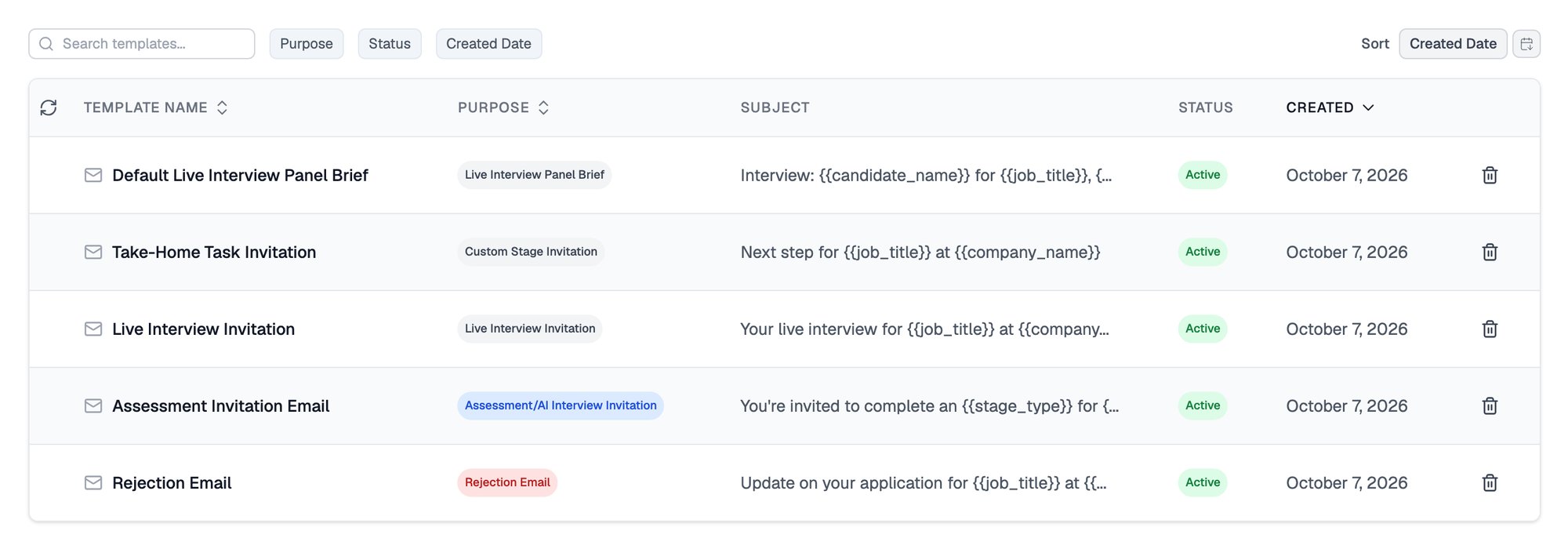
Stage transition email templates, with their purpose and subject line
Template Variables
Variables are placeholders that Equip replaces with real values when the email is sent. Each one is click-to-copy in the template editor. These variables work in every template type: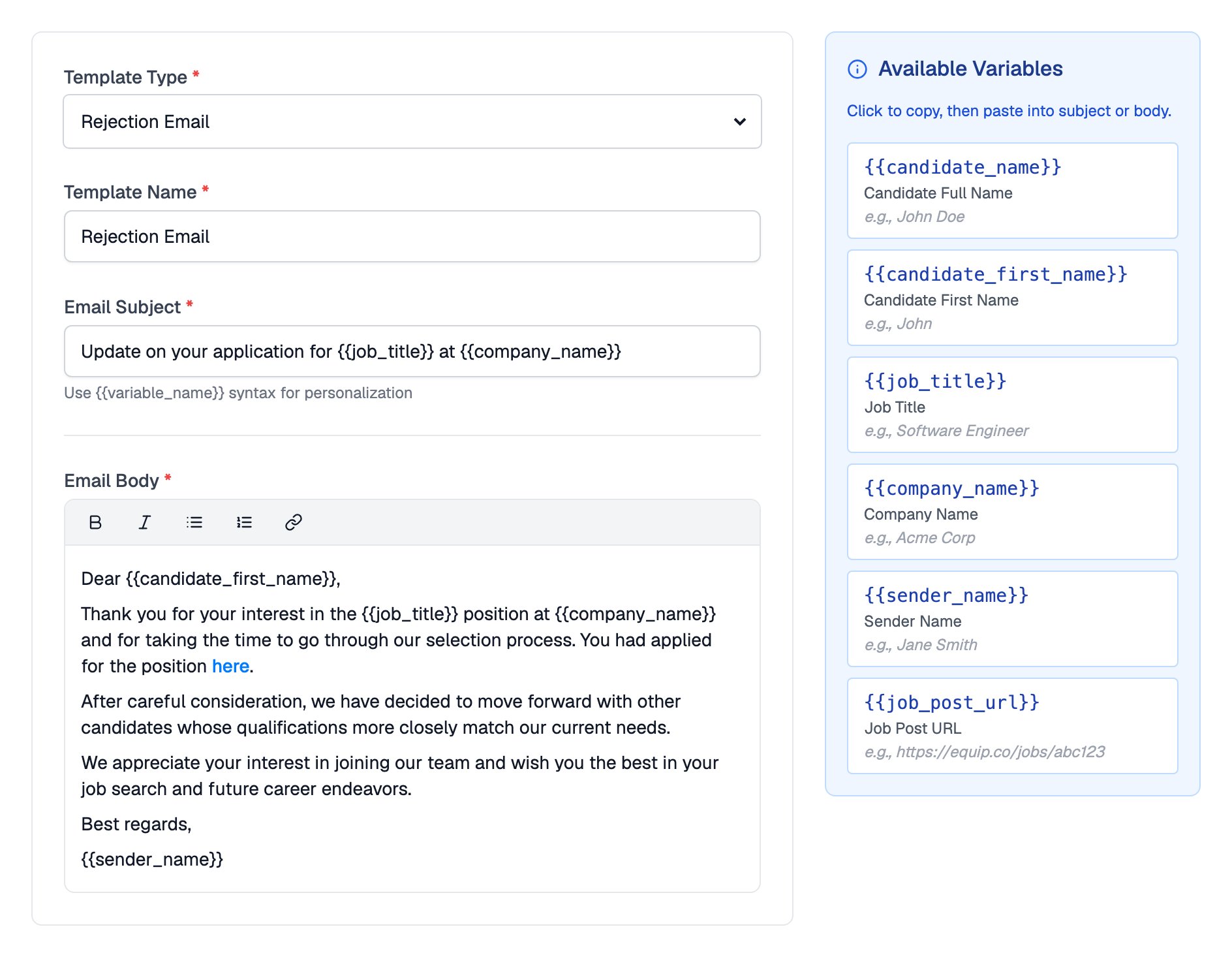
The editor lists every variable you can paste into a template
Invitation variables
Assessment and AI Interview invitation templates add variables for the link and its timing rules:
Live Interview and Custom Stage invitation templates add a
stage_type variable that fills in the Stage Type.
Live interview variables
The Live Interview Invitation and Live Interview Panel Brief templates add variables for the booked interview:
Two more variables,
add_to_google_calendar_link and add_to_outlook_calendar_link, let the recipient add the interview to their calendar.
The offer email is not a template type. It is written on the offer packet, alongside the documents the candidate signs. See Offer Documents and Packets.
Stage-Transition Emails
Moving a candidate to a stage that sends email opens a dialog with a preview of the message, built from that stage’s template, and you decide whether it goes out. Stage Automation rules can also send templates. In the dialog, you can set a Reply-To team member or use Schedule Send to delay delivery. For rejections, the Send rejection email to candidates checkbox is off by default, so nothing is sent unless you tick it. See Changing Stages for the full flow.Related Resources
- Changing Stages - The full stage-change flow, including credits and rejection reasons
- Pipeline Stages - Which stage types support invitation and rejection templates
- Custom Sender Email - Send candidate emails from your own domain
- Email Status - Track whether invitations were sent, delivered, and opened