
Creating Scorecards
Scorecards are managed as reusable templates. Create a template once, then attach it to as many pipeline stages as you like, across job openings.1
Open the Scorecards templates page
2
Create a new template
Give the template a name, then pick a layout and the stage types it applies to.
3
Define the criteria and save
New templates start with four default criteria: Communication, Technical Skills, Problem Solving, and Cultural Fit. Add, remove, or reorder them, then save the template.
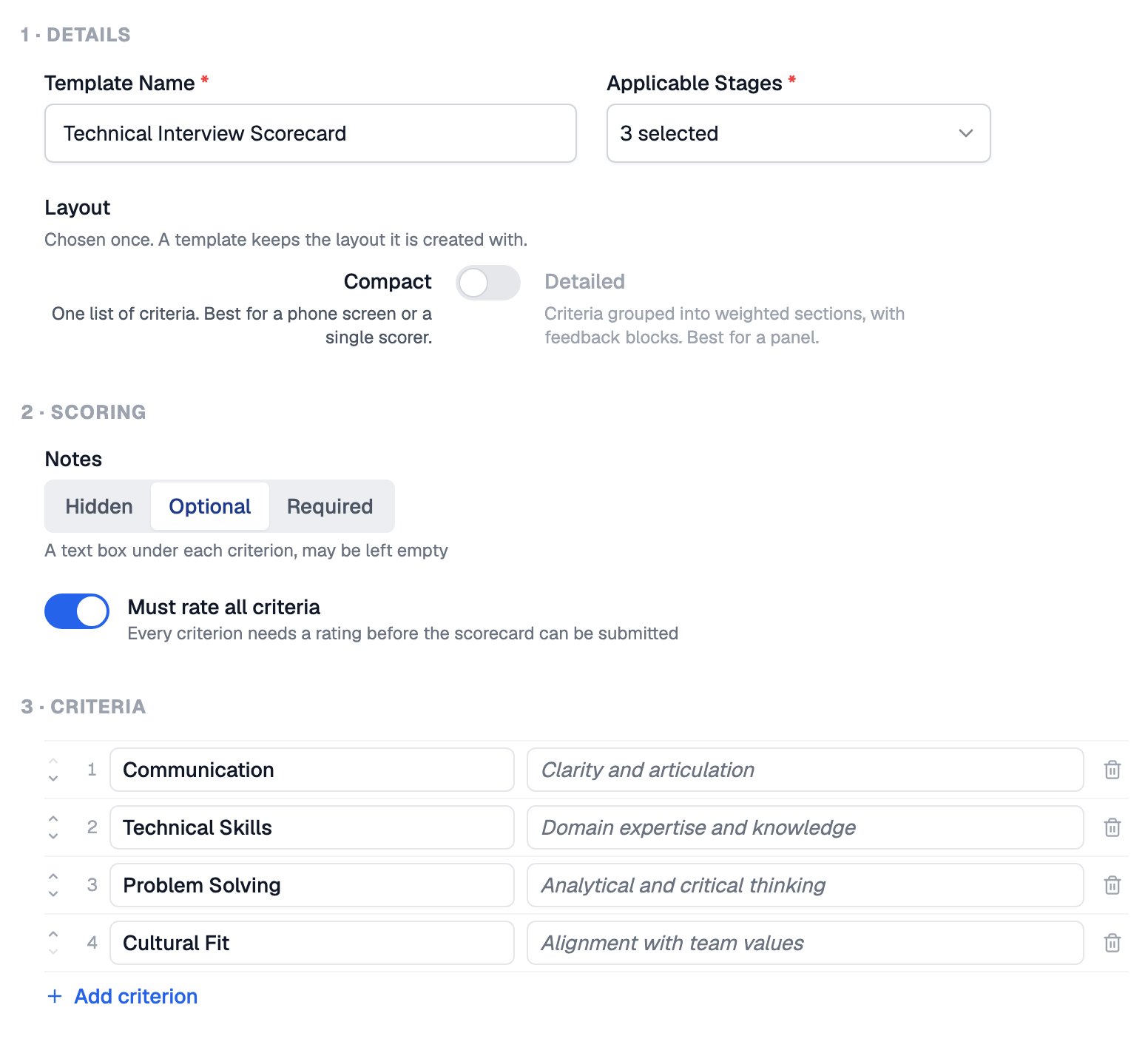
A new template starts with four default criteria that you can rename, reorder, remove or add to
In a Detailed scorecard, the section weights add up to 100. You can also choose whether the note under each criterion is required, optional, or hidden.
Create separate templates for different rounds, so interviewers rate only what their round is designed to assess.
Attaching Scorecards to Stages
Scorecards attach to the pipeline stages where a human evaluates the candidate.
To attach a template, open the job’s Candidate Pipeline settings, select a supported stage, and pick the template from the scorecard dropdown. See Pipeline Stages for the full stage configuration options.
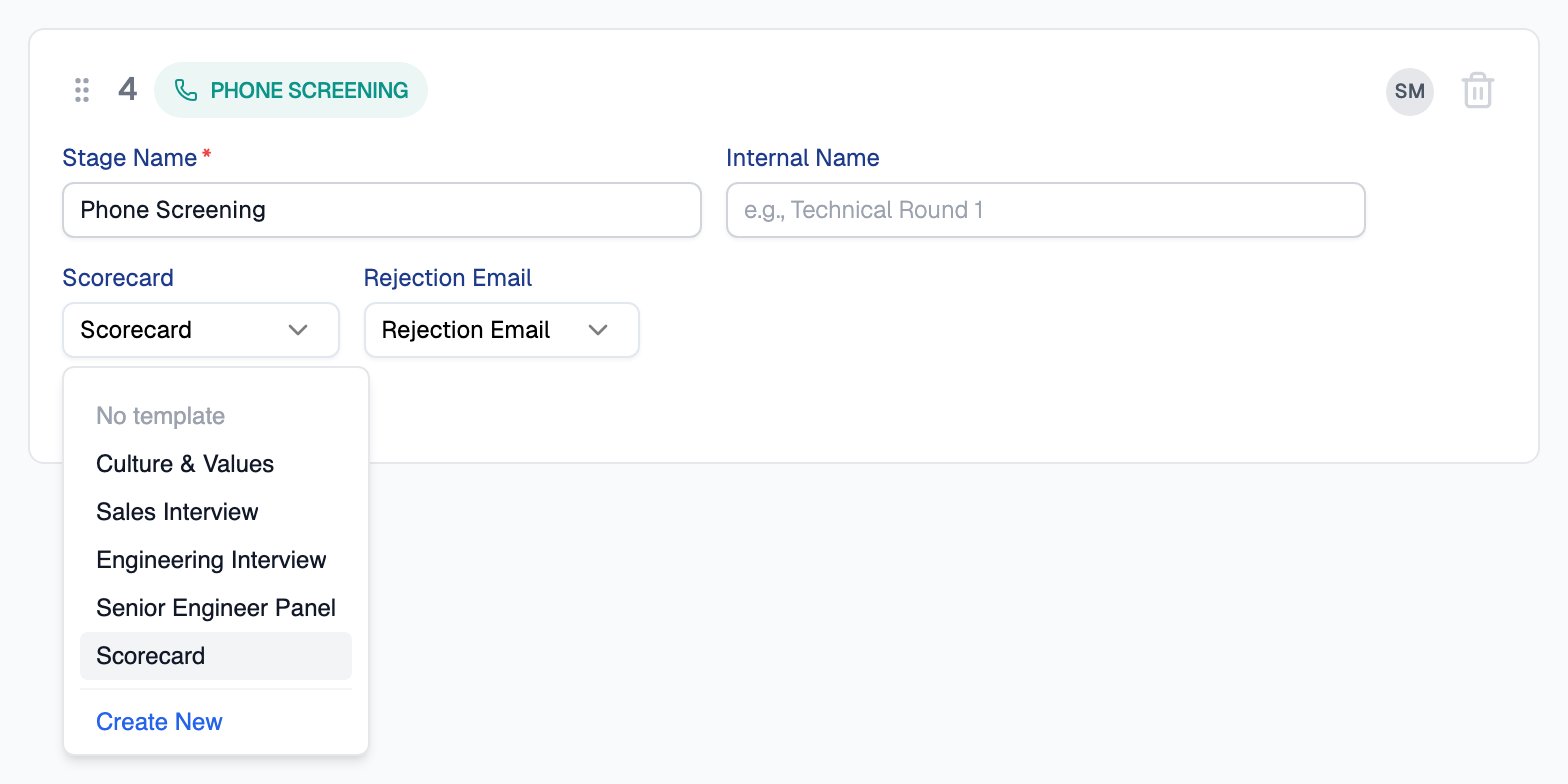
The Scorecard dropdown on a Phone Screening stage lists the team's templates
Filling In a Scorecard
When a candidate reaches a stage with a scorecard attached, evaluators fill it in from the candidate’s profile.1
Open the candidate
From the applications dashboard, open the candidate details panel.
2
Rate each criterion and submit
Give a star rating for every criterion. Equip computes an overall score from your ratings.
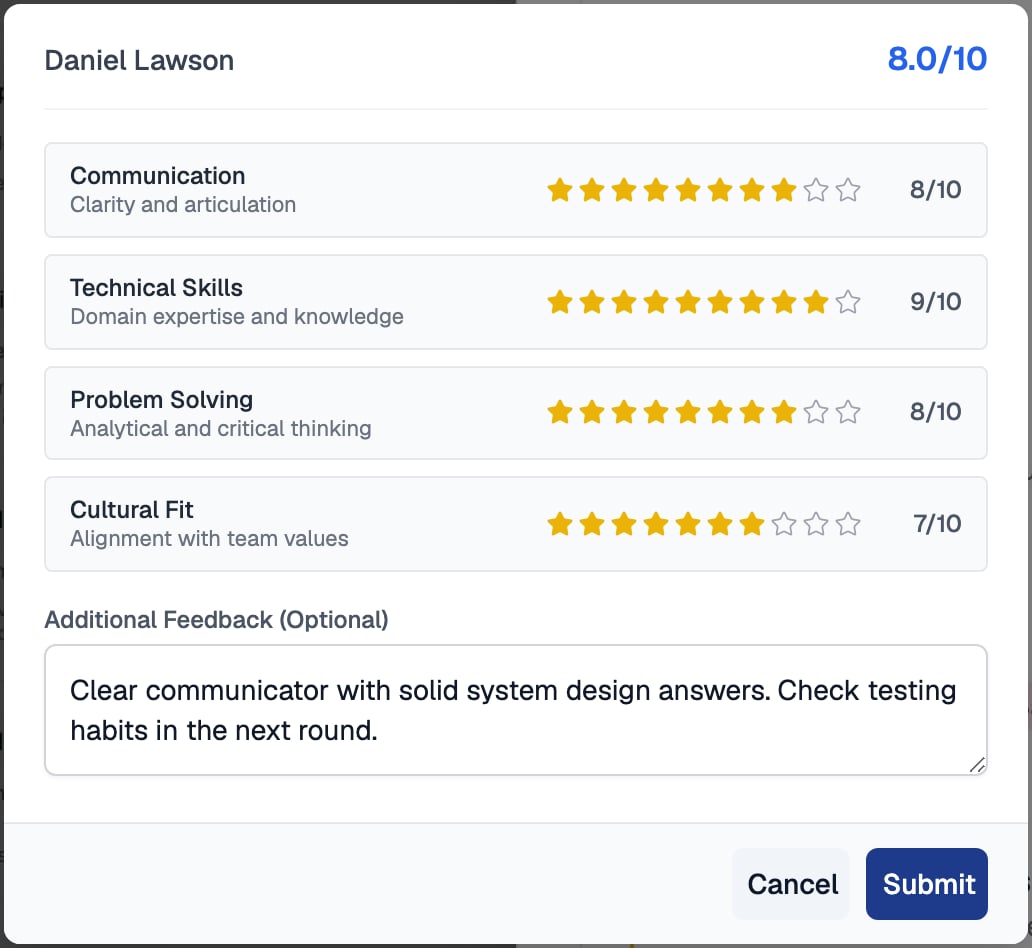
Each criterion gets a rating out of ten stars, and the overall score updates as you go
Live Interview stages work differently. Each panellist fills in the scorecard on their own scoring page, and the scores combine into a single result. See Interview Feedback and Results.
Scores in Analytics
Scorecard results appear in two places:- Candidate profile: submitted scorecards appear on the Candidate Details tab, and every submission is logged in the Candidate Journey.
- ATS Insights: The Avg scorecard by recruiter chart in the Team section averages scorecard results per recruiter.
Related Resources
- Pipeline Stages - Configure the stages where scorecards can be attached
- Candidate Profile - Where submitted scorecards and the Candidate Journey live
- ATS Insights - Team analytics, including the average scorecard by recruiter chart
- Email Templates - The other reusable templates you can attach to pipeline stages