
Table and Kanban Views
Switch between the two views with the view toggle in the filter bar.
Both views show each candidate’s Job Fit Score.
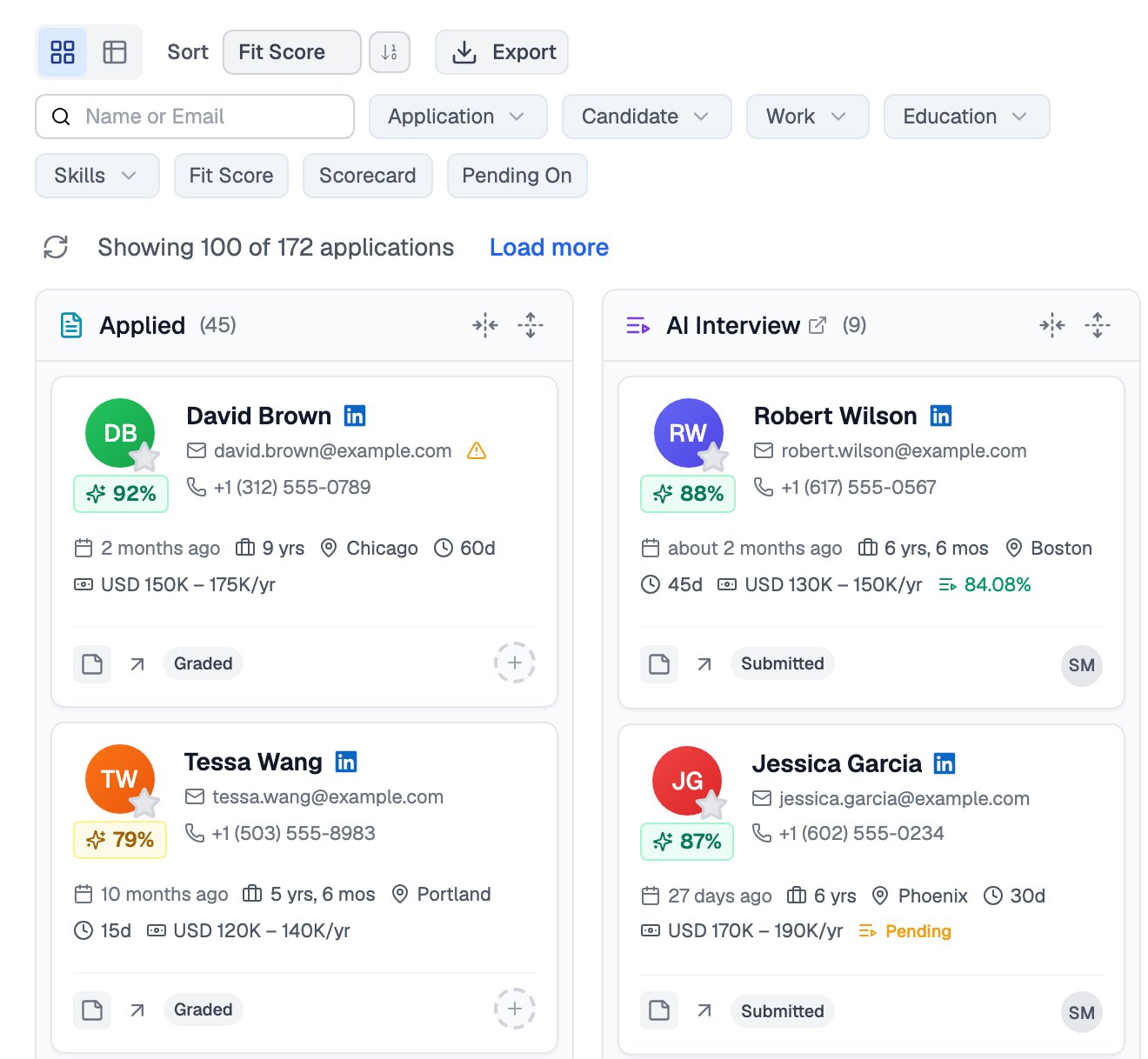
Kanban view, with one column per stage and the view toggle at the top left
Filter Presets
Filter presets are one-click filters in the filter bar: All, Relevant, Mine, Unassigned, Starred, and Recent. Relevant hides candidates in Hired, Rejected, or Withdrawn stages, and Recent shows those who applied in the last 7 days. You can also sort the list by Fit Score, Max Salary, Min Salary, Notice Period, Experience, or Applied Date.Each candidate also shows an Action pending on marker: Team, Candidate, or Both.
Columns
Alongside the pipeline stage, each candidate carries a status:
You can also star any candidate from their row to bookmark them for the Starred preset. Each application additionally carries an assignee and per-candidate recruiter notes.
Viewing CVs
Every candidate’s CV lives on their profile, alongside the structured details Equip parsed from it.1
Open the candidate
Click a candidate in the table or on a Kanban card.
2
Open the CV from Candidate Details
On the Candidate Details tab, find the CV under Attachments and click View Resume.
Bulk Actions
Select multiple candidates in either view to act on all of them at once.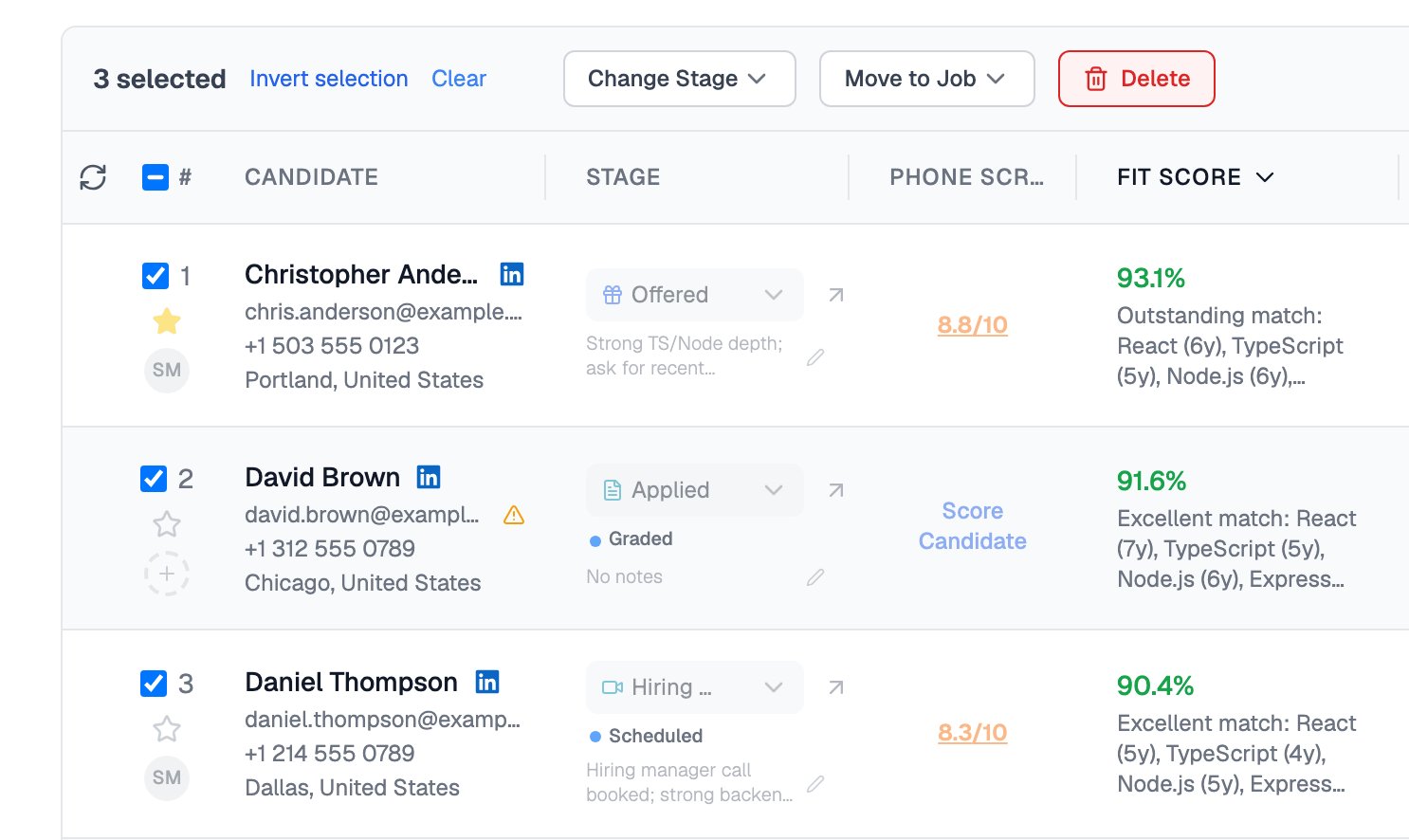
Selecting candidates brings up Change Stage, Move to Job and Delete above the table
Related Resources
- Candidate Profile - Everything in the detail panel, including the Candidate Journey timeline
- Changing Stages - What happens when you move candidates, and the emails involved
- Job Fit Score - How the AI ranks candidates against your role
- Bulk Importing Candidates - Add up to 100 CVs or a CSV of up to 200 rows at once