
Candidate Details Tab
This tab holds the candidate’s full record: Job Fit Score with its AI explanation, scorecards, preferences such as salary expectations and notice period, experience, industries, education, skills and languages, custom fields and screening answers, and attachments.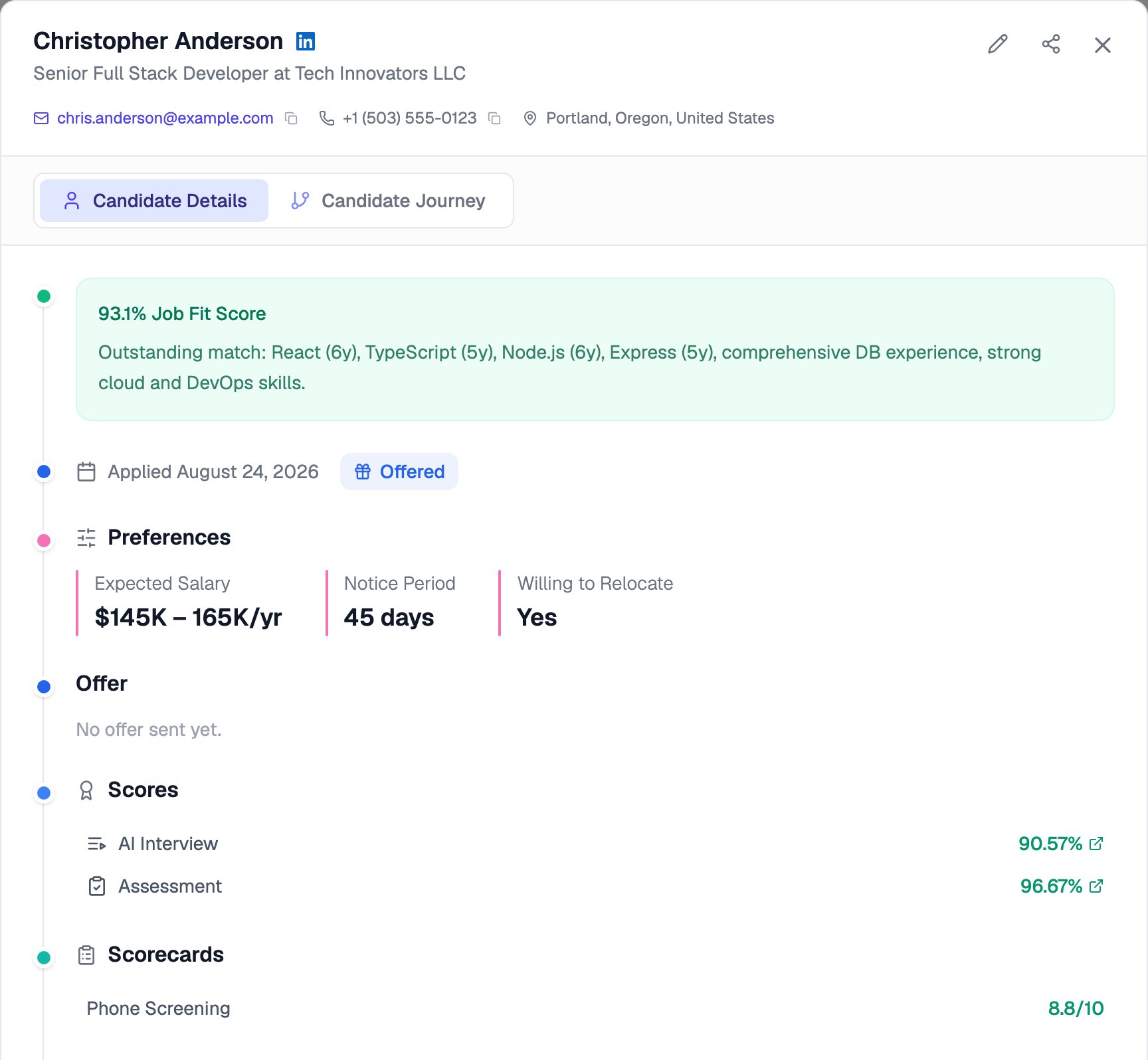
The Candidate Details tab, from fit score and preferences down to scorecards
1
Open the Edit Candidate modal
From the candidate’s profile, open the edit option and update the name, email, phone, LinkedIn URL, or location.
2
Replace the resume if needed
Upload a new PDF, DOC, or DOCX file up to 10 MB. The previous resume is replaced.
The Candidate Journey
The Candidate Journey tab is a complete activity timeline for the application. It records more than 30 event types, each attributed to the team member or candidate who triggered it.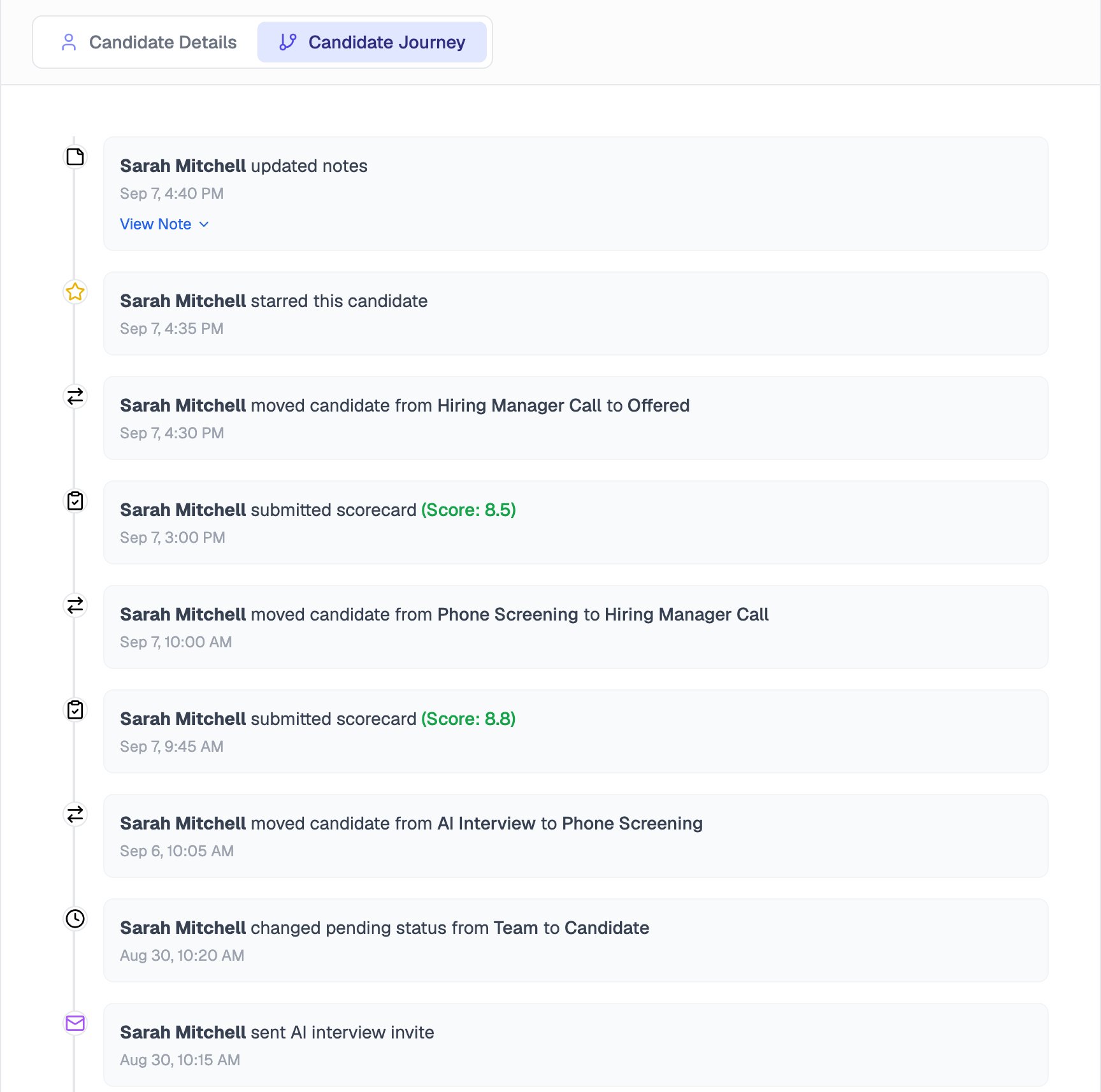
The Candidate Journey lists every stage change, scorecard, note and email, newest first
Attachments and Notes
Attachments keep portfolios, take-home submissions, or reference documents with the candidate. Each one shows whether it was uploaded by a Recruiter or the Candidate.
Notes are free-form, per-candidate comments visible to your team. They are included when you export applications to CSV or Excel.
Notes and attachments are internal to your team and are never shown to the candidate.
Unverified Candidates
Candidates who apply directly through your job post link verify their email as part of applying. Candidates added by your team, for example through Bulk CV Import, start out unverified.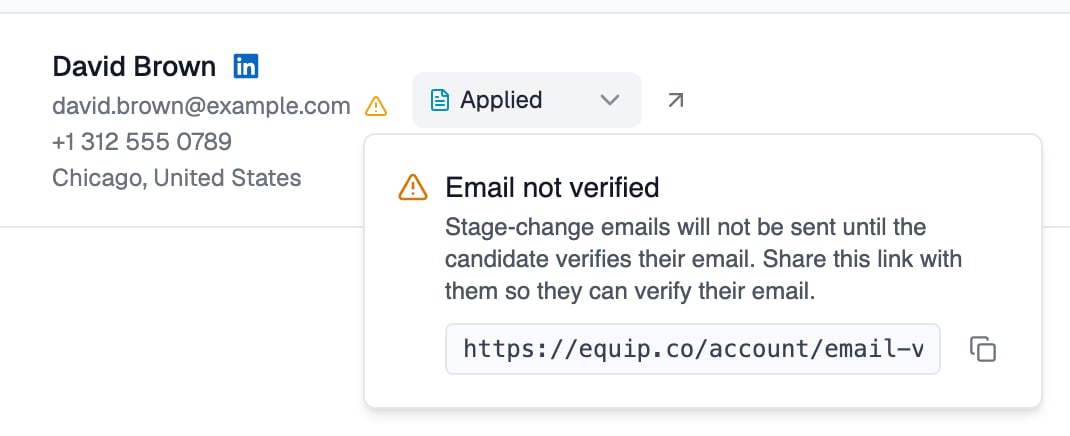
The amber icon beside the email opens a popover with a verification link to copy
Related Resources
- Candidates and CVs - How candidate records are created and managed
- Candidate Pipeline - The stages and automations candidates move through
- Changing Stages - Move candidates forward, reject them, or send invites
- Scorecards - Structured evaluations that appear on the Details tab