
Status tracking is only available for email invitations. Candidates who join through a shared public URL are not tracked this way. See Share URL vs Email Invitations for the full comparison.
Tracking Statuses
1
Open the invite page
On the Assessments dashboard or AI Interviews dashboard, click Invite under the assessment or AI interview.
2
Switch to Track Invitations
Click the Track Invitations tab and check the Email Status column. Use Copy Link to get a candidate’s invitation link.
Job Opening Stages
When an assessment or AI interview is a stage of a job opening, you invite candidates by moving them to that stage in the Job Applications Dashboard. Those invitations are tracked on the stage’s Track Invitations tab, and Invite opens that tab directly.Only assessment and AI interview invitations are tracked. Other pipeline emails, such as rejections, stage changes and offers, have no email status.
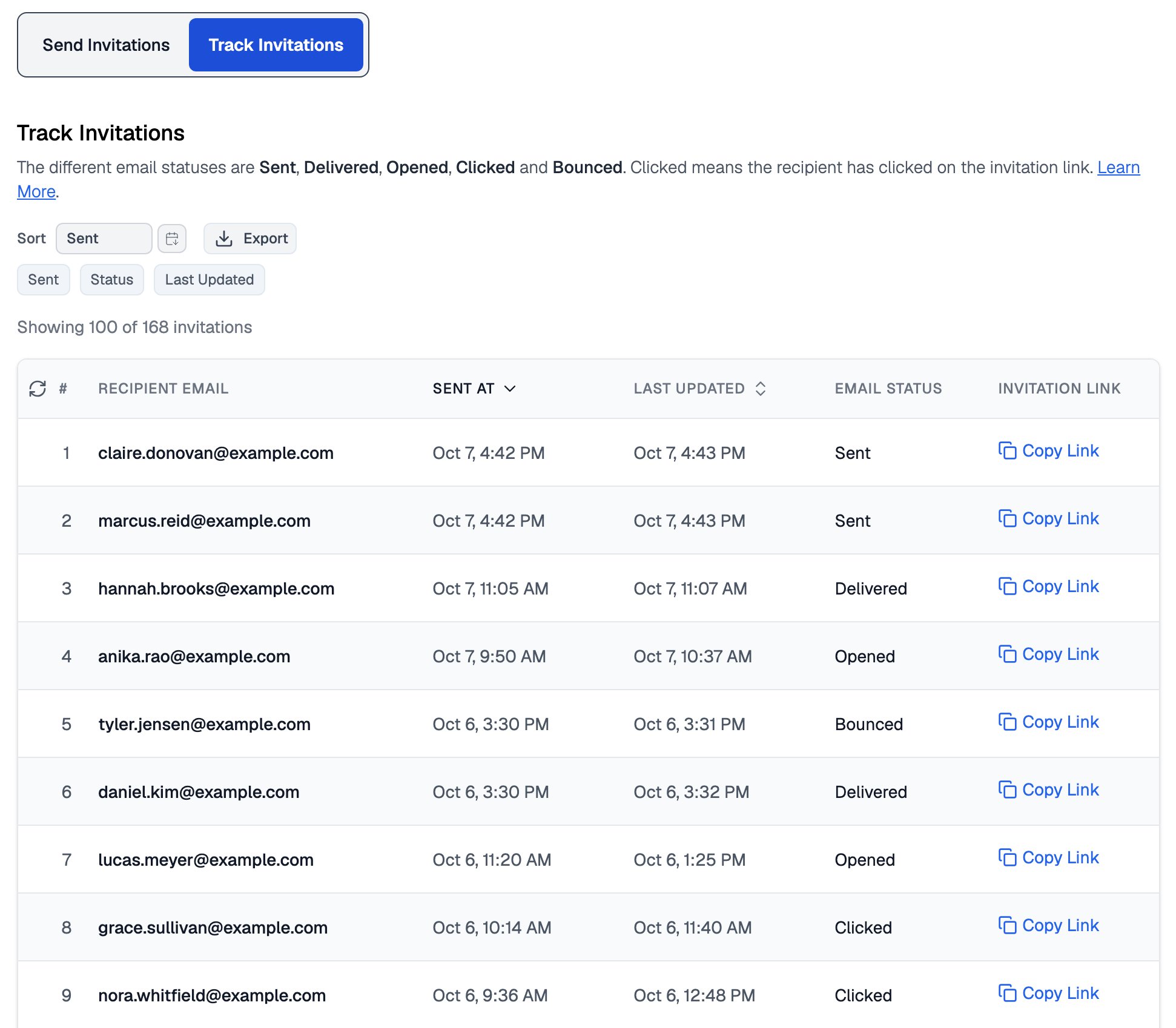
Track Invitations lists every invited candidate with the current status of their email
What Each Status Means
These statuses are authoritative. If an email shows Delivered, Opened, or Clicked, that event actually happened, even if the candidate says otherwise.
Some email clients, especially mobile apps, block open tracking. A candidate may have opened the email while the status still says Delivered.
When Emails Bounce
A Bounced invitation never reached the candidate.1
Re-invite with the correct address
Check the address for typos, then send a fresh invitation from the Send Invitations tab. For a job opening stage, re-invite the candidate from the job’s applications on the Job Openings dashboard.
2
Reclaim the unused credit
The bounced invitation was never used, so you can reclaim its credit.
Related Resources
- Email Invitations - How to send invitations and customize the email template
- Invitation Links - How unique links, expiry, and revoking work
- Candidate Re-Attempts - What to do when a candidate says they never got the invite
- Reclaim Credits - Recover credits from unused invitations