
This applies to assessments only. AI interviews and the ATS have no equivalent redirect setting.
Setting a Redirect URL
1
Open the assessment's settings
Open the assessment and go to its settings.
2
Enable the redirect
Find On Assessment Completion, redirect candidate and select Yes.
3
Enter the destination URL
Type the full address in the Redirect URL field, starting with
http:// or https://, then save the settings.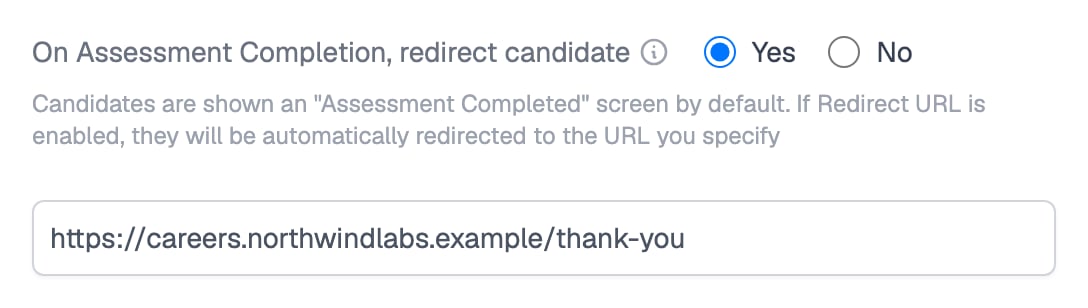
The redirect option set to Yes, with the destination in the Redirect URL field
What Candidates Experience
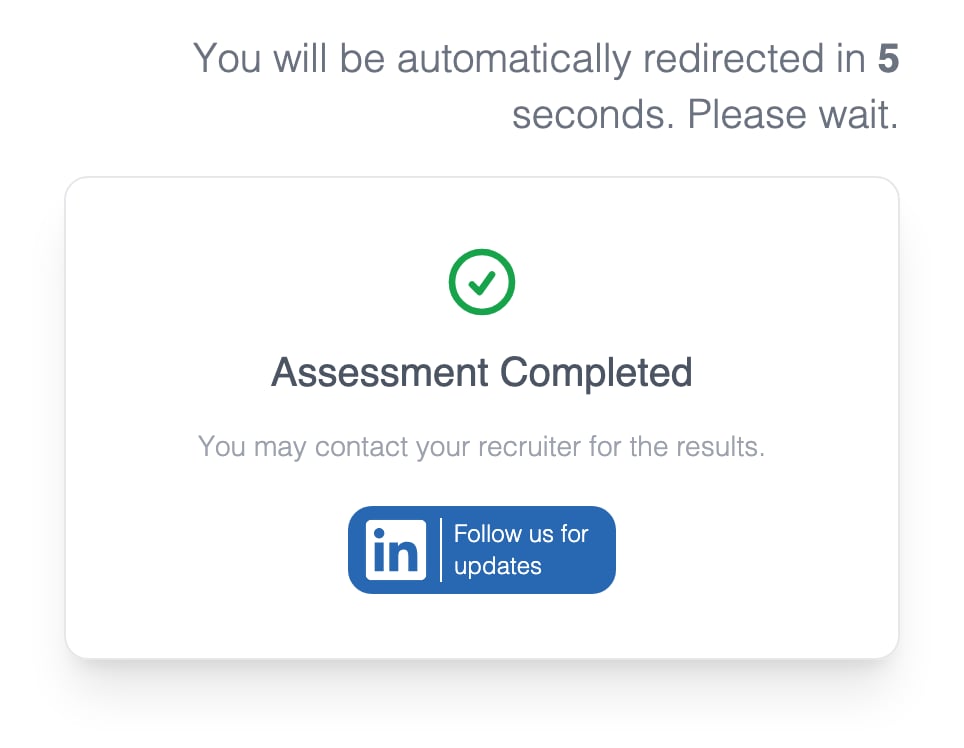
With a redirect set, the completed screen counts down from 5 before sending the candidate on
Related Resources
- Assessment Settings - All the assessment-level options you can configure
- Taking an Assessment - The full candidate journey from invitation to submission
- Candidate Says They Submitted - What to check when a submission does not show up