
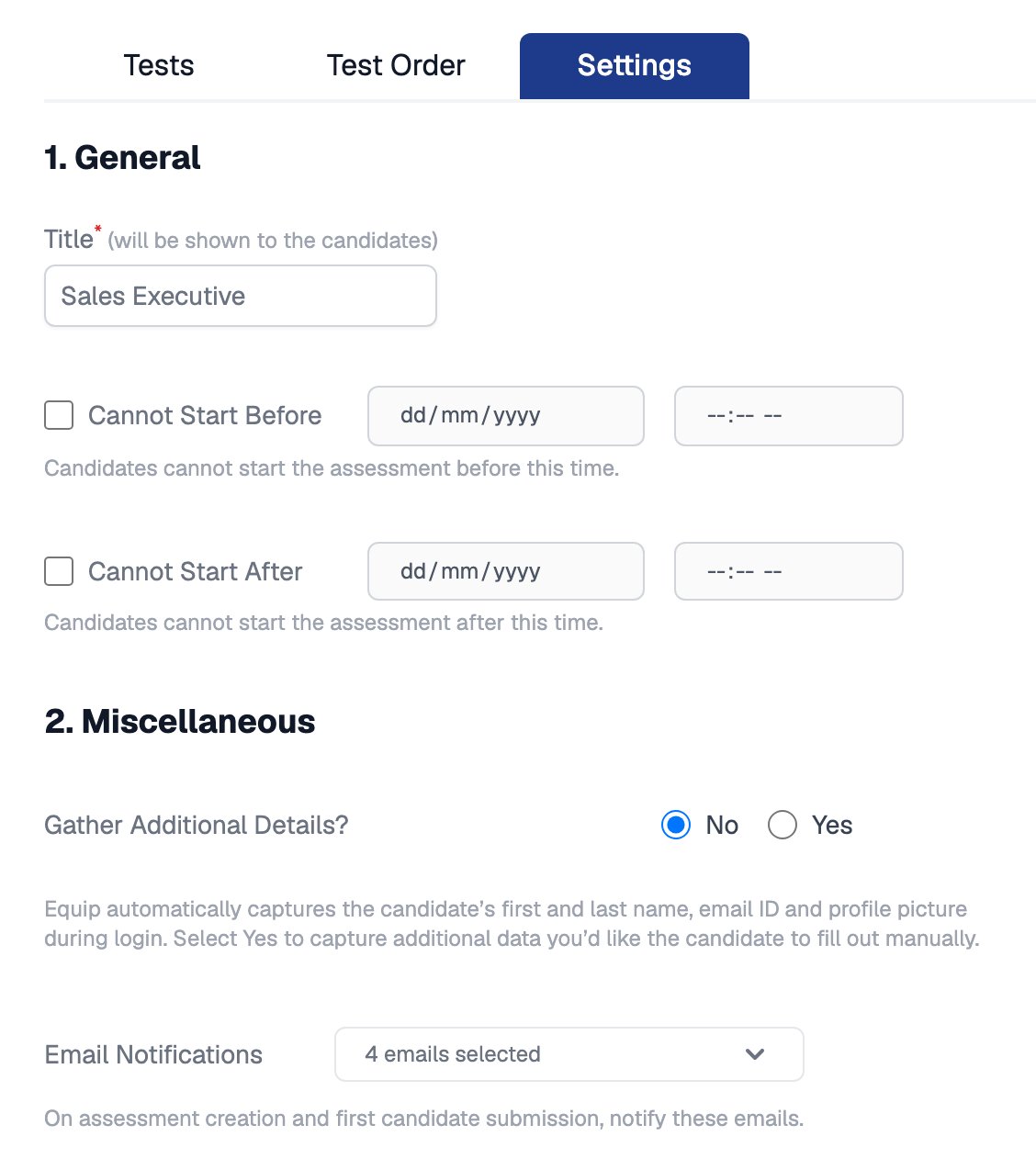
The Settings tab opens with the General options, followed by Miscellaneous
General Settings
Equip’s default instructions already explain points, negative marking, duration, proctoring, and demo tests. Adding your own replaces the defaults entirely.
Start Window
In the Timer section, set Cannot Start Before, Cannot Start After, or both.The start window controls when candidates can begin, not when they must finish. There is no assessment-level time limit; see Time Limits.
Candidate Details to Collect
Equip automatically captures each candidate’s first name, last name, email address, and a live photo during login. To collect more, set Gather Additional Details to Yes and choose fields under See Details:- Phone Number
- LinkedIn URL
- Student ID
- College Name
- Graduation Year
- Department
- Work Experience (in years)
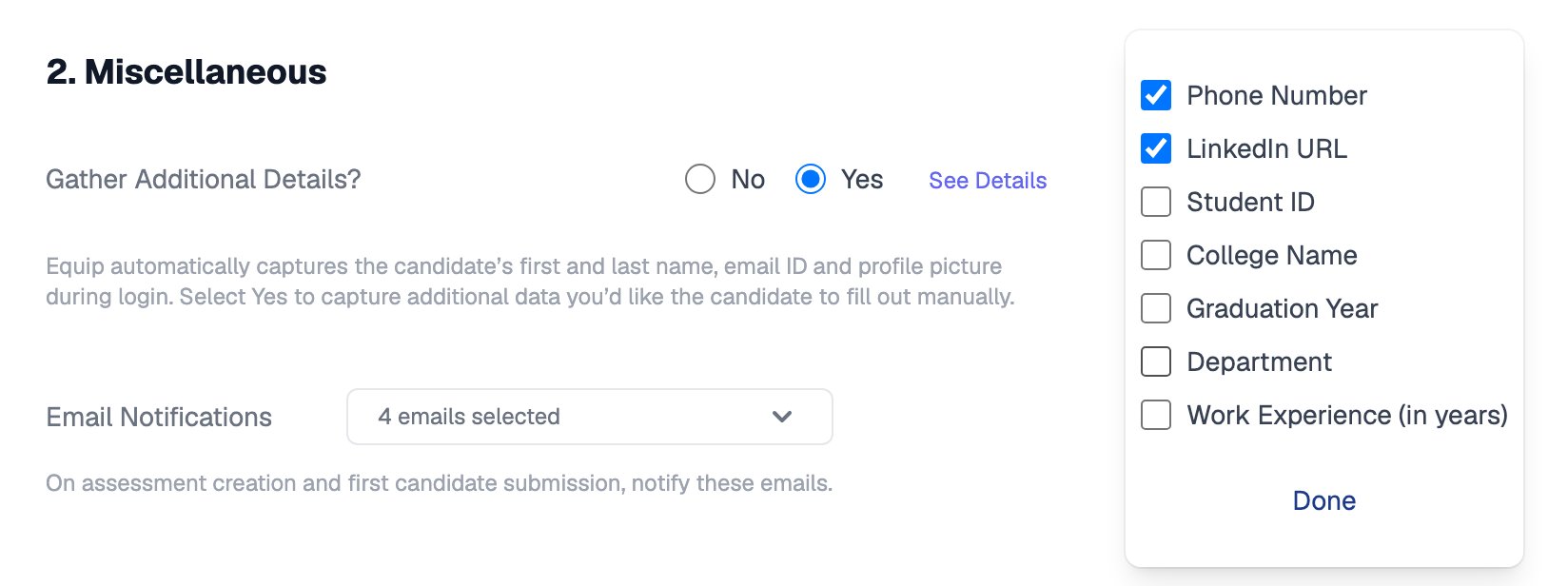
With Gather Additional Details set to Yes, choose the fields candidates fill in
Per-Test Settings
Settings for individual tests live in the Test Order tab, not the Settings tab:1
Open the Test Order tab
Switch from the Settings tab to Test Order.
2
Reorder tests and set weightage
Drag tests to change their order and assign a weightage to each. Weightages must add up to 100.
3
Adjust proctoring per test
Open each test’s proctoring options. See Proctoring Settings.
4
Randomize coding questions (optional)
For Programming and SQL tests, click the Randomize icon to attach multiple questions so each candidate receives one at random.
Time limits on Equip’s own content are fixed and cannot be changed. Only Custom Tests let you set your own per-question or per-test timers. Psychometric and Typing Tests carry no weightage and are excluded from the overall score.
Related Resources
- Proctoring Settings - Configure camera, microphone, and anti-cheating options per test
- Time Limits - How timers work at the question, test, and assessment level
- Write Results to Google Sheets - Full setup guide for the real-time spreadsheet integration
- Test Scores and Overall Score - How weightages turn individual test scores into one overall score