
Enabling the Sync
1
Create a Google Spreadsheet
Create a new, empty spreadsheet in your Google account.
2
Grant Editor access to hello@equip.co
Share the spreadsheet with
hello@equip.co as Editor.3
Paste the spreadsheet URL in assessment settings
Open the assessment’s Settings tab, find Write results to Google Sheets under Miscellaneous, and paste the spreadsheet URL. Click Create/Update to save.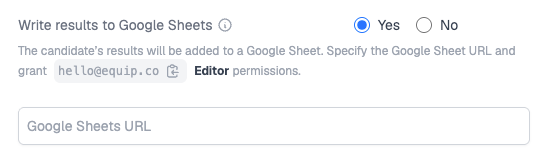
What Gets Synced
Equip creates one sheet per test plus an overall assessment sheet inside your spreadsheet. Sheet names come from the assessment and test titles, so give each a distinct title.
See a sample results spreadsheet.
Troubleshooting
- Older attempts are missing. Only candidates who attempt the assessment after you set up the sync are written to the sheet. Use Export Results for earlier attempts.
- The sync stopped working. Check that
hello@equip.costill has Editor permission and that the spreadsheet URL saved in assessment settings is correct. - Rows stopped appearing after edits to the spreadsheet. Do not rename the sheets Equip creates, and do not change their column names. Equip relies on both to find where to write.
The full results, including per-question detail and proctoring evidence, always remain available on your Equip dashboard.
Related Resources
- Download Reports - Export results to Excel or PDF instead of a live sync
- Test Scores and Overall Score - How the scores written to the sheet are calculated
- Missing Results - Why a candidate might not appear in your results
- Webhooks - Push results to your own systems programmatically