
Starting a New Assessment
1
Click Add Assessment
From the Assessments Dashboard, click Add Assessment in the sidebar.
2
Enter the role and experience
Type the role, for example “Python Developer,” select the Years of Experience, and click Continue. Equip suggests tests and skills at a difficulty level matched to the experience. Adjust, add, or remove tests before saving.
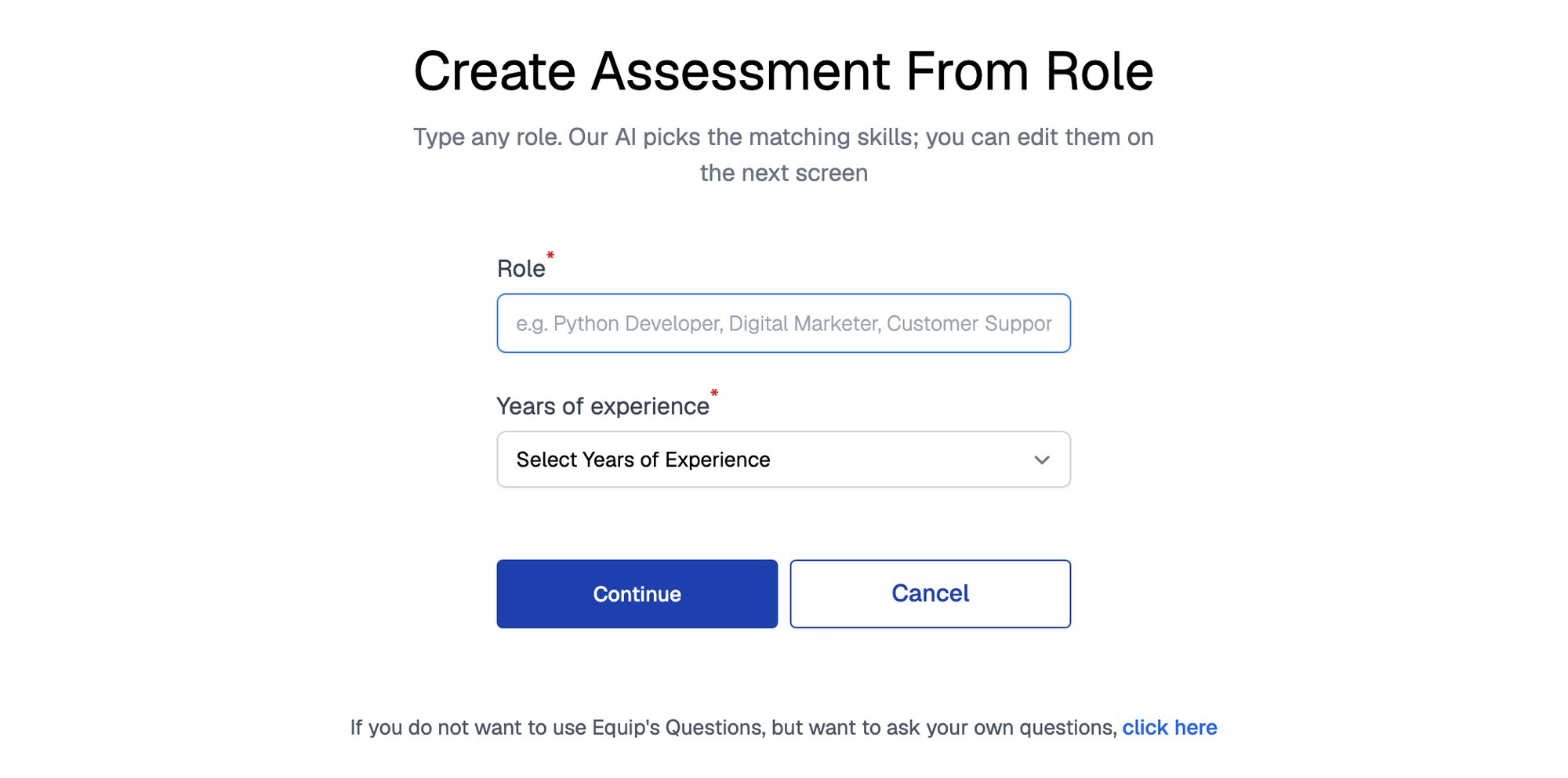
The Create Assessment From Role form, with the Role and Years of experience fields
If you cannot find the role or skill you need, Equip can build the test for you, or you can create a custom test. See Can’t Find a Role or Skill.
Step 1: Add Tests
On the Tests tab, pick a test type on the left, then add one or more tests of that type.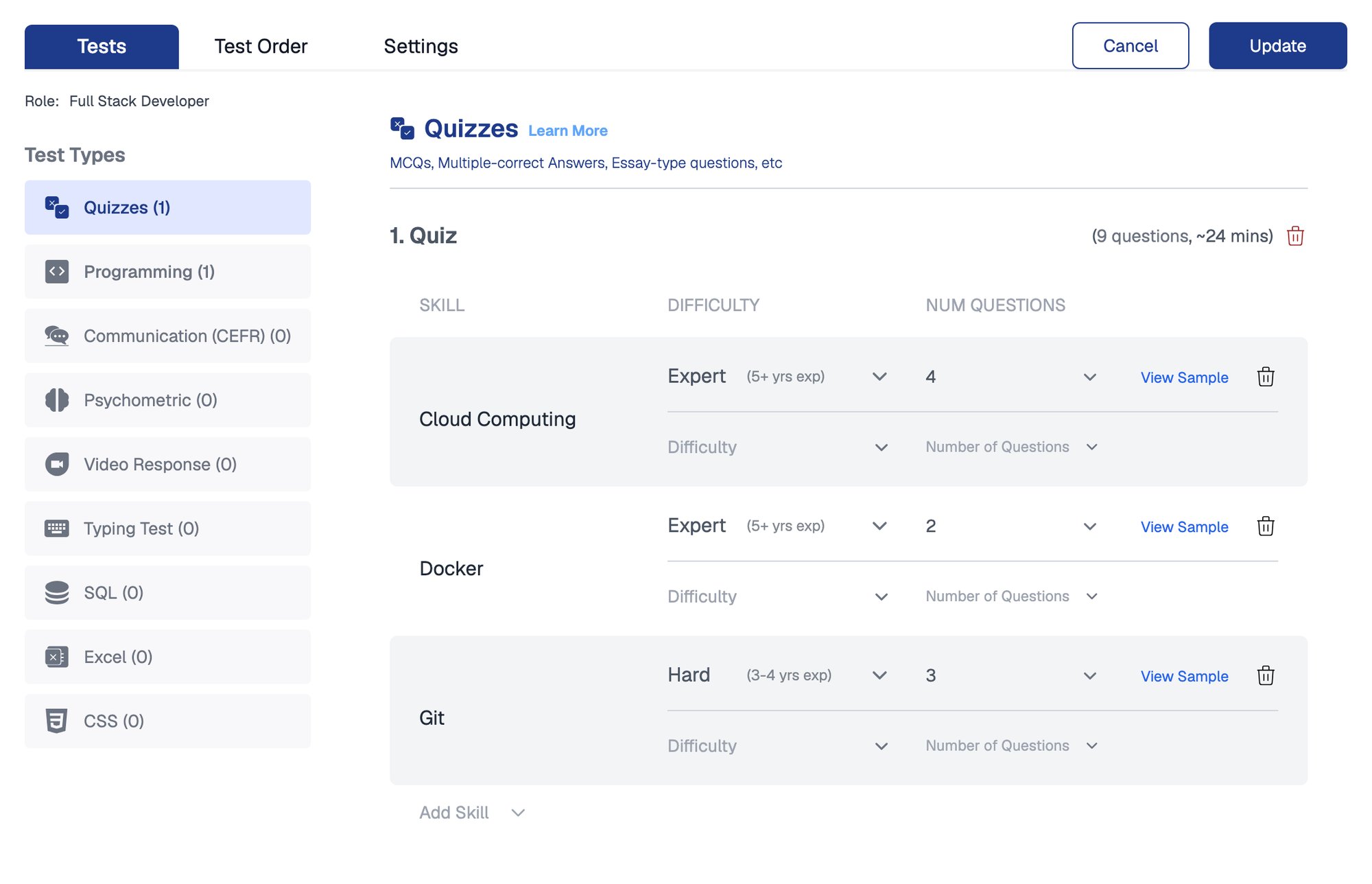
The Tests tab, with test types on the left and the tests of the selected type on the right
The builder will not let you proceed with an empty assessment, an Equip quiz or Excel test with no questions, or a programming test with no language enabled. An Equip quiz holds at most 25 questions in total.
Step 2: Order Tests and Set Weightage
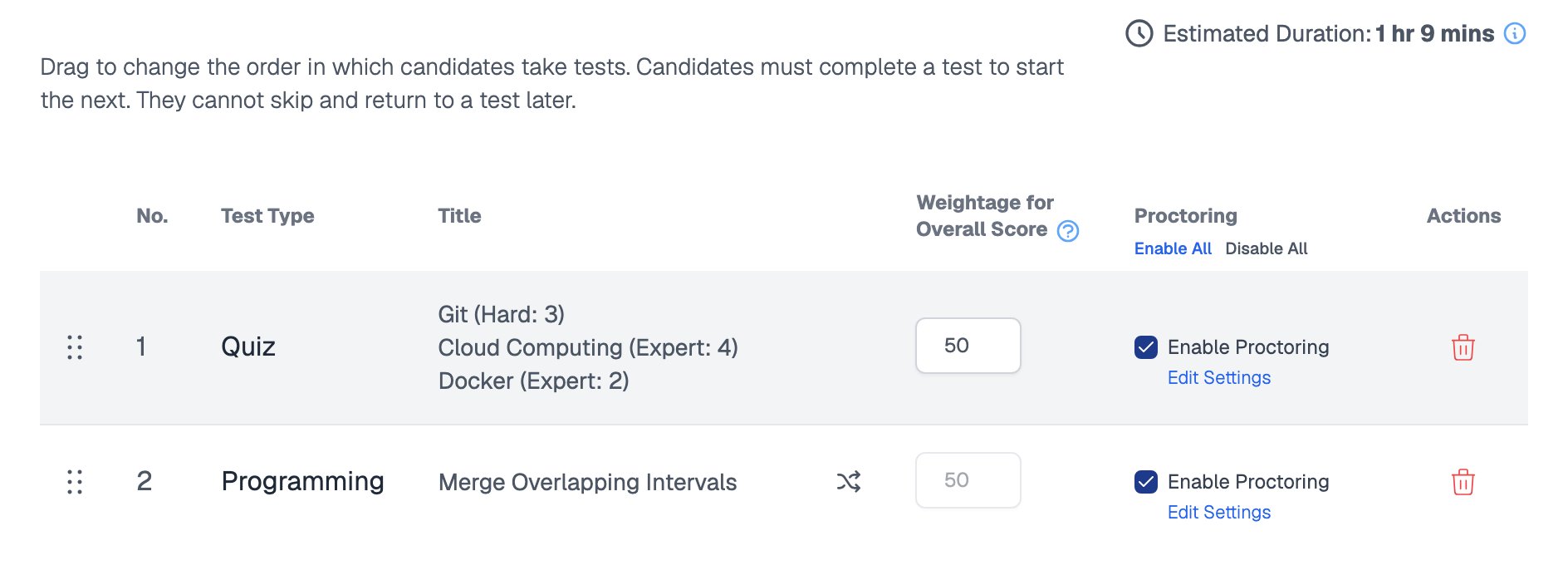
The Test Order tab, with a drag handle and a weightage for each test and the estimated duration above
1
Arrange the tests
On the Test Order tab, drag tests into the order you want candidates to attempt them. Equip computes the Estimated Assessment Duration from the timers on every question and test.
2
Set weightage per test
Assign each test a weightage. Weightage is split equally by default, and the weightages must add up to exactly 100. See Test Scores and Overall Score for a worked example.
- Proctoring settings are configured per test here, not in the Settings tab. See Proctoring Settings.
- The Randomize icon on coding tests lets you attach a pool of Programming or SQL questions so each candidate receives one at random. See Randomize Coding Questions.
Step 3: Configure Settings
On the Settings tab, the Assessment Title is required and is shown to candidates.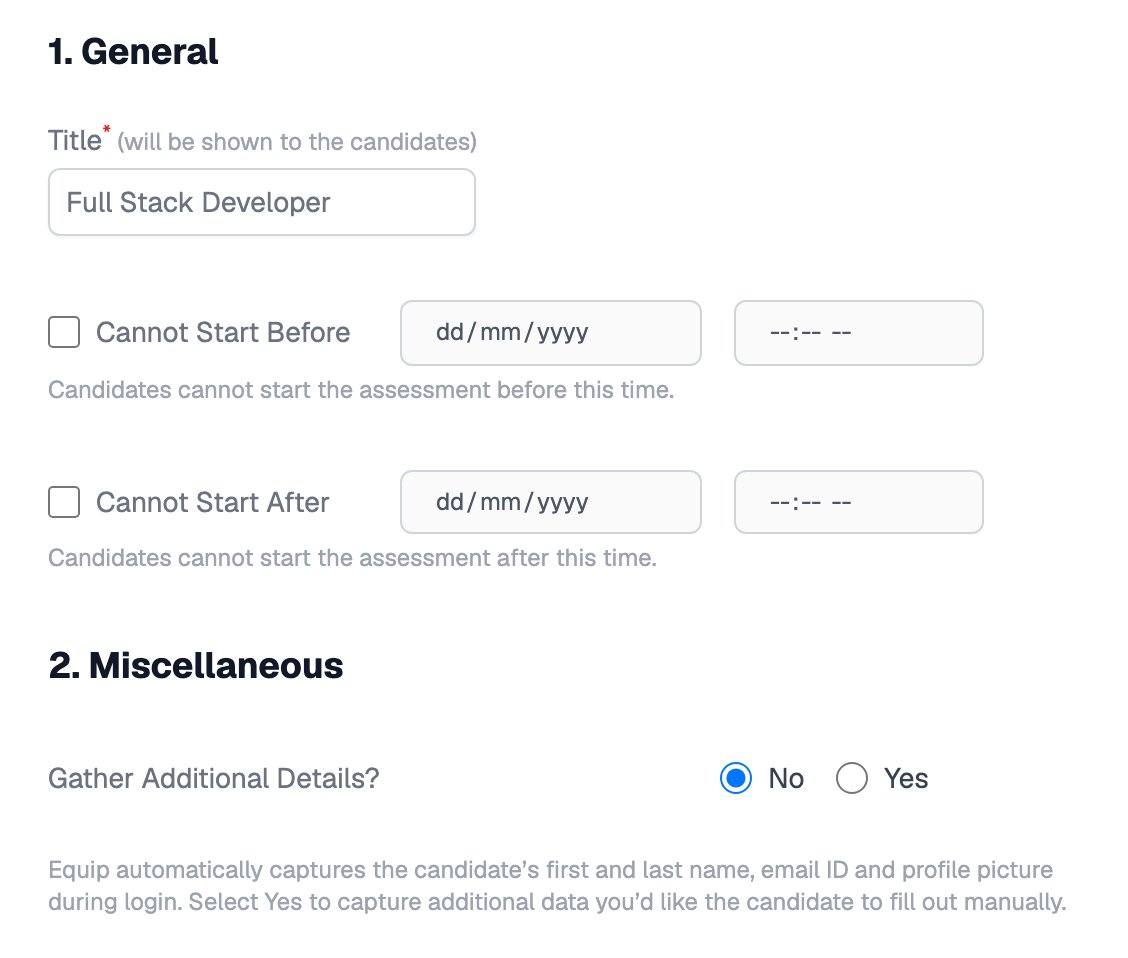
The Settings tab, with the assessment title, the start window and Gather Additional Details
Save, then start inviting candidates.
Related Resources
- Test Types - What each test type measures and which devices it supports
- Equip vs Custom Content - Choose between Equip’s library and your own questions
- Assessment Settings - Every option in the Settings tab, explained in detail
- Preview an Assessment - Try your assessment for free before inviting candidates