
Recruiter Preview vs Candidate Preview
1
Open your assessment
Go to the Assessments Dashboard.
2
Click Preview
Use the preview link on the dashboard, or open the assessment’s settings and click Preview at the top.
3
Choose a preview mode
Pick As a Recruiter for a quick look, or As a Candidate for the full candidate experience.
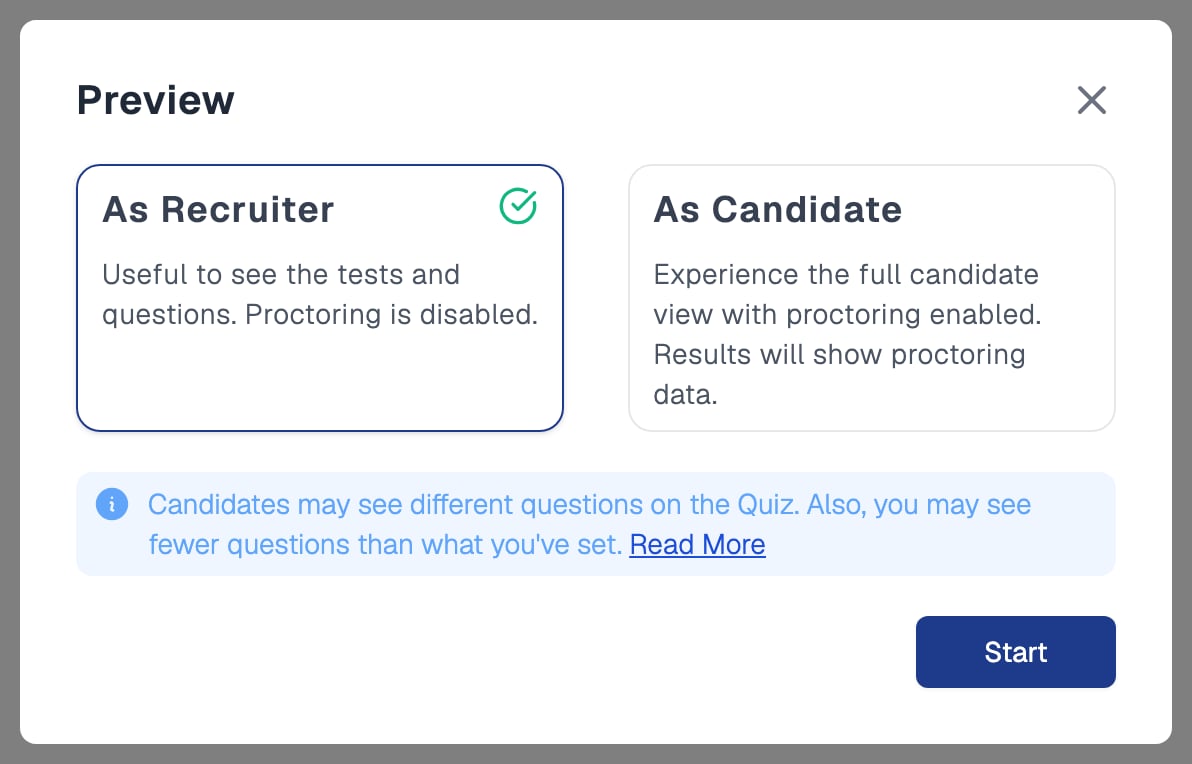
Preview offers two modes, As Recruiter and As Candidate
Use As a Candidate at least once before sharing an assessment widely.
Sample Questions in Previews
Previews show the same questions candidates see, with one exception: quizzes that use Equip’s content show questions from a separate Sample Question Bank. Sample questions are matched to the same skill and difficulty you configured. This keeps the real question bank from being harvested through previews. See Why You Cannot See Quiz Questions.If the Sample Question Bank has fewer questions than you configured, your preview shows fewer questions. Candidates still see every question you configured.
Unlocking Locked Questions
On a new account, Equip-content quizzes let you add up to 4 questions per skill, per difficulty level. See Question Limits for every cap.1
Subscribe to a plan
Any Equip plan, Standard, Premium, or Elite, unlocks up to 10 questions per skill per difficulty level. See How Credits Work.
2
Return to the assessment builder
Open the Tests tab of your assessment and increase the question count.
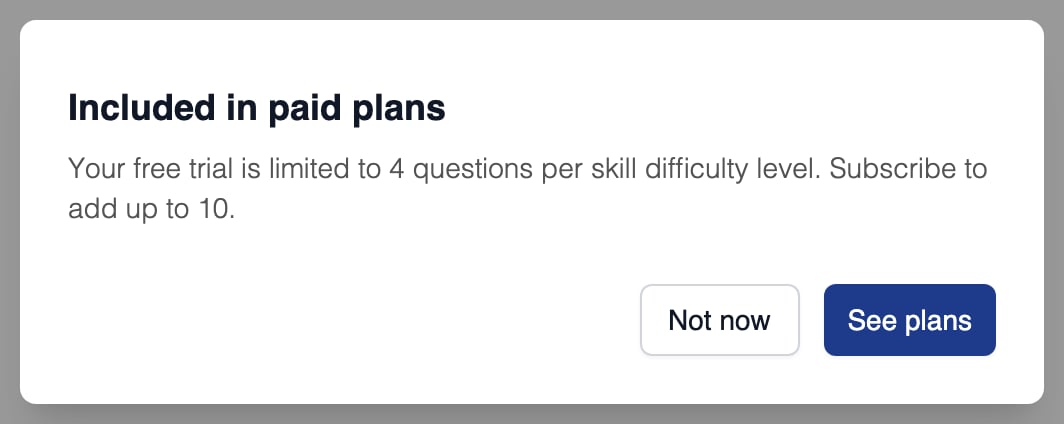
On a free trial, asking for more than 4 questions per skill and level opens this prompt to subscribe
Related Resources
- Assessment Invitations vs Preview - When each costs credits and what candidates see
- Why You Cannot See Quiz Questions - The reasoning behind hidden Equip quiz questions
- Creating an Assessment - Build the assessment you want to preview
- How Credits Work - Purchasing credits and how they are deducted