
How to Archive
1
Locate the assessment
Open your Assessments Dashboard.
2
Click Archive
Click Archive in the Actions column for that assessment. It leaves your dashboard and no new attempts can be made.
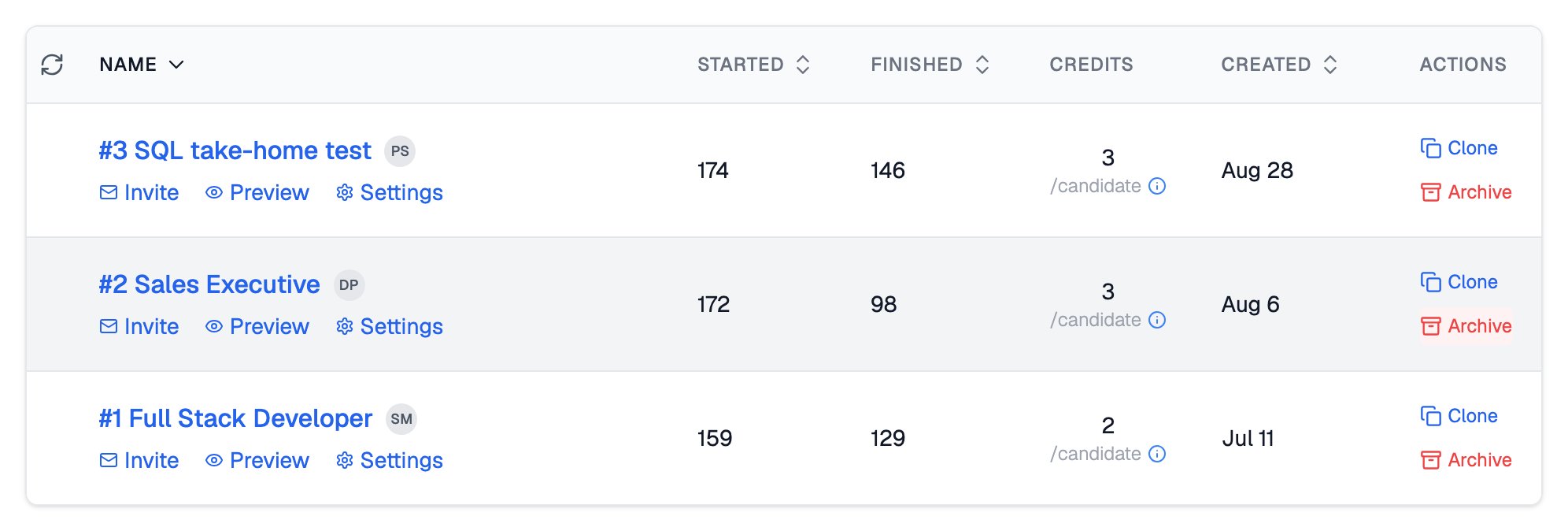
Archive sits in the Actions column of each assessment on the dashboard
What Candidates See
Un-Archiving
You can restore an archived assessment to your dashboard at any time.1
Open the Usage page
Go to your Usage page.
2
View archived assessments
Click the link to your archived assessments.
3
Make it active
Click the three dots next to the assessment and choose the option to make it active.
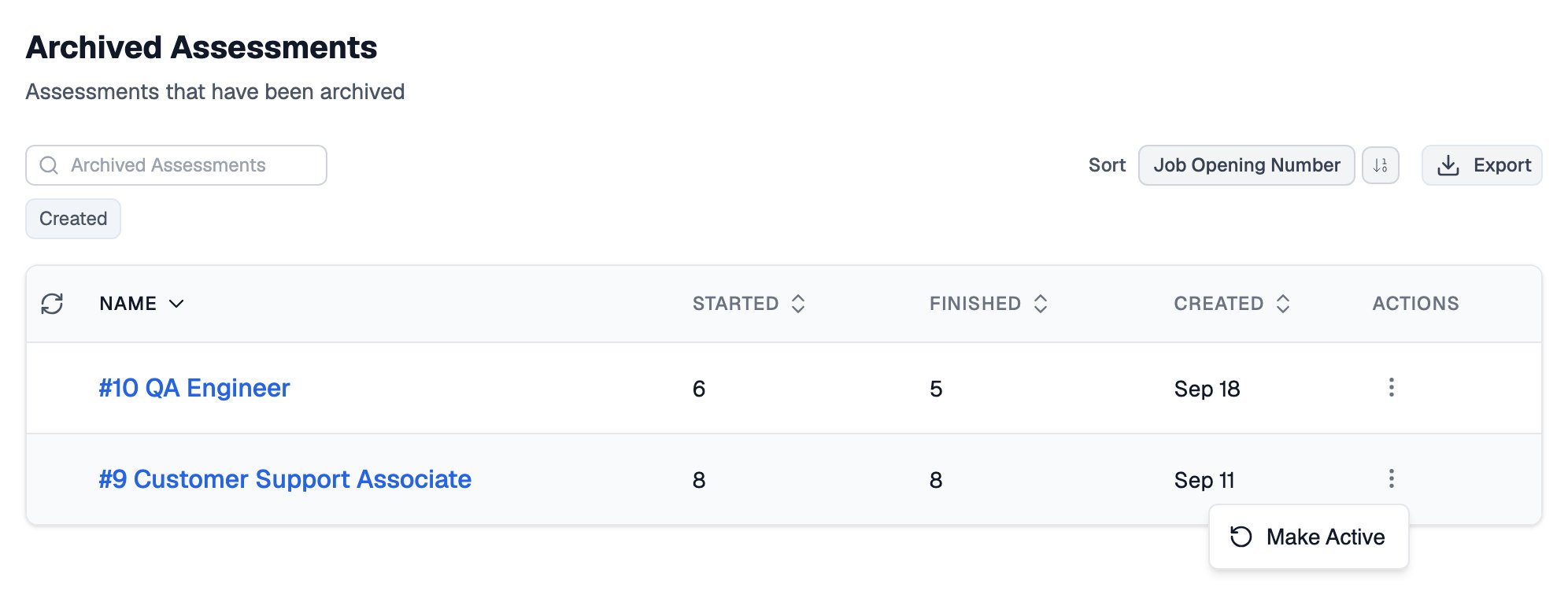
The archived list, where the three-dots menu on a row offers Make Active
You do not need to un-archive an assessment to review its results. Click it in the archived assessments list.
Related Resources
- Creating an Assessment - Set up your next assessment from scratch
- Reclaiming Credits - Get credits back for invitations that were never started
- Test Scores and Overall Score - How results are calculated and where to review them
- Live Progress - Monitor attempts in real time before you close an assessment