
The Two Link Modes
After you create an assessment or AI interview, Equip gives you two ways to put it in front of candidates:- Unique URL: You add candidates’ email IDs on Equip, and Equip emails them on your behalf. Each candidate receives a unique link that works only once.
- Common URL: A shared URL that looks like
equip.co/assessments/abcdefg. Paste it anywhere, such as a job description or your careers page.
equip.co/ai-interviews/<label>.
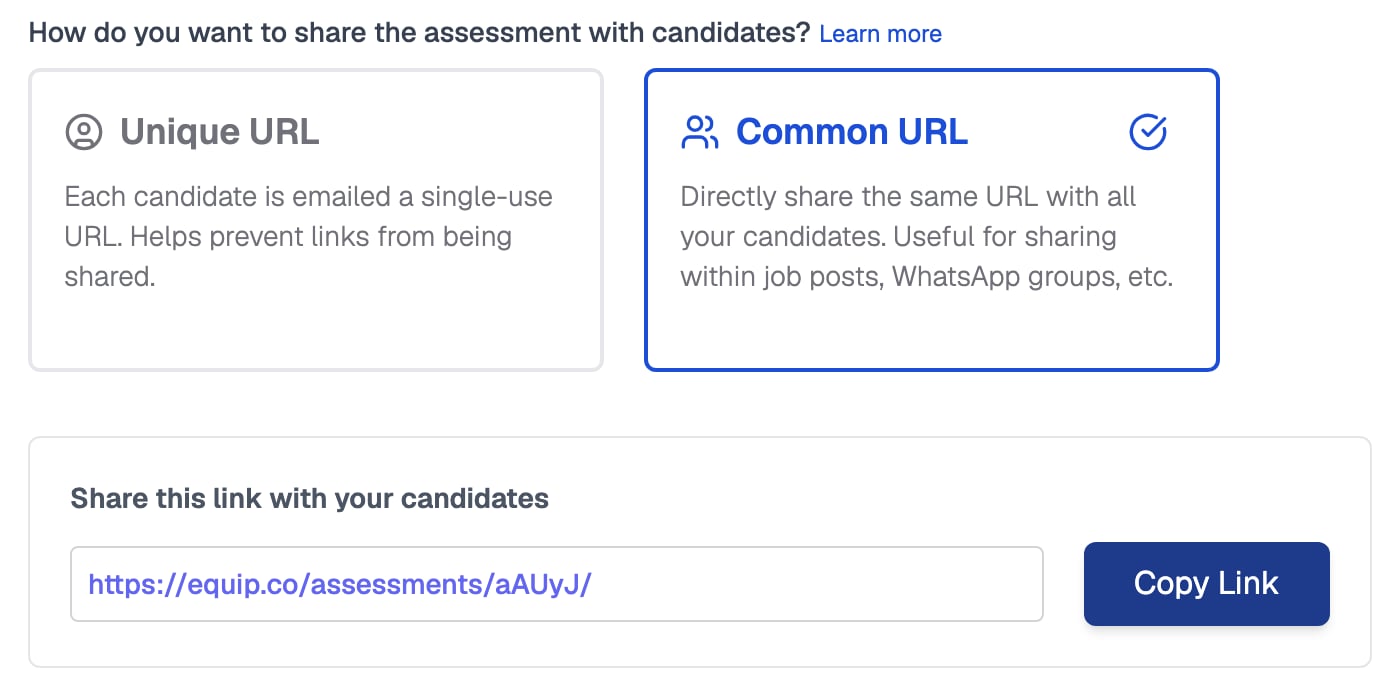
The invite page offers both modes, and Common URL gives you one link to share
Common URL
1
Candidate opens the link and enters their email ID
Equip sends a one-time verification code to that address.
2
Candidate verifies and starts
After entering the code, the assessment or AI interview begins.
Unique URL
1
Invite candidates
Click Invite on the assessment or AI interview, and add email addresses or upload a CSV, then send.
2
Candidate verifies and starts
The one-time verification code always goes to the address you invited, so a forwarded link is useless to anyone else.
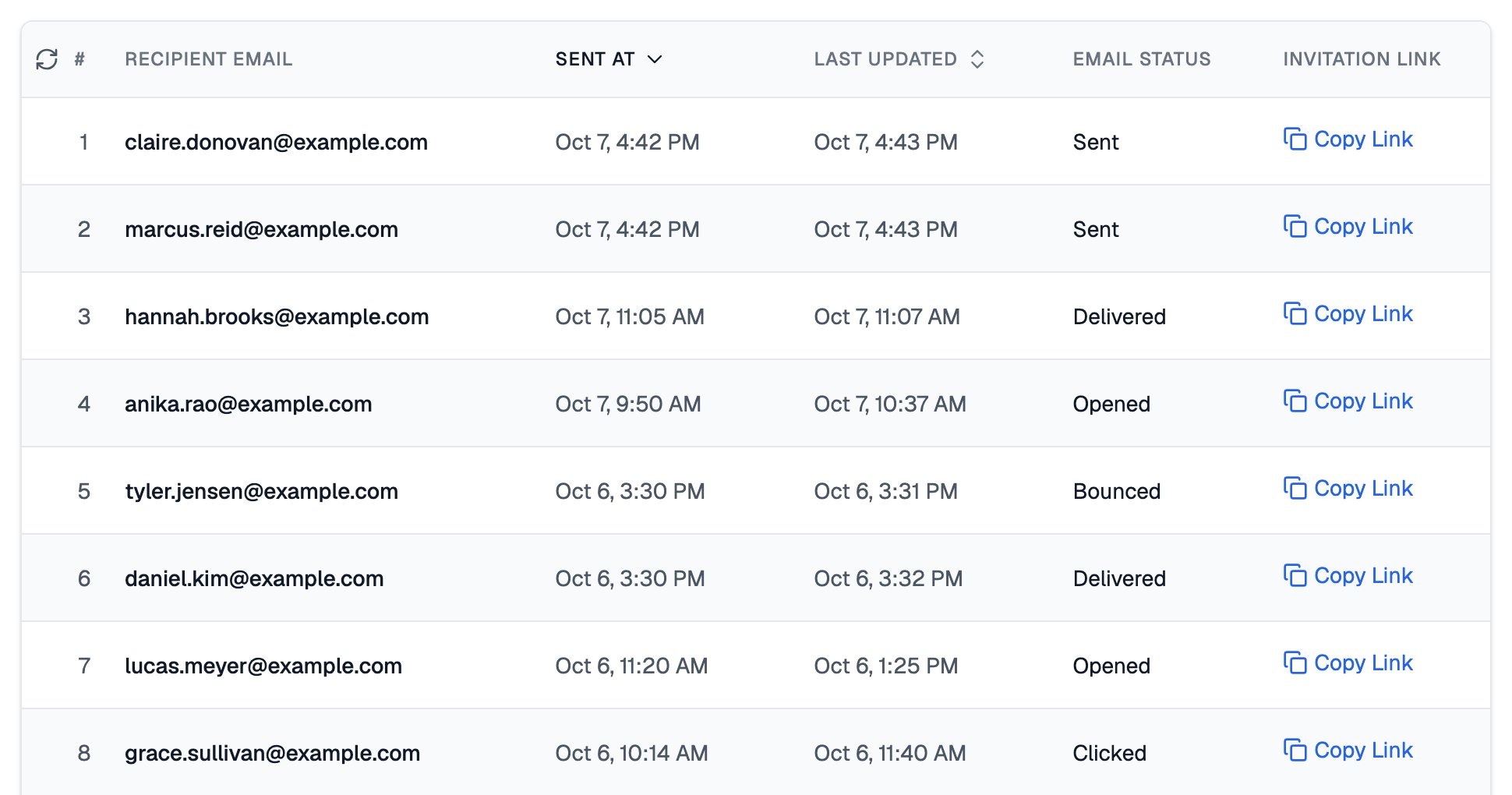
Each invited candidate gets a row with the status of their email
A Unique URL deducts credits at the moment you send the invitation: 1 credit per candidate for an assessment, or the AI interview’s per-candidate rate (2 credits for Quick, 3 for Comprehensive, one-way tiered by question count). If a candidate never starts, you can reclaim that credit after 24 hours. See Reclaim Credits.
If the assessment or AI interview is a stage of a job opening, invite candidates by moving them to that stage in the Job Applications Dashboard. See Changing Stages.
Which Should You Use
Related Resources
- Email Invitations - How to send invitations, upload a CSV, and customize the email
- Invitation Links - How unique links, expiry, and revoking work
- Credit Deduction Policy - When credits are deducted for assessments and AI interviews
- Reclaim Credits - Get credits back for unattempted invitations