
The Default Sender
Every email sent from the Invite page of an assessment or AI interview has three sender-related parts:Customizing the Sender
1
Open your Profile page
Go to your Profile page.
2
Update your name
Edit your first and last name. New invitations sent with you selected as the Sender use the updated name.
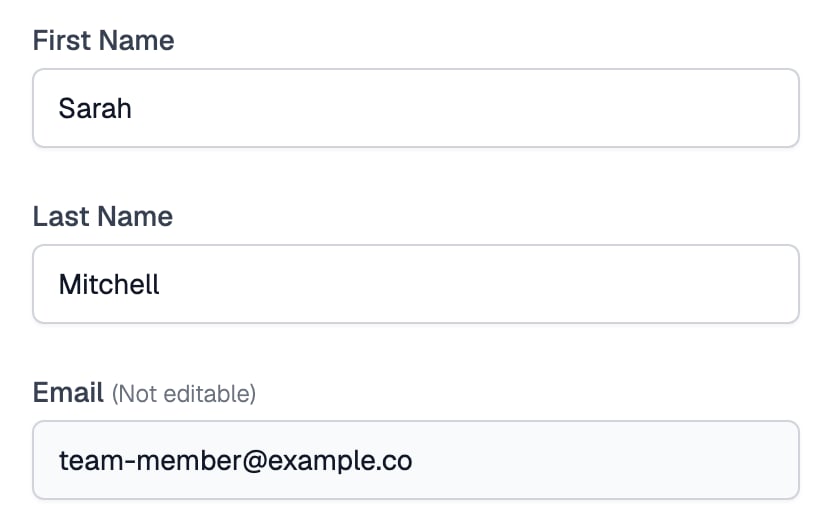
First Name and Last Name on your profile make up the sender name
Reply-To Addresses
The reply-to address is the email of the team member who sends the invitation, so candidate replies land in their inbox. Your login email cannot be changed, so to use a different reply-to address, send as a teammate. Open the Invite link under your assessment or AI interview and pick them in the Sender dropdown on the Send Invitations tab.
The Sender field on the Send Invitations tab, set to a teammate's address
Emails Sent from the Hiring Pipeline
When you move candidates between stages in a job opening, the email dialog (assessment or AI interview invite, live interview, custom stage, offer, rejection) sets the sender differently:
Check Set email receiving replies in the dialog to pick the team member whose email receives replies.
Related Resources
- Email Invitations - How to invite candidates and configure the invitation email
- Email Status - Track whether invitations were delivered, opened, and clicked
- Share URL vs Email Invitations - Compare email invitations with a shared public link
- Members and Seats - Add teammates whose emails can appear as the sender