
Create a Report Template
One template can be reused across many interviews.1
Open the templates page
Go to Templates, under Account in the sidebar, and open AI Interview Reports.
2
Name the new template
Enter a Template Name and a short Description so teammates know when to use it.
3
Fill in the editor tabs
Complete the three required tabs: LLM Prompt, Response Schema, and Jinja Template. Use the fourth tab, Preview, to check the rendered result before saving.
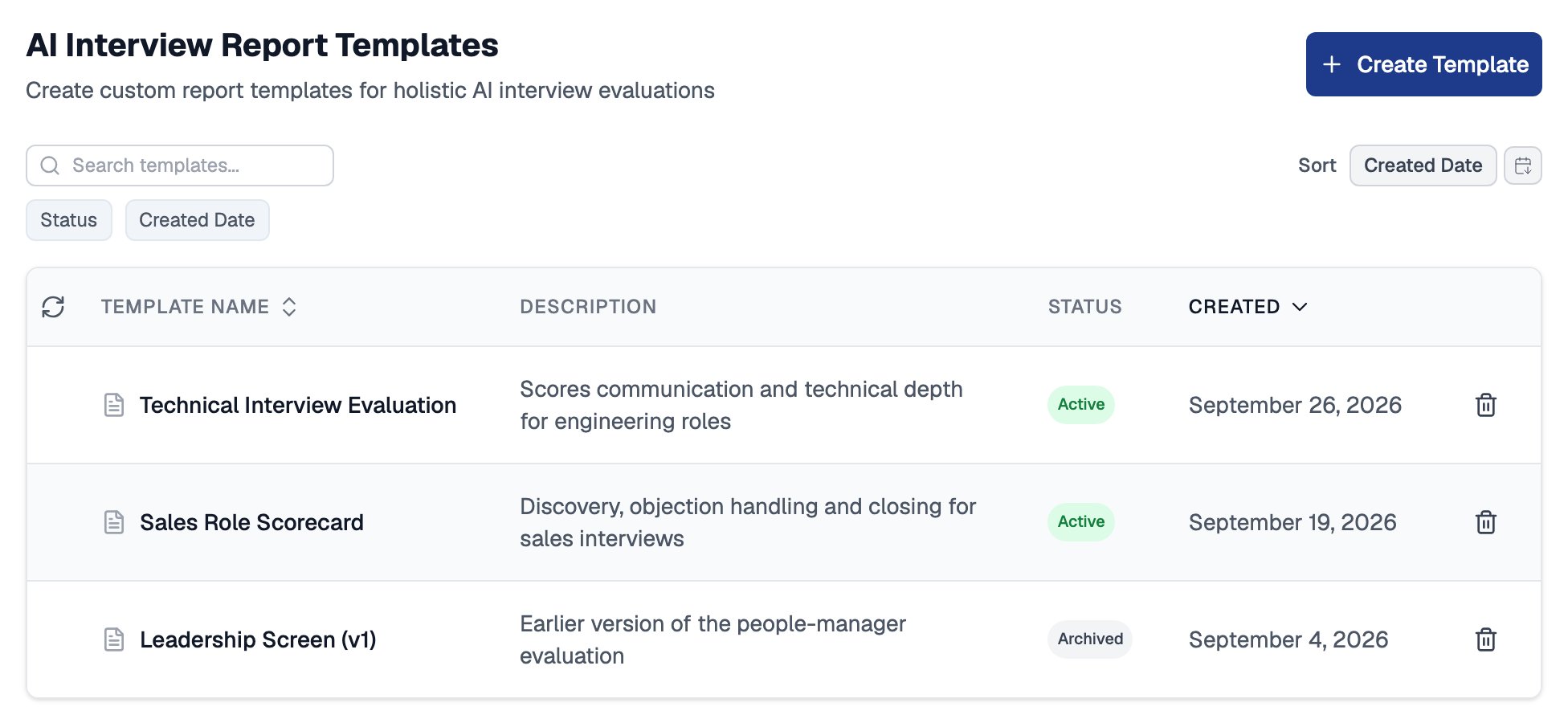
The report template library, with each template's description, status and created date
Evaluation Prompts
The LLM Prompt tab holds the instructions the AI follows when it evaluates candidate responses. At the end of your prompt, point to{{response_schema}} so the AI has the schema as context when it writes its evaluation.
Output Schema
The Response Schema tab defines the structure of the AI’s evaluation as a JSON schema, and the AI’s output is constrained to match it. Every field you define here becomes a variable you can place in the report layout. For example:Report Layout and Preview
The Jinja Template tab is where you design the report itself. Write HTML and drop in schema fields as Jinja variables, for example:{"communication_score": 85}, to see how a finished report will look.
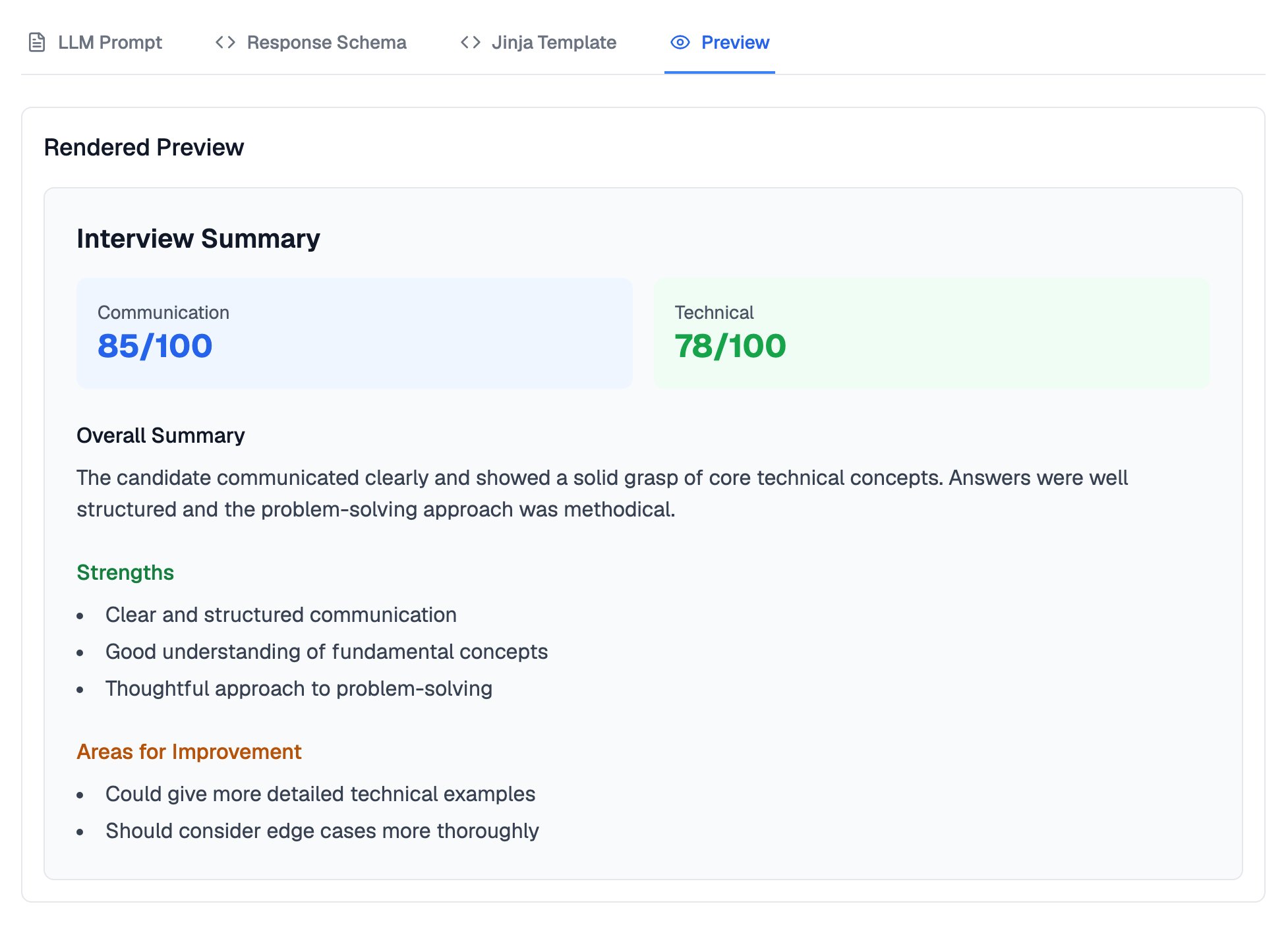
The Preview tab renders the layout with the template's sample data
Attach a Template to an Interview
Templates are attached per interview. For conversational interviews, pick a template from the Report Template dropdown in the Settings section of the interview’s settings page. For one-way interviews, the template is attached under the template’s own settings instead.
Once a template is attached, the rendered report appears in place of the default summary on the candidate’s results page.
Select None in the dropdown to restore the default report for future interviews.
Related Resources
- AI Interview Reports - What the default conversational report contains and where reports live
- Interview Settings - Every option on the interview settings page, including the Report Template dropdown
- Create a Conversational Interview - Set up the interview your template will report on
- Contact Support - Ask for access if the feature is not visible to your team yet