
Open the Settings Page
1
Go to the AI Interviews dashboard
Open AI Interviews from the sidebar.
2
Click Settings
Each interview in the list has a Settings link.
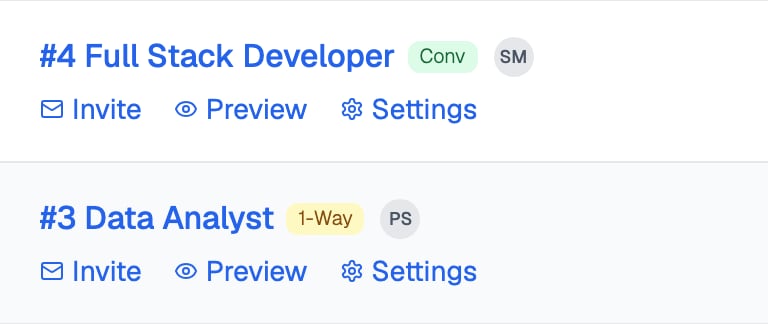
Each interview on the dashboard has Invite, Preview and Settings links
For one-way interviews, the questions themselves live in the linked template, not on the settings page.
Availability Window
When set, candidates can start the interview only inside this window. On conversational interviews this appears as Availability window (optional) in the Settings section. On one-way interviews the same pickers live under Timer Settings.1
Set the start of the window
Use the Cannot Start Before date and time picker.
2
Set the end of the window
Use the Cannot Start After picker. The end must be after the start.
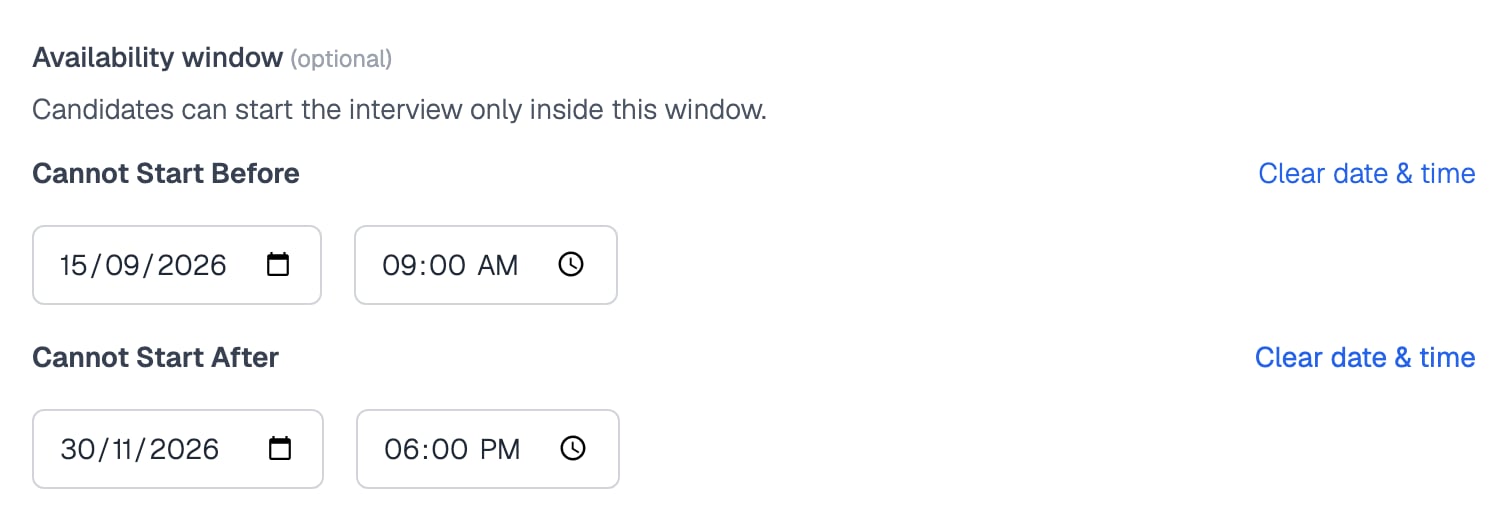
The availability window, with a start and an end set
Restart Policy
The Allow resuming unfinished attempt toggle controls what happens when a candidate leaves before submitting. It is off by default, so a candidate who leaves mid-interview cannot come back and restart. When it is on, candidates can restart if they leave before submitting. Restarts are unlimited until they submit, and only the submitted attempt is graded.Proctoring Options
The Proctoring Settings section is collapsed by default. AI interviews use the same proctoring options as Equip assessments, explained in Proctoring Settings.Detect Audio is shown but disabled for AI interviews, since interviews are already audio or video by nature.
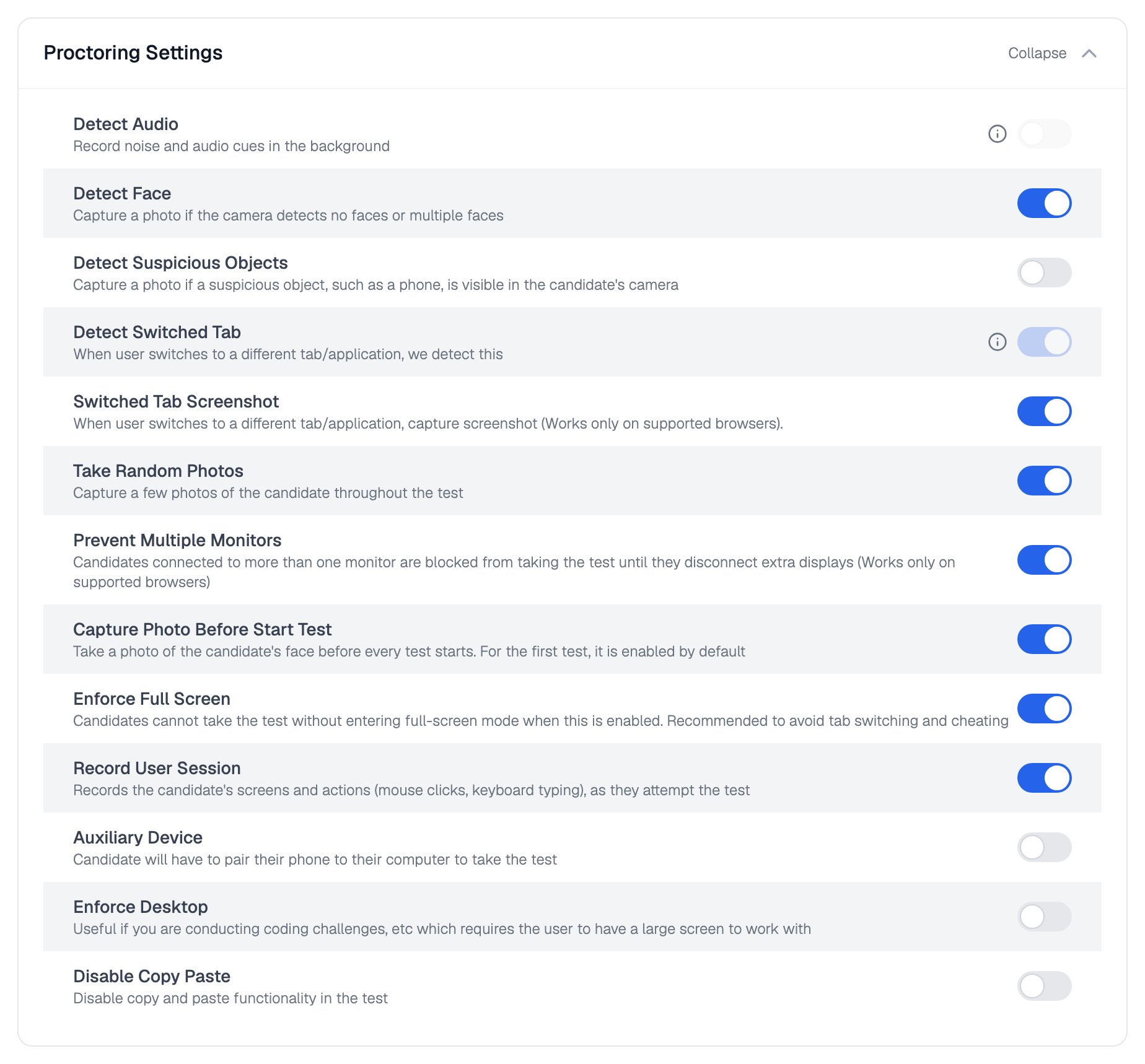
Proctoring Settings expanded on an AI interview
Other Settings
A few more options live in the settings section. Some are being rolled out gradually and may not appear for every team yet.Related Resources
- Proctoring Settings - The same proctoring options explained in the context of assessments
- Interview Workspace - How the code and text Workspace works for candidates and in reports
- Custom Report Templates - Replace the default interview report with your own template
- Candidate Reattempts - How reattempts work across assessments and interviews