
Choosing a Content Type
The Add item menu offers all three types:
Item text is required and can be up to 500 characters.
When you create a conversational interview, Equip’s AI drafts an initial set of topics from your job description. You can change them before inviting candidates.
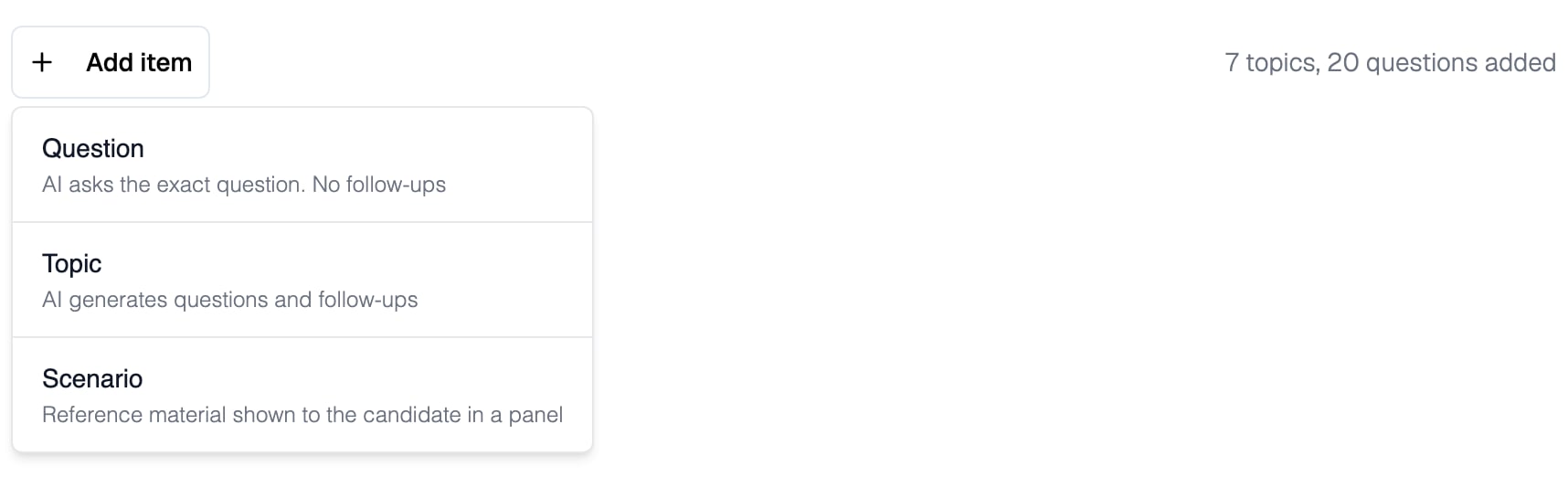
Add item offers a Question, a Topic or a Scenario
Questions
The AI reads a Question to the candidate exactly as you wrote it and never asks follow-ups, so every candidate hears identical wording.Each Question adds exactly 1 to your interview’s question count. Topics and Scenarios can add more: see How Items Count Toward Limits.
Topics and Follow-Ups
A Topic is a theme rather than a script. You describe the area to evaluate, and the AI generates its own questions around it during the live conversation, adapting to what the candidate says. Each Topic has a Follow-ups setting from 0 to 5. Follow-ups are the extra probing questions the AI may ask after the candidate’s initial answer.1
Add a Topic
Click Add item, choose the Topic type, and describe what the AI should explore, for example a skill, a project type, or a behavioral trait.
2
Set follow-ups and difficulty
Higher follow-up counts consume more of your total question limit.
Scenarios
A Scenario presents reference material that the candidate can see in a side panel while they discuss it with the AI. A Scenario has two parts:
Use AI context to describe anything the AI cannot parse from the candidate view, such as what an image or diagram shows.
Scenarios are rolling out gradually and may not yet appear in your Add item menu. Scenarios pair well with the Interview Workspace.
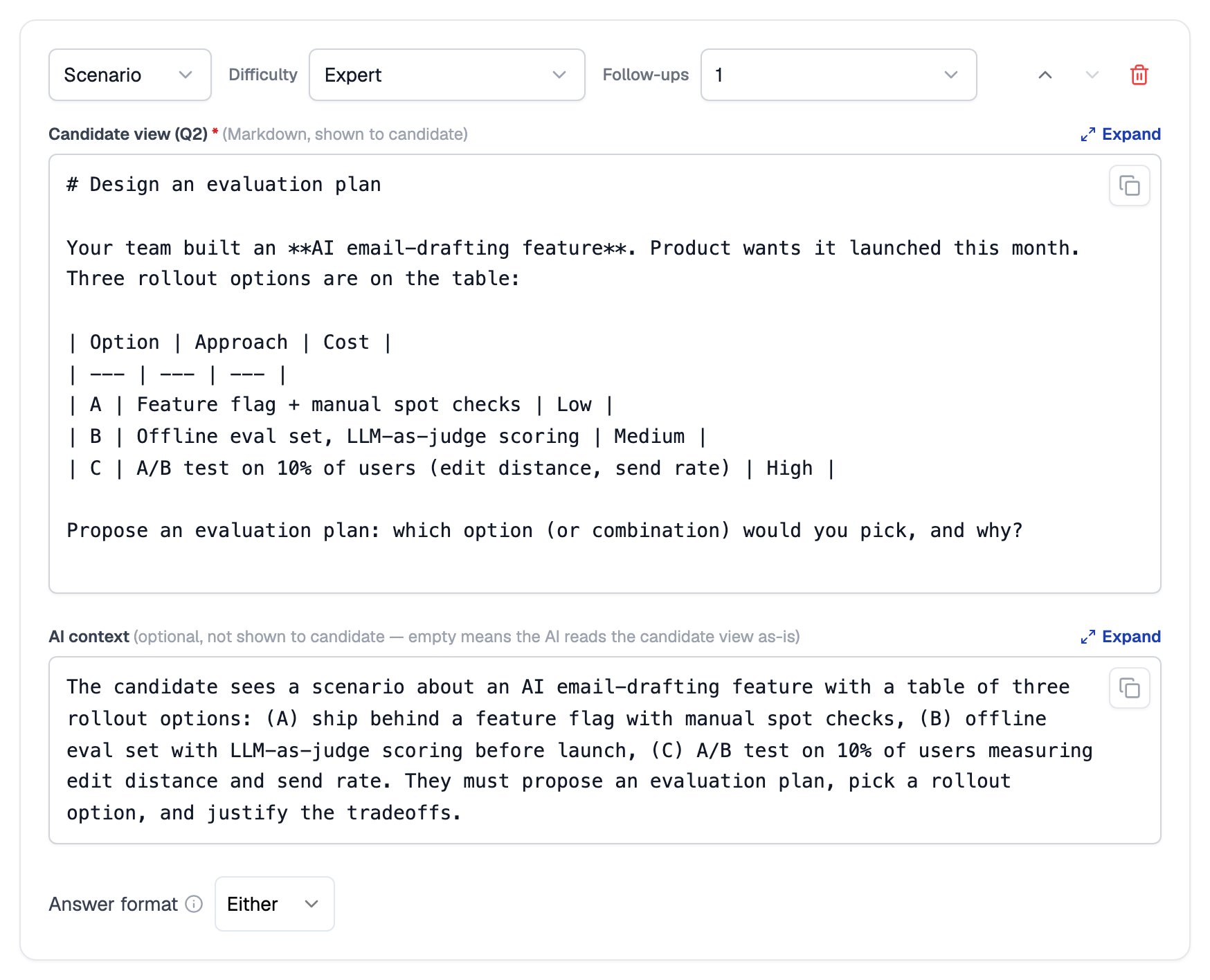
A Scenario has a candidate view written in Markdown and an optional AI context
Difficulty Levels
Every item carries a Difficulty setting of Medium, Hard, or Expert. Difficulty determines how much the item weighs in the candidate’s score:How Items Count Toward Limits
Each item counts as 1 topic, and the total question count is the number of items plus all their follow-ups. Your interview type sets the limits:
When you hit a limit, the Add item button is disabled and the follow-up selector blocks values that would exceed the cap. Remove follow-ups or items to free up room.
Related Resources
- Create a Conversational Interview - Generate your first draft of topics from a job description
- Interview Workspace - Let candidates answer in code or written text instead of speaking
- Interview Settings - Everything else you can configure before inviting candidates
- AI Interview Reports - How item difficulty and answers turn into a candidate report