
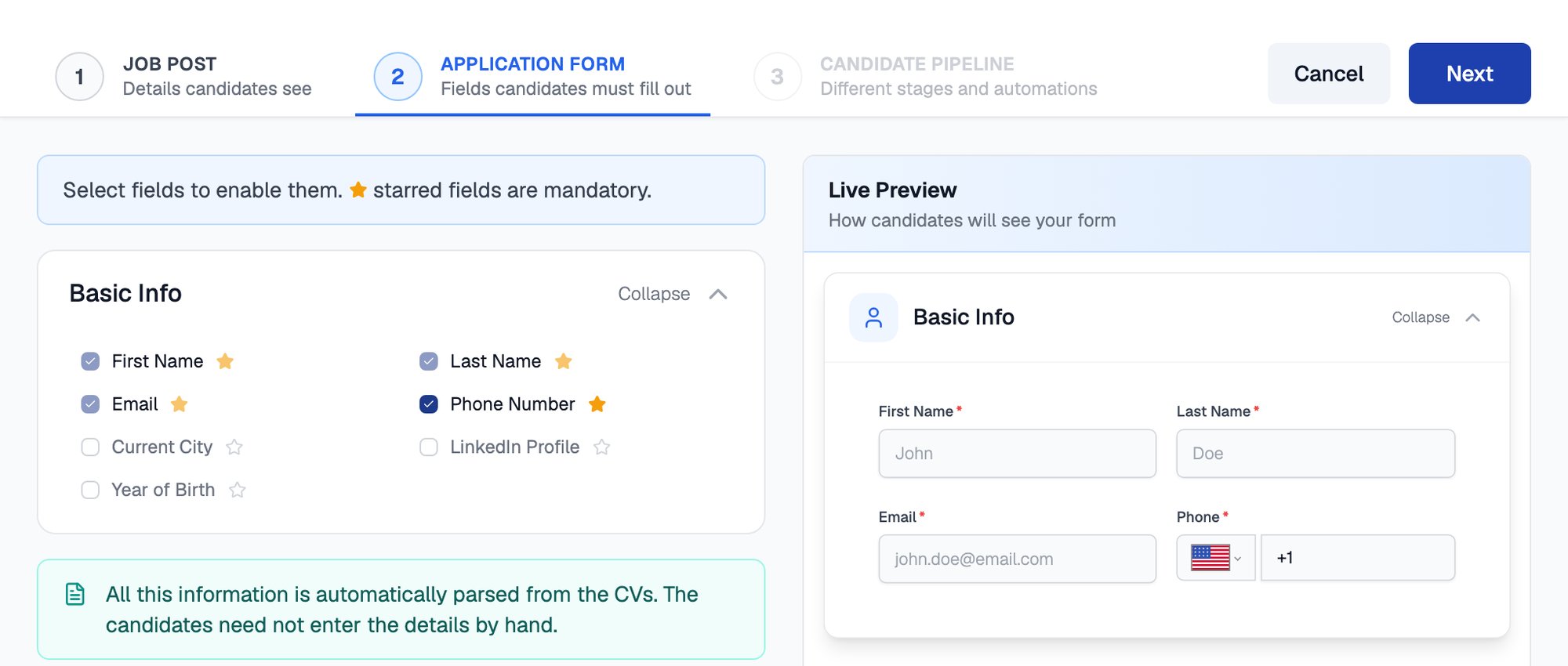
Tick the fields you want on the left and the live preview on the right updates to match
Standard Fields
Toggle each standard field on or off, and mark any enabled field as mandatory.
Notice Period and Salary Expectation Range (when enabled) are sortable in the applications dashboard.
The Job Fit Score ranking criteria depend on what you collect, such as Skills, Work Experience, Educational Background, and Industries.
Custom Fields
When the standard fields do not cover something you need, add custom fields. Each job opening supports up to 10.1
Add a custom field
Give it a label, for example “Do you hold a valid driving license?”.
2
Pick the answer type
Choose Text, Boolean (yes/no), Integer (a number), or Date, then set whether the field is mandatory.
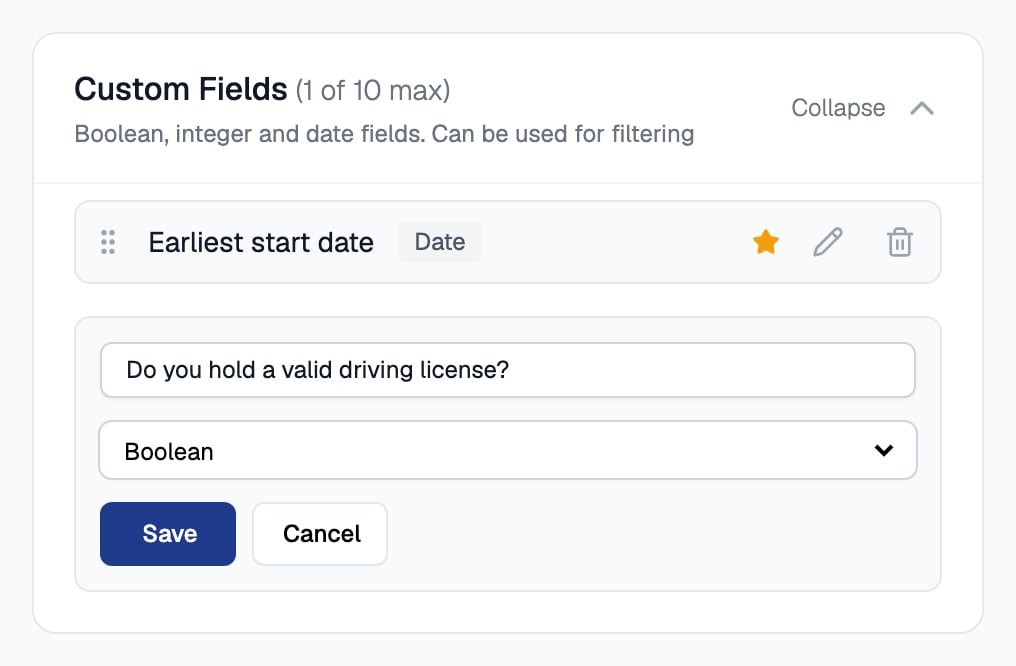
A custom field needs a label and an answer type
Screening Questions
Screening questions are questions candidates answer as part of the application. Each job opening supports up to 5.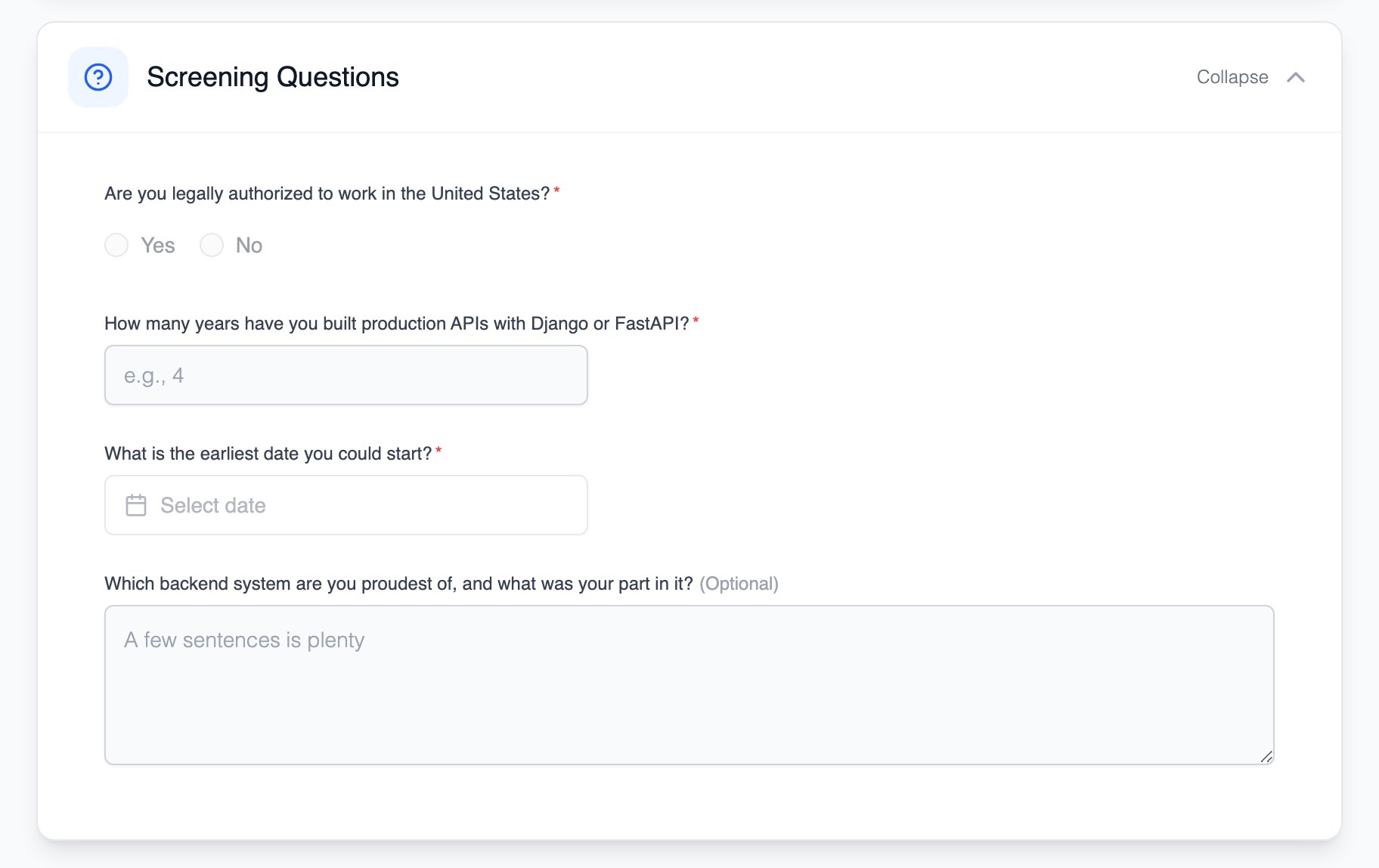
Screening questions are the last section of the application form
Related Resources
- Creating a Job Post - Step 1 of the wizard: the details candidates see
- The Candidate Pipeline - Step 3 of the wizard: stages and automations
- CV Parsing - How resume uploads pre-fill the application form
- Job Fit Score - How form fields feed AI candidate ranking