
The Application Link
1
Open the Job Openings dashboard
Go to Job Openings.
2
Click Invite
Invite on the opening’s row copies the application link to your clipboard.
3
Share the link anywhere
Paste it wherever you reach candidates. Every application flows into the same pipeline, with the source Direct Application.

Each row has Invite, Preview and Settings links under the job title, with its views and applications alongside
Equip does not automatically publish your post to LinkedIn, Indeed, or any other job board. Paste the application link into those platforms yourself; see Job Boards for the recommended setup.
Job Post Statuses
A job post is always in one of three statuses. Only Published posts are visible to candidates, so check the status before you share the link.
Change the status from the dropdown on the Job Openings dashboard. Published posts also appear automatically on your Equip careers page.
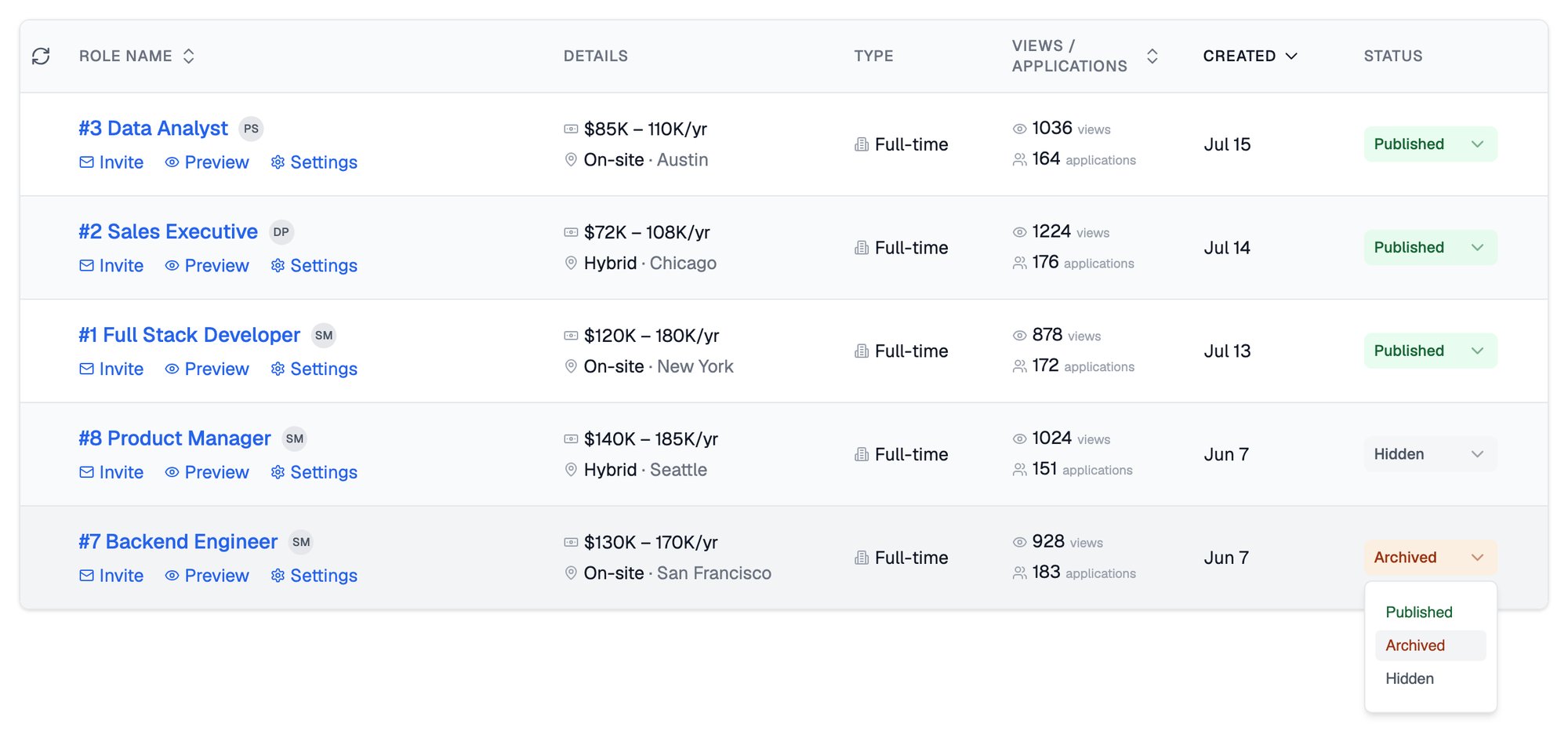
The status dropdown open on an archived post, with published and hidden posts above it
Hiding and Archiving
Both statuses stop new applications. Use Hidden to pause a role temporarily or work on it privately, and Archived for roles that are filled or permanently closed. Changing status never deletes anything. Your existing applications and pipeline history stay intact, and you can switch a post back to Published at any time.Related Resources
- Job Boards - How to get your Equip application link onto LinkedIn, Indeed, and other boards
- Careers Page - Auto-generate a public page listing all your Published openings
- Job Post - Create and edit the job post candidates see
- Application Form - Control which fields candidates fill out when they apply