
Job Post Details
The structured fields power the filters on your careers page and the Job Fit Score. The free-text boxes describe the role in your own words.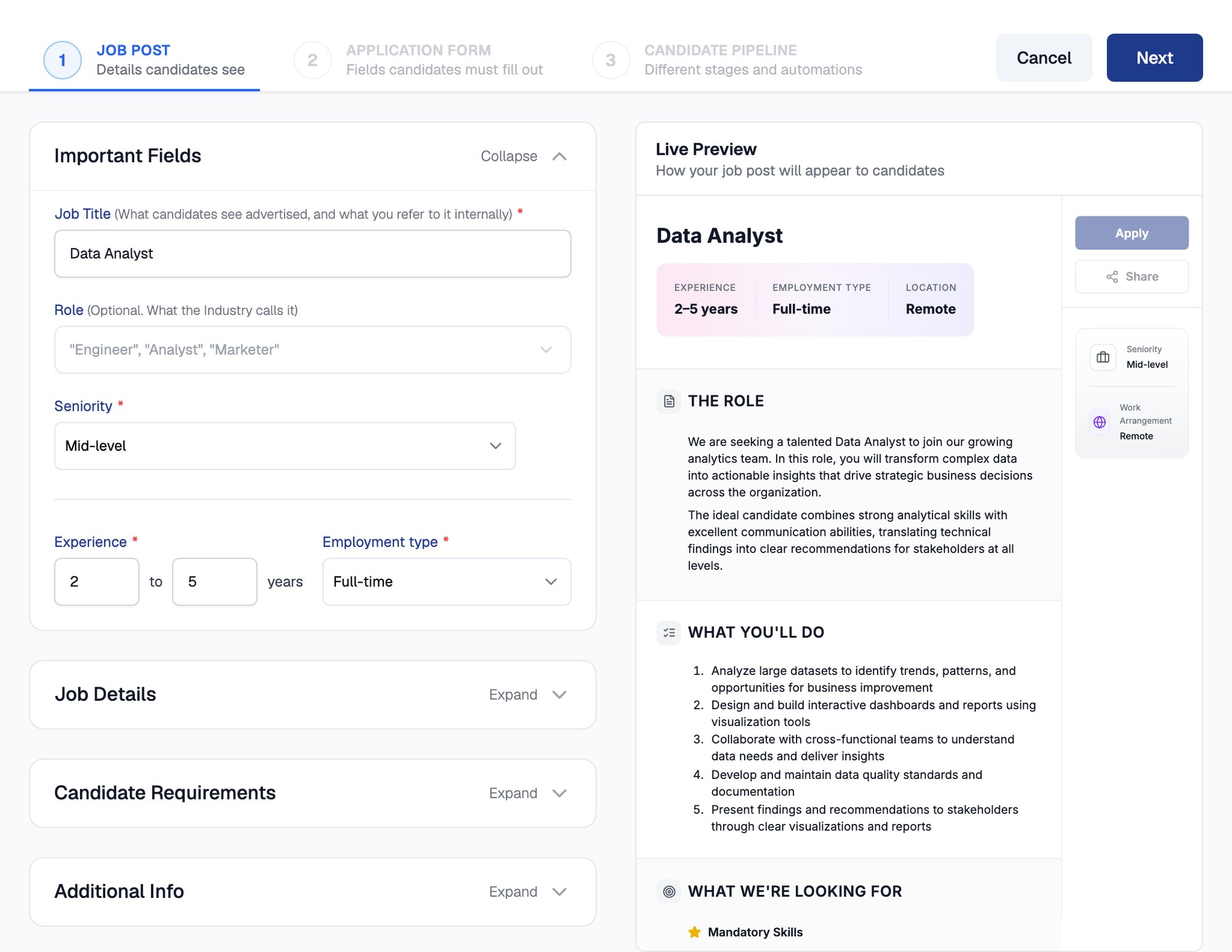
Step 1 of the wizard groups the job details into four sections, with a live preview alongside
Important Fields
- Job title and an optional role (what the industry calls it)
- Seniority level and employment type
- Minimum and maximum years of experience
Job Details
- Salary range with currency and frequency
- Work arrangement, with locations, location restrictions, and an optional timezone restriction
- A hybrid policy description for hybrid roles
- Job Summary, Responsibilities, and Perks & Benefits, see Rich-Text Sections below
Candidate Requirements
- Mandatory and preferred skills
- Minimum education qualification and course or specialization
- Additional Requirements, see Rich-Text Sections below
Additional Info
- Status, employment start date, and application deadline
- A key callout, a short highlight line that stands out on the post
- An optional Google Maps URL for the office location
You can edit any of these details later from the opening’s Settings page.
AI Job-Description Import
Upload an existing job description and let Equip’s AI fill in the form.1
Upload your JD
From the Job Opening Dashboard, click + Job Opening and upload your PDF. PDF is the only supported file format, with a 10 MB size limit. Parsing usually takes 30-45 seconds.
2
Review the pre-filled fields
Correct anything the parser missed, then continue to the next step.
If parsing does not complete within about a minute, Equip shows “Unable to Parse PDF” and switches to manual entry.
Rich-Text Sections
The job post has four rich-text sections. Use them for context rather than repeating the structured fields.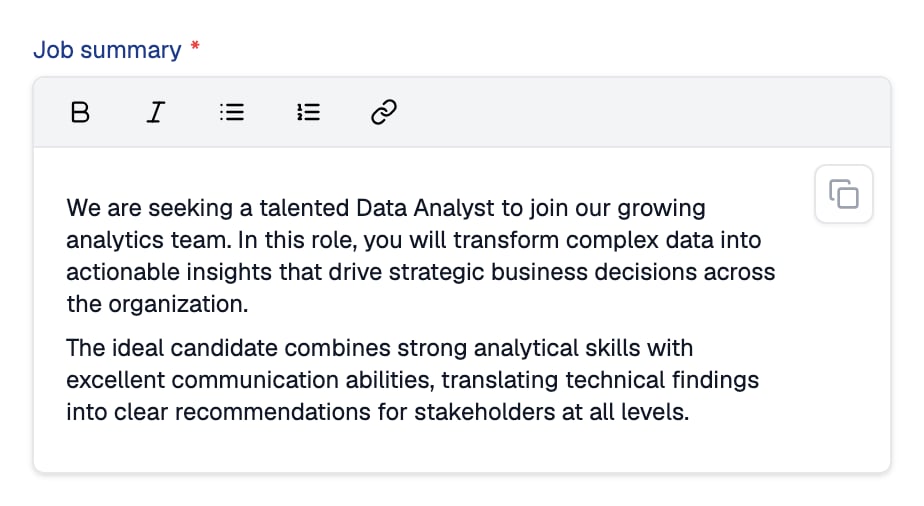
Job Summary is a rich-text field with bold, italic, lists and links
Field Limits
Equip validates the job post against these limits before it can be published.Job Post Status
Every job post has a status (Published, Hidden, or Archived) that controls whether candidates can see it and apply. Change it from the dropdown on the Job Openings dashboard. See Sharing Job Posts for what candidates see in each status.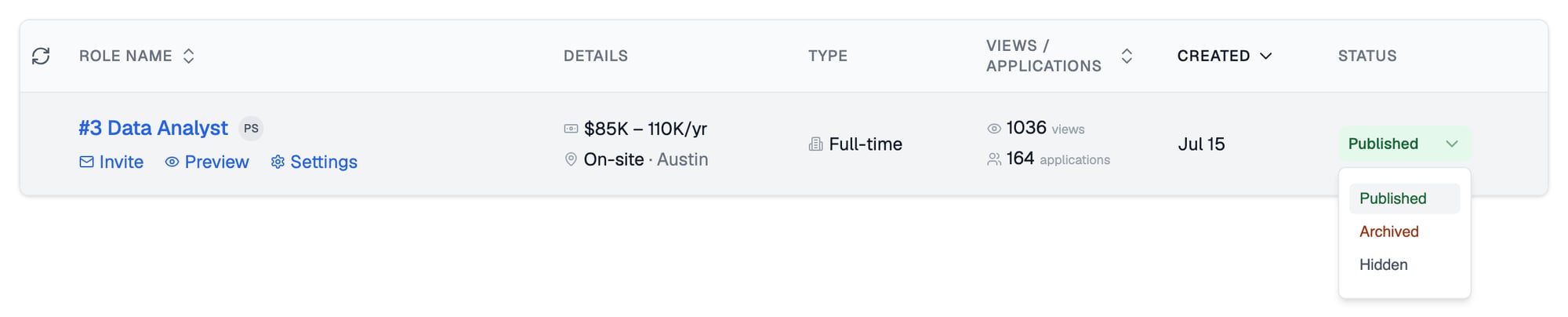
Change a job post's status from the dropdown at the end of its row
Only Published job posts appear on your careers page. Hiding or archiving a post removes it from the public listing without deleting any of its applications.
Related Resources
- The Application Form - Step 2 of the wizard: the fields candidates must fill out
- The Candidate Pipeline - Step 3 of the wizard: stages and automations for your pipeline
- Sharing Job Posts - Get the application link and publish your job post
- Careers Page - Show all your published job posts on a branded public page