
How AI Proctoring Works
Candidates see which proctoring measures are active before they begin. They must consent to the monitoring, and to the proctoring report being shared with you, before the test or interview starts. Try most of the measures yourself in Equip’s self-serve proctoring demo. No login is needed.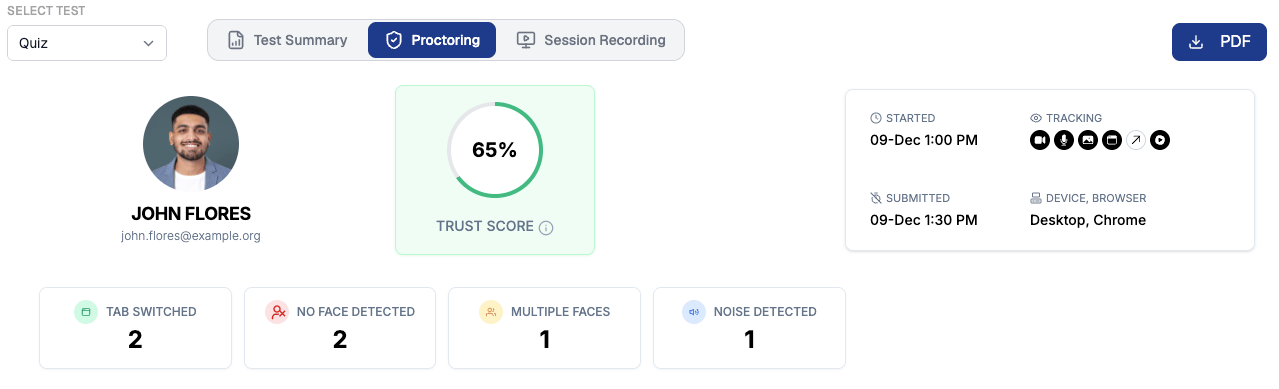
A candidate's Trust Score and session details
What Gets Tracked
Equip offers proctoring measures across three areas, all configurable per test in Proctoring Settings or per AI interview in its settings.
The question rendering and selection options are configured as anti-cheating settings and quiz options rather than proctoring toggles.
AI interviews use the same proctoring toggles, under Proctoring Settings in the interview’s settings. The ATS has no proctoring.
Preventing ChatGPT and AI Tool Usage
With copy-paste disabled, the candidate cannot move the question text into a tool like ChatGPT. Opening another tab breaks full-screen mode and triggers tab-switch detection, both of which are flagged with evidence. On-screen overlay assistants such as Cluely or InterviewCoder, or an AI app on a second phone, evade regular proctoring. Auxiliary Device proctoring catches both.Reviewing Evidence
Every completed attempt gets a Trust Score from 0 to 100%. The lower the score, the more likely Equip thinks the candidate cheated.1
Open the candidate's report
From the results page, open the candidate. If the Trust Score is below about 80%, review the full proctoring report rather than relying on the number alone.
2
Review the violations
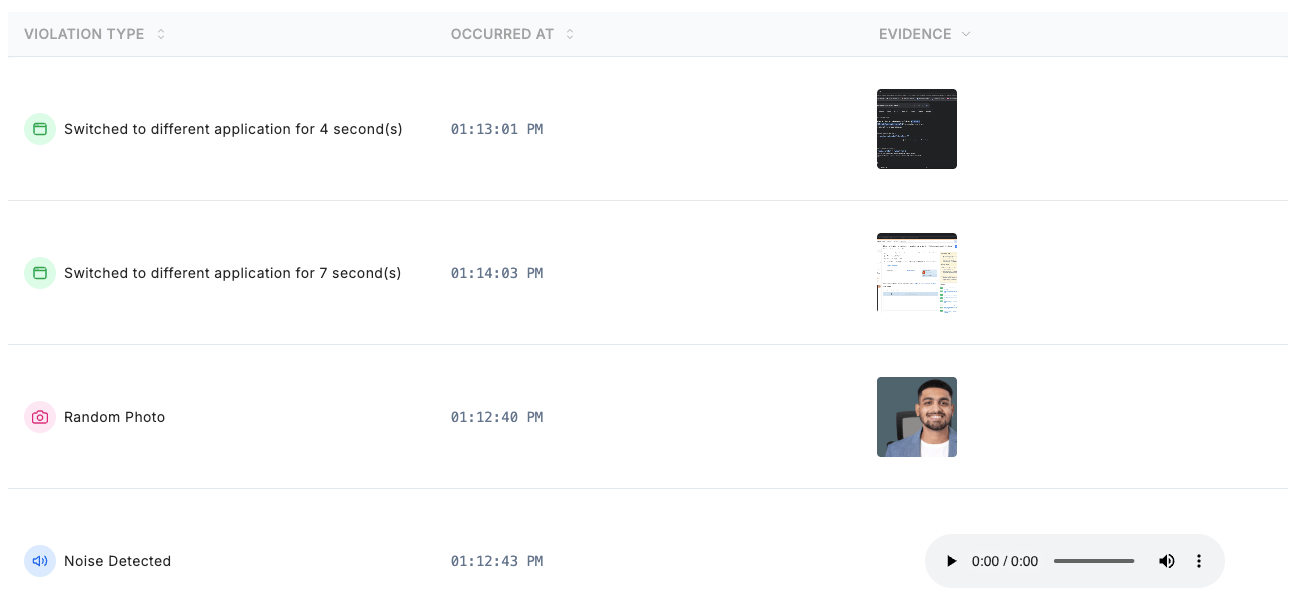
Open the Proctoring tab to see each violation with its timestamp and evidence.
3
Watch the Session Recording
If Session Recording was enabled, play back the candidate’s screen activity.
Related Resources
- Proctoring Settings - Configure the per-test proctoring toggles and their defaults
- Understanding the Trust Score - What the score means and how to use it in reviews
- Detecting AI Usage - Set up Auxiliary Device proctoring to catch AI tools
- Session Recording - Record and play back a candidate’s full screen activity