
Scenarios are rolling out gradually and may not yet appear in your Add item menu.
Example Scenarios by Role
Here is what a Scenario looks like for four different roles. In each image, the left side is what you enter and the right side is what the candidate sees.1. Software Developer
Paste a short snippet with a bug in it and ask the candidate to find and fix it. The AI context tells the AI what the bug is, so it can probe and grade against it.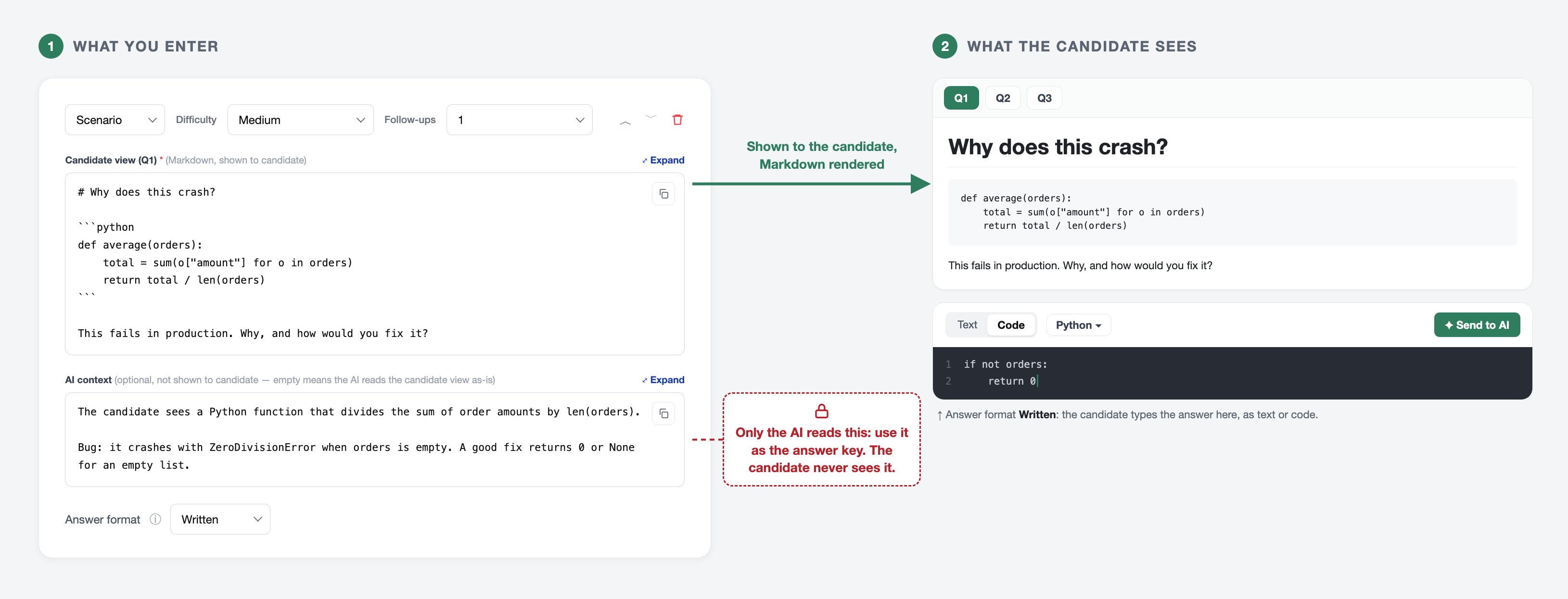
Software developer: a Python function that crashes on an empty list
2. Product Designer
Show a screen design as an image and ask what the candidate would change. The AI cannot see images, so the AI context describes what the screen shows and which problems to look for.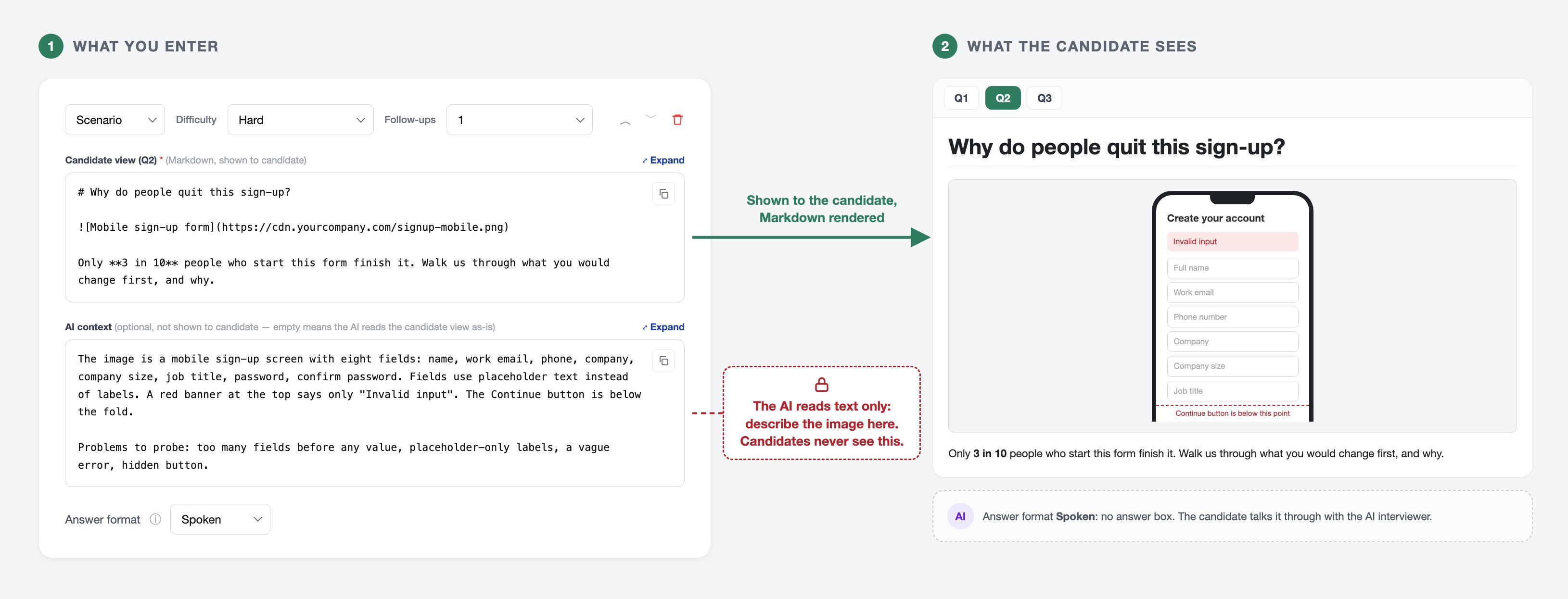
Product designer: a mobile sign-up form most people abandon
3. Customer Support
Quote a short customer email and ask the candidate to write a reply. The AI context sets out the right outcome and what a strong reply sounds like.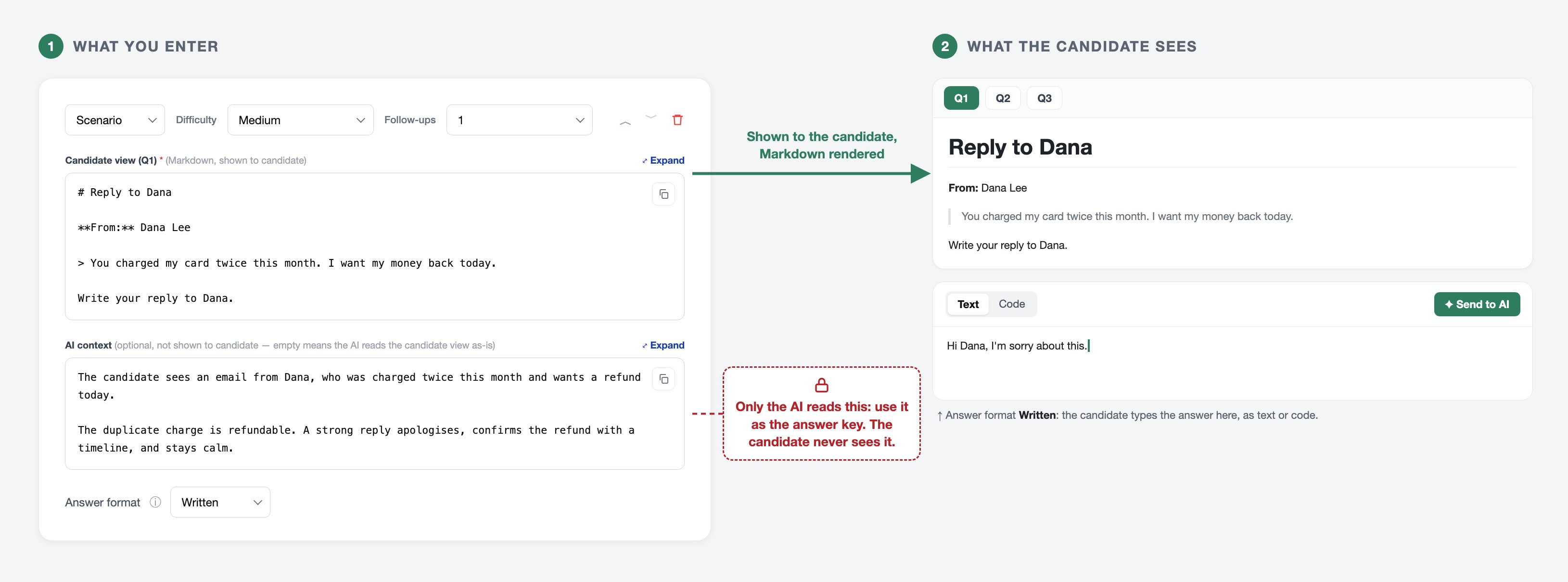
Customer support: an email about a double charge
4. Sales
Describe a prospect and their objection, then ask the candidate to respond as they would on a call. With a Spoken answer, you hear how they handle pushback in real time.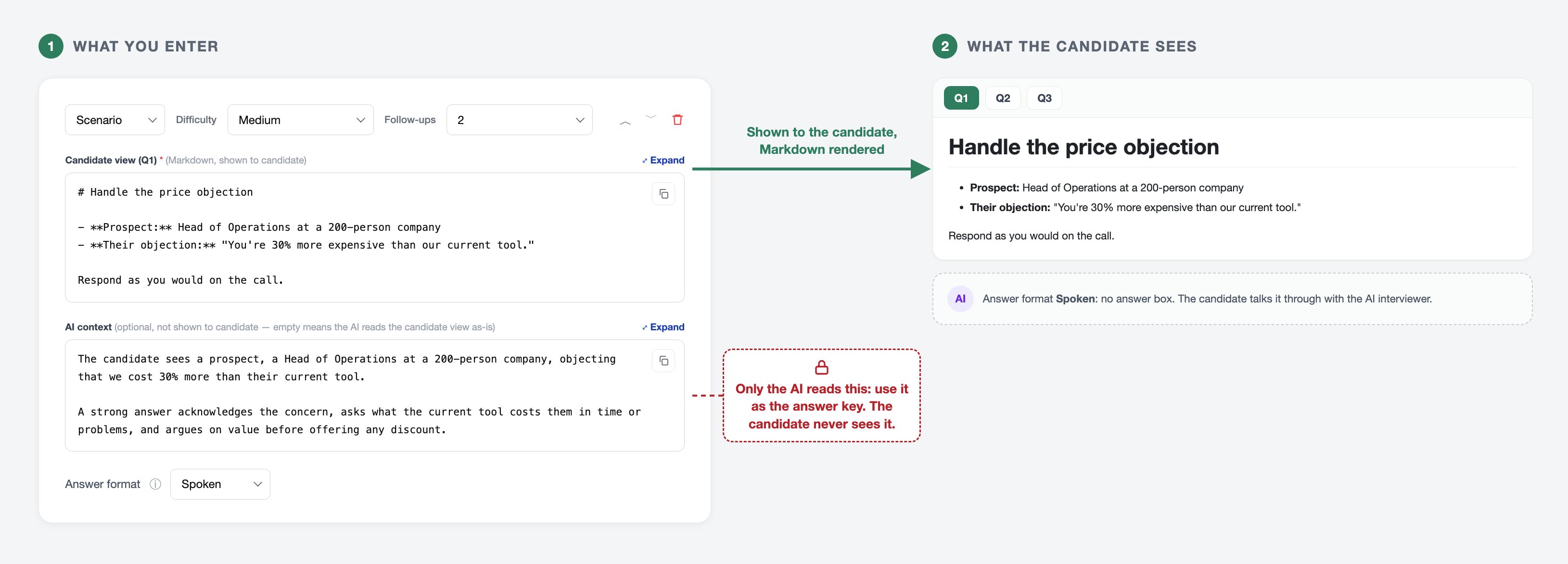
Sales: a prospect says the product costs too much
Adding a Scenario
1
Open the interview's settings
From the AI Interviews dashboard, open your conversational interview and go to the Topics & questions section.
2
Add a Scenario item
Click Add item and choose Scenario.
3
Write the candidate view
Enter the material the candidate should see, in Markdown. Start with a heading, add the material, and end with the question you want answered.
4
Add AI context (optional)
Describe anything the AI cannot read from the candidate view, such as an image, and the points a strong answer should cover.
5
Set difficulty, follow-ups and answer format
Pick a Difficulty, the number of Follow-ups (0 to 5), and an Answer format if the Workspace is on.
What You Can Put in the Candidate View
The candidate view is written in Markdown, a simple way to format text with symbols. These elements are supported:
The candidate view and AI context can each hold up to 50,000 characters.
Writing AI Context
When you fill in AI context, the AI reads it instead of the candidate view. The AI also uses it when it evaluates the candidate’s answer. The candidate never sees it.Choosing an Answer Format
The Answer format decides how the candidate responds. It appears only when the Workspace is turned on for the interview.Related Resources
- Questions, Topics, and Scenarios - How Scenarios compare with Questions and Topics
- The Workspace: Code and Written Answers - Turn on written and code answers
- Creating a Conversational AI Interview - Set up the interview your Scenarios go into
- AI Interview Reports - See how candidates answered each Scenario