
What Gets Recorded
Turn On Session Recording
Session Recording is controlled per test through the Record User Session toggle in Proctoring Settings.1
Open the Test Order tab
In your assessment’s settings, go to the Test Order tab.
2
Edit the test's settings and toggle Record User Session
Click Edit Settings on the test you want to change. Turn Record User Session on or off, then click Save Settings.
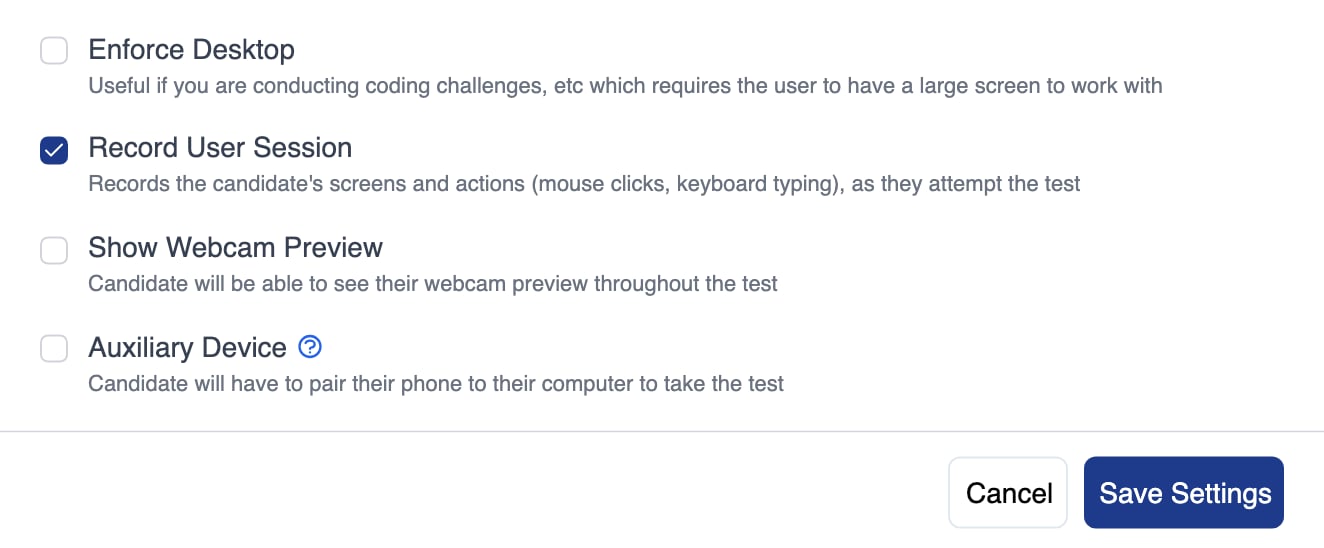
Record User Session in a test's proctoring settings, on by default for a quiz
Session Recording is on by default for most test types. It is off by default for Excel tests, and locked off for video-based test types such as Video Response, where the candidate is already on camera.
Playback
To watch a recording, click a candidate’s score on the Results page to open their report, then open the Session Recording tab and press Play. The player can speed up playback and skip sections where there is no activity. Playback is also the fastest way to verify a candidate’s report of a technical issue, such as a question that did not load. If you need Equip’s help, email hello@equip.co with the Session Recording URL and the time range where the issue appears, for example “1:05 to 1:20”.Related Resources
- AI Proctoring - Overview of all the proctoring measures that run alongside Session Recording
- Proctoring Settings - Every proctoring toggle, including Record User Session, and their defaults
- Trust Score - How to interpret the score that tells you when a recording is worth reviewing
- Candidate Issues - Using recordings to troubleshoot problems candidates report mid-test