
Mobile-Friendly Test Types
Recruiters can require a computer for any test by turning on Enforce Desktop in Proctoring Settings. The test then will not load on phones or tablets.
Desktop-Only Test Types
Programming, SQL, CSS, Excel, and Typing tests carry a Desktop Only badge, and Enforce Desktop is on by default for them.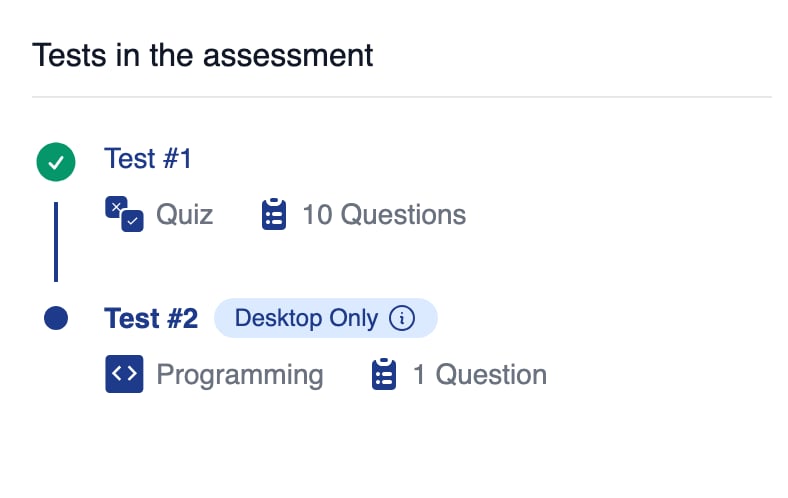
The Desktop Only badge beside a Programming test in the candidate's list of tests
AI Interviews on Mobile
Conversational AI interviews work on phones. See Taking an AI Interview for the full flow.Enforce Desktop applies to interviews too. Chromebooks count as computers.
Supported Browsers
Google Chrome is the recommended browser for all Equip assessments and AI interviews. Before the session starts, the instructions page checks the browser whenever the session records camera or mic, which is always the case for conversational AI interviews.
A browser that fails is blocked, and the candidate must update it or open the link in Google Chrome.
Sessions that record no camera or mic, such as text-only questions with no media proctoring, skip the check, so older devices can still take them.
Troubleshooting Device Issues
If a test will not load or the camera and mic are not detected, try these in order.1
Check the webcam and microphone
Confirm the camera and mic work in other apps, and that the browser has permission to use them.
2
Try an incognito or private window
This rules out extensions and cached settings that block camera or screen access.
3
Switch browsers
Try Chrome first. If Chrome is unavailable, try Safari or Edge, and use Firefox only as a last resort.
4
Switch devices
Open the same assessment or interview link on a different computer. An unfinished attempt resumes on the new device.
A candidate who has not yet seen any questions can safely click their assessment link again on any device. For issues that appear after questions have loaded, see Candidate Issues.
Related Resources
- Test Types - Every test type Equip supports and what each one measures
- Demo Tests - The free practice tests that verify a candidate’s device before the real assessment
- Taking an Assessment - The full candidate flow from invitation to submission
- Candidate Issues - What to do when a candidate cannot start or finish a test