
Triggers
A rule has exactly one trigger.
Applied has no “Candidate leaves this stage” trigger.
Use Status changes to for Equip’s own events, such as an assessment being graded. The external update trigger is only for integrations; see Automation Webhooks and External Updates.
Stage Statuses
Inside a stage, each candidate carries a stage status that tracks their progress. On job openings with automation, it shows as a small badge on Kanban cards and in the applications table.
Finalized means the score is final. On Applied, that is when the Job Fit Score is calculated. On an Assessment, it is when every test is graded, so an assessment with manually graded questions finalizes only after a recruiter grades them. To act on a score, use the trigger Status changes to Finalized.
A stage can hold up to 4 rules, and each rule up to 4 actions. Every rule that runs is recorded in the candidate’s journey.
Custom statuses
A Custom stage can define its own statuses, for steps like a background check or a reference call. Open the stage’s Automation dialog and click Add status under Statuses in this stage. Equip fills in each status’s ID from its name. The first status in the list is set automatically when a candidate arrives.Conditions
Conditions narrow a rule to the candidates it should apply to. When a rule has several, all of them must match. Text and yes/no fields accept only is and is not. Number and date fields can also be compared, with operators such as is at least.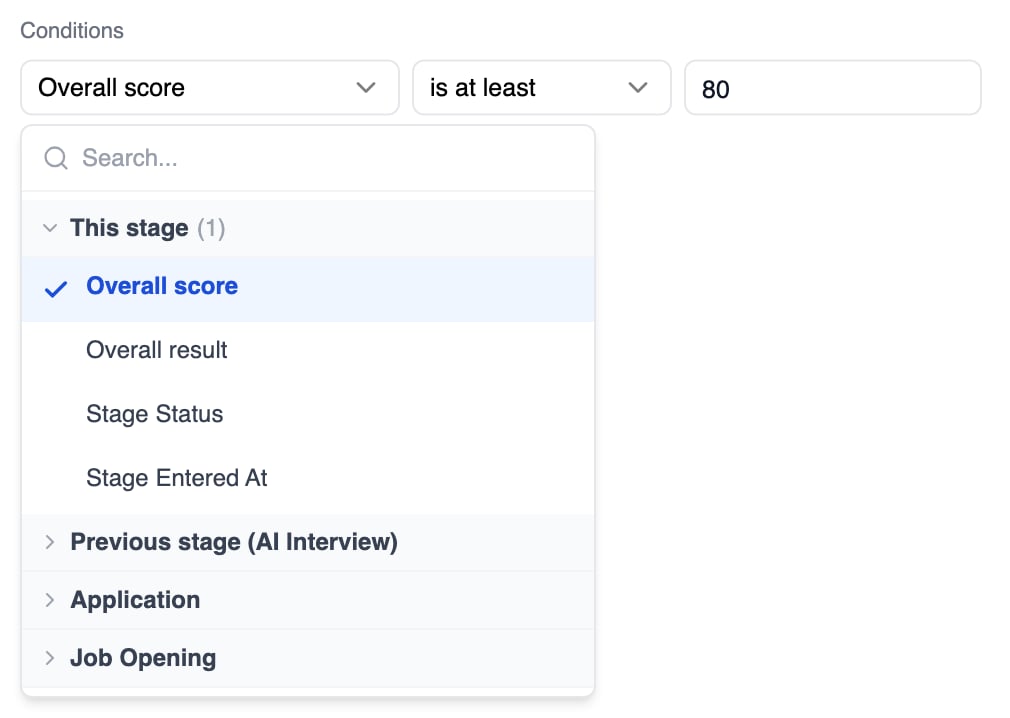
The field picker on a condition, grouped by where each field comes from
Actions
A rule needs at least one action and can have several.Moving candidates into a test or interview
When a rule moves a candidate into an Assessment or AI Interview stage, Equip invites them automatically, using credits from your balance. If the candidate is still on the page when the rule runs, for example right after they apply or submit a test, a Next step for the candidate option appears:Rejecting on screen
In the same situation, Reject Candidate offers a Tell the candidate on screen checkbox. Tick it to show a short message on the page the candidate just submitted from.Delayed emails
Send an email goes to the candidate, using any of your active email templates. Set a Delay in minutes, hours, or days, up to 30 days.Slack notifications
Notify on Slack posts a one-line update to the channel you pick, with the candidate’s stage, status, and scores, and a link to the candidate in Equip.Related Resources
- Stage Automation - Create, pause, and edit rules
- Automation Webhooks and External Updates - The webhook action and the external update trigger in detail
- Email Templates - The templates the Send an email action uses
- How Credits Work - What automatic invitations cost