
Add a Webhook Action
1
Open the rule
In the job’s Settings, under Candidate Pipeline, open the stage’s Automation dialog and create or expand a rule.
2
Add the action
Click Add action and choose Notify an external system (webhook).
3
Enter the method, URL, and headers
Pick the method and enter your endpoint, which must start with
https://. Expand Headers to add any your endpoint needs, such as an Authorization header, then click Save.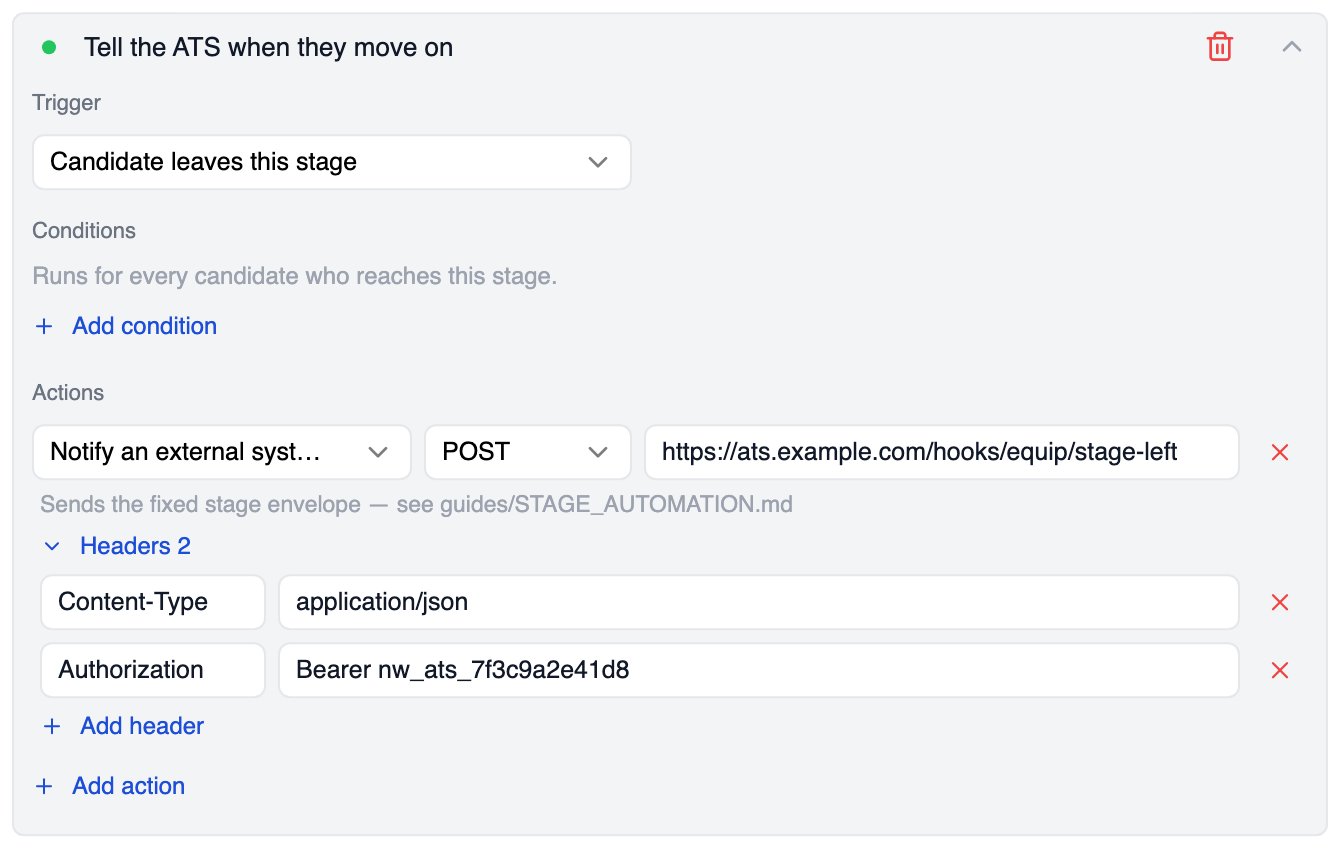
A webhook action with its method, URL and two headers
The Payload
Every webhook sends the same JSON structure. There is no payload editor; if your system needs more detail, it can fetch it with the Equip API.Send an Update Back
To report a result to Equip, your system sends a POST request to thecallback_url it received in the webhook.
Two kinds of rule can react to the update. A rule with the An external system sends an update trigger runs when the update arrives, and a rule with Status changes to runs when the status becomes the one you picked.
The external update trigger can only be used on a stage where some rule fires a webhook. The webhook is how the external system receives its callback address.
Example: A Background Check Stage
A Custom stage with its own statuses can run a full hand-off without anyone clicking a button.
The background check provider receives the webhook, runs the check, and posts the matching status to the callback address. To set up the statuses, see Automation Triggers, Conditions, and Actions.
Related Resources
- Stage Automation - Create and manage automation rules
- Automation Triggers, Conditions, and Actions - Every trigger, condition, and action, plus custom statuses
- Webhooks - Team-level notifications for completed assessments and interviews
- API Integrations - Fetch more detail about a candidate from your own systems