
Create a Panel
1
Open the Interviews tab
Go to Account → Organization → People and scroll to Interview panels.
2
Add a panel and its people
Click Add panel, name it, and create it. Then add each person by email address.
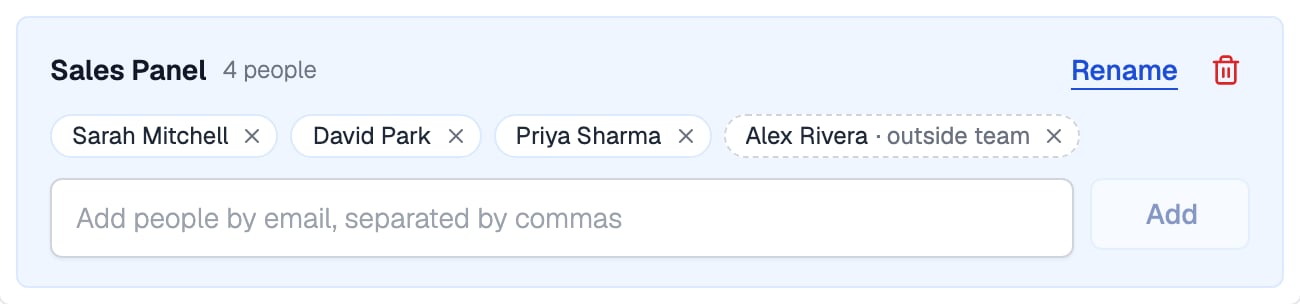
A panel of three teammates and one person from outside the team
Who Can Be on a Panel
Panel members can be anyone with an email address. They do not need to be on your Equip team, and being on a panel does not add them to it or change their role.How Panels Behave
A panel is a live group. Every interview that uses it follows the panel’s current membership.Interview Locations
Interview locations are saved addresses offered when you schedule an in-person interview. Add them on the Company tab of Account → Organization with Add location. Each location has a name and full address. A maps link and a reception note, for example who to ask for at the front desk, are optional.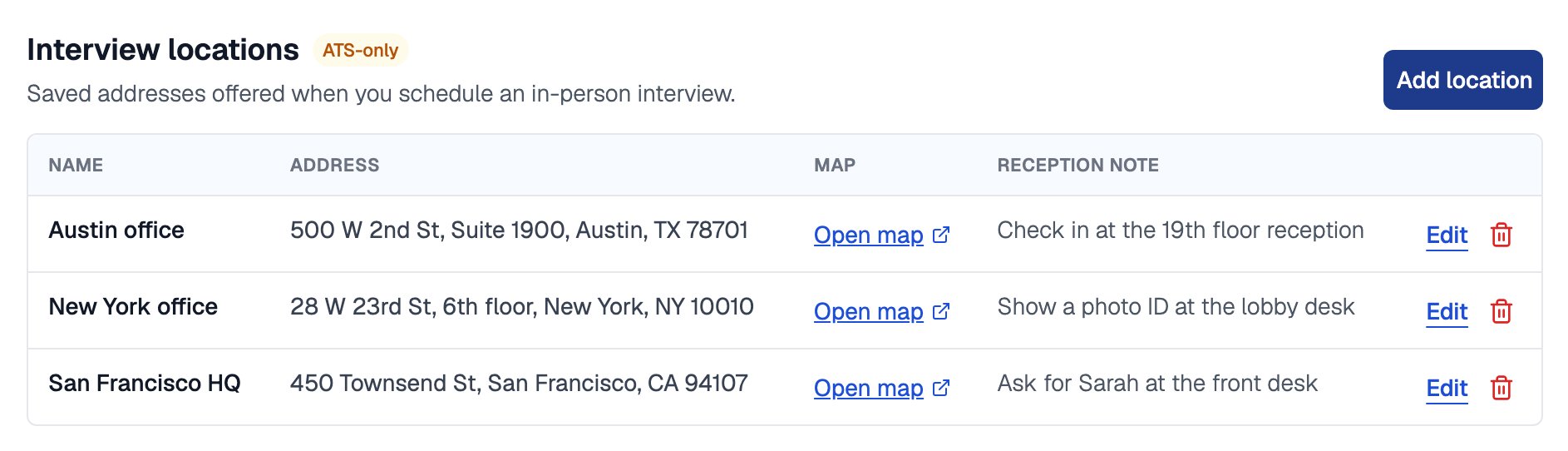
Saved interview locations with their address, map link and reception note
Deleting a location only removes it from the list. Interviews already scheduled keep their address.
Related Resources
- Scheduling Live Interviews - Book an interview with a panel
- Interview Feedback and Results - What panellists do after the interview
- Members and Seats - Add recruiters to your organization
- Pipeline Stages - Configure the Live Interview stage