
Create a Department
1
Open Departments
Go to Account > Organization > Departments and click New department.
2
Name the department
Enter a name and, optionally, a description, then save.
3
Add members
Click Manage on the department, then Add a member and pick a recruiter. Set each person’s role to Department admin or Member.
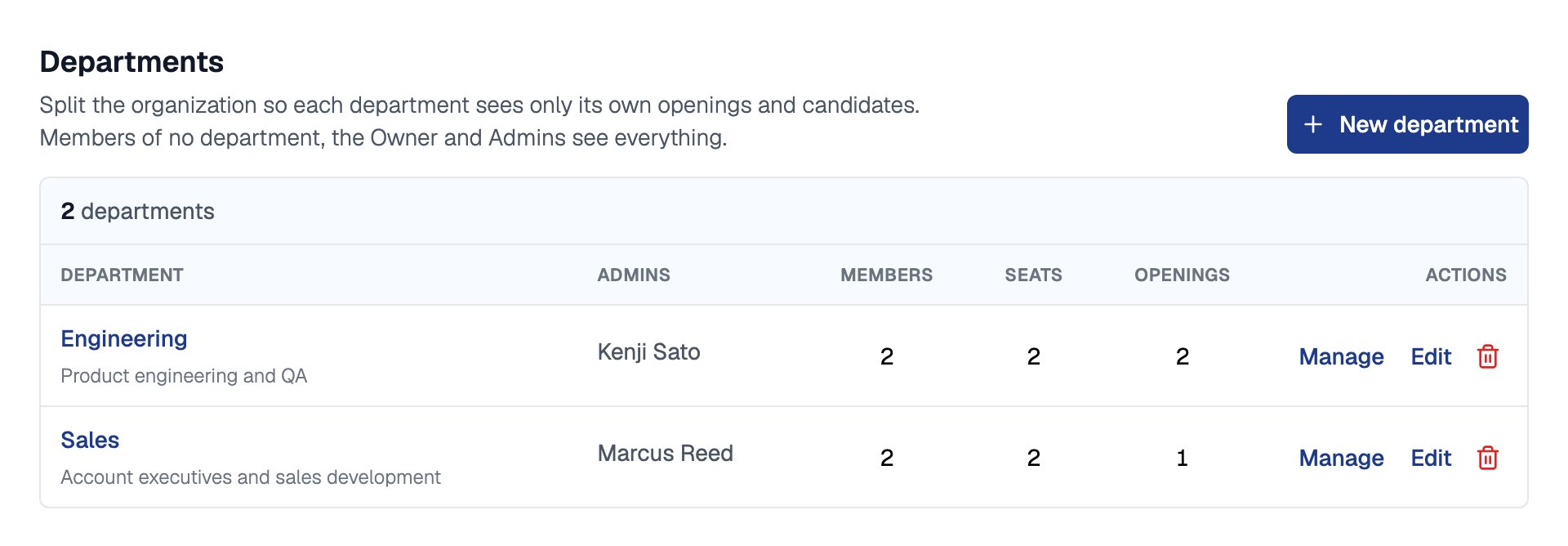
Two departments with their admins, members and openings
Who Sees What
A Department admin can also invite people into their department and manage its members.
When someone opens a job opening, application or requisition from another department, Equip shows which department it belongs to and offers Ask for access. The Job Openings dashboard has a Department filter, and an opening created from a job requisition takes the requisition’s department.
Until you create your first department, nothing changes: everyone sees everything and no department fields appear.
Delete a Department
Click the bin icon on the department’s row. Its members stay in your organization, and its job openings and requisitions become org-wide.Related Resources
- Roles and Permissions - Who can create departments and manage members
- Members and Seats - Invite people straight into a department
- Job Requisitions - Requests for headcount, which carry a department too
- Compare Plans - What each plan includes