
https://equip.co/api/v3/mcp/. Connect your AI coding assistant to it and ask questions in plain language, such as “which of my job openings have the most candidates waiting in screening?”. The server is read-only: your assistant can look things up, and nothing is ever written or changed.
If your plan does not include it, contact support and we can switch it on for your organization. Until then the Developers page shows an upgrade prompt in place of Connect your AI assistant.
Get Your Organization’s API Key
Every request to the MCP server carries your organization’s API Key. An organization Owner or Admin generates it.1
Open the Developers page
Go to Account → Developers.
2
Generate the key
Click Generate API Key and copy the key (
eqp_...). It is shown only once; if you lose it, click Rotate API Key to get a new one.3
Put the key in your shell
Add this line to your shell profile (The variable is named
~/.zshrc or ~/.bashrc) so it survives new terminals:EQUIP_MCP on purpose. Claude Code blanks any variable whose name contains KEY, TOKEN or SECRET when it fills in a remote server’s headers, so a name like EQUIP_API_KEY would silently fail.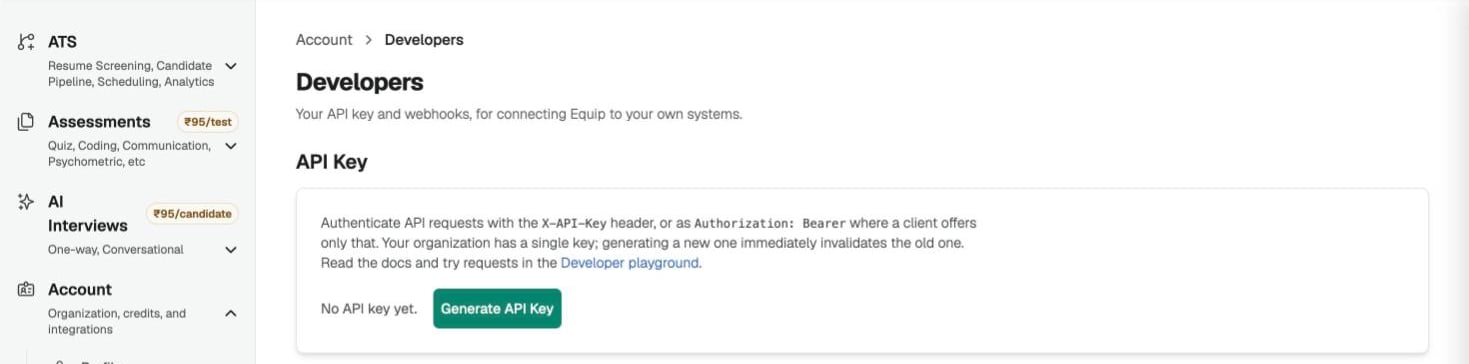
The API Key card on the Developers page
Pick Your Client
Each client has its own setup page with a copy-ready snippet and a check that the connection works.Claude Code
One
claude mcp add command.Codex
Three lines in
~/.codex/config.toml.Gemini CLI
One entry in
~/.gemini/settings.json.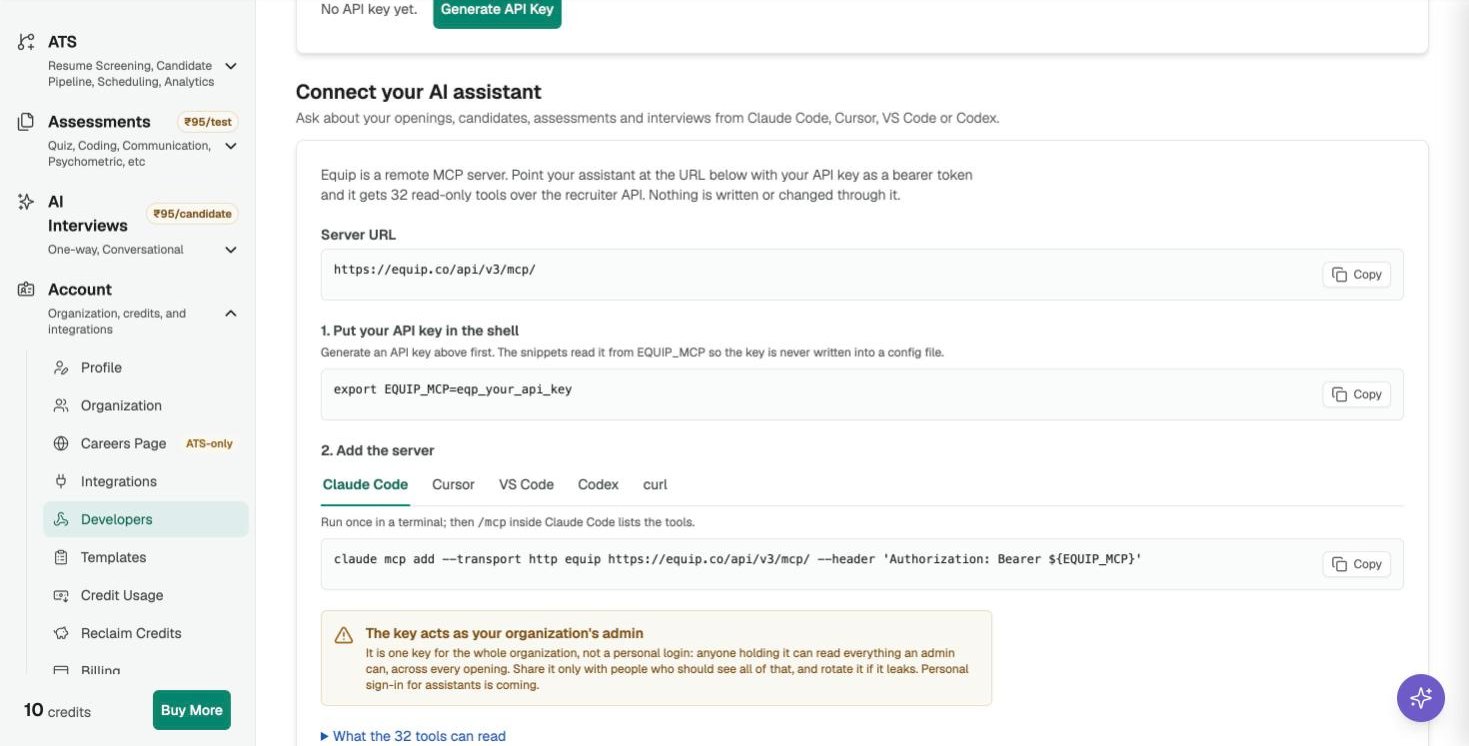
Connect your AI assistant on the Developers page, one tab per client
Cursor and VS Code
Both read the key from your environment or prompt you for it, so the key is never written into a config file.Cursor
Cursor
Add this to
.cursor/mcp.json in your project, or use the Add to Cursor link on the Developers page.VS Code
VS Code
Add this to
.vscode/mcp.json. VS Code asks for the key the first time the server starts and stores it securely.What Your Assistant Can Read
The tools mirror what a recruiter sees in Equip, grouped by area.
The full list is on Account → Developers under Connect your AI assistant. A few tools appear only when your plan includes the matching feature, such as ATS Insights.
Any Other MCP Client
Any client that speaks Streamable HTTP can connect. It sends JSON-RPC 2.0 requests asPOST to https://equip.co/api/v3/mcp/ with the key in an Authorization: Bearer eqp_... header (an X-API-Key: eqp_... header also works). There is no SSE stream and no session: a GET or DELETE to the URL is refused.
Check the connection from a terminal:
Troubleshooting
Troubleshooting
- 401 Invalid API key: the key was mistyped or rotated, or
EQUIP_MCPis not exported in this shell. Runecho $EQUIP_MCPto check. - 403 “isn’t included in your plan”: your plan does not include the MCP server. See Compare Plans, or contact support to have it switched on for your organization.
- No tools, or an empty list: restart the client after adding the server.
Related Resources
- Claude Code - Add Equip to Claude Code with one command
- Codex - Add Equip to Codex’s config.toml
- Gemini CLI - Add Equip to Gemini CLI’s settings.json
- API Integrations - The REST API behind the same key, for inviting candidates and pulling results