
https://equip.co/api/v3/mcp/ with one command. The server is read-only, so Claude Code can look things up but never change them.
Add the Server
You need your organization’s API key in your shell asEQUIP_MCP first; see Connect Your AI Assistant to Equip.
1
Run the add command
${EQUIP_MCP} reference and reads the key from your environment each time it starts, so the key is never written into its config.2
Check the connection
Start Claude Code and run
/mcp. equip shows as connected with its tools listed.3
Ask a question
Try: “Which of my job openings have the most candidates waiting in screening?”
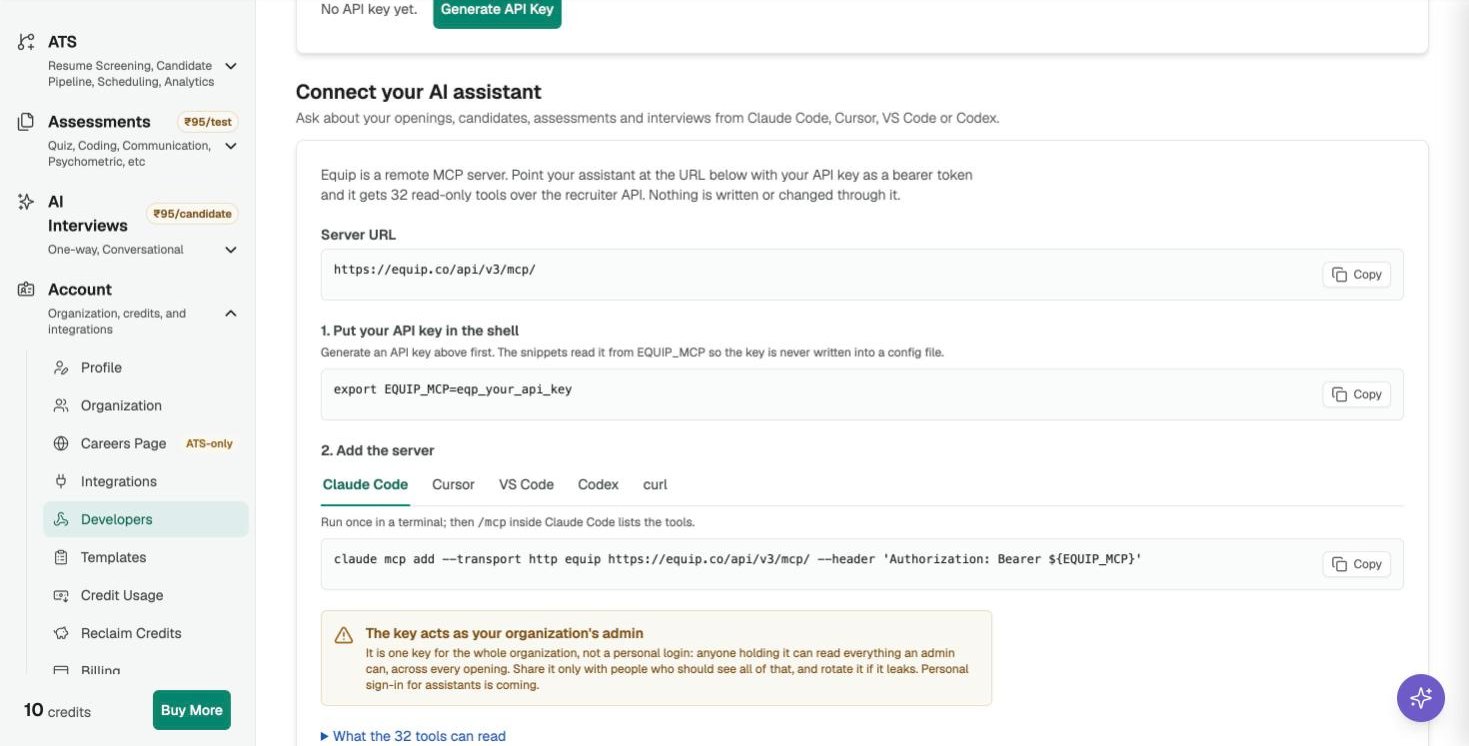
The Claude Code snippet on the Developers page
Troubleshooting
Troubleshooting
- 401 Invalid API key: the key was mistyped or rotated, or
EQUIP_MCPis not exported in the shell you started Claude Code from. Runecho $EQUIP_MCPthere. - 403 “isn’t included in your plan”: your plan does not include the MCP server. See Compare Plans, or contact support to have it switched on for your organization.
- The server shows but has no tools: quit and restart Claude Code after adding the server.
Related Resources
- Connect Your AI Assistant to Equip - Getting the key, what the tools can read, other clients
- API Integrations - The REST API behind the same key