
Supported Languages
Equip supports these languages out of the box and has ready-made programming questions for each. Every language runs on a fixed version.Equip also offers dedicated SQL and CSS coding challenges. See Test Types for the full list.
The Coding Environment
- Each Programming Test contains one question. To test more, add multiple programming tests to the assessment, or randomize coding questions.
- You choose which languages are enabled for each test. Candidates pick any enabled language.
- Equip’s coding questions come in three difficulty levels.
- Unlike Equip’s quizzes, you can select the exact coding question during setup and see it later in candidate results.
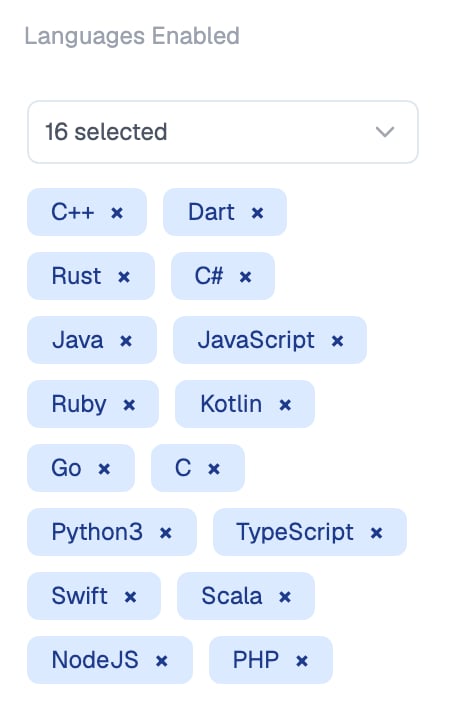
The languages enabled for a programming test in the assessment builder
Requesting Additional Languages
If the language you need is not in the table above, Equip can enable more languages for your account on request.1
Create your Equip account
Additional languages are enabled per account, so sign up first if you have not already.
2
Reach out on live chat
Open the chat widget in your Recruiter Dashboard and tell us which language you need, or email hello@equip.co. Once enabled, the language appears in the language options of your programming tests.
Related Resources
- Test Types - Every test type you can add to an assessment, including SQL and CSS challenges
- Custom Programming Test - Build your own coding question with boilerplates and test cases
- Randomize Coding Questions - Show each candidate a different question from a pool
- Can’t Find Your Role or Skill? - How to request new tests or skills from Equip