
Where to Set Time Limits
You set time limits while creating or editing a Custom Quiz. Timers live inside the quiz itself, not in the assessment settings. Where the timer goes depends on the quiz’s Question display mode:1
Open your Custom Quiz
From the Assessments Dashboard, open Custom Tests and select the quiz you want to edit.
2
Check the display mode
Open the quiz’s Settings. Under General, Question display mode decides which timer applies.
3
Set the timer and save
For the two modes with a quiz-wide timer, enter the Duration (in mins) below the display mode. For one-by-one without navigation, set the Time limit in minutes and seconds on each question’s card instead. Then click Save.
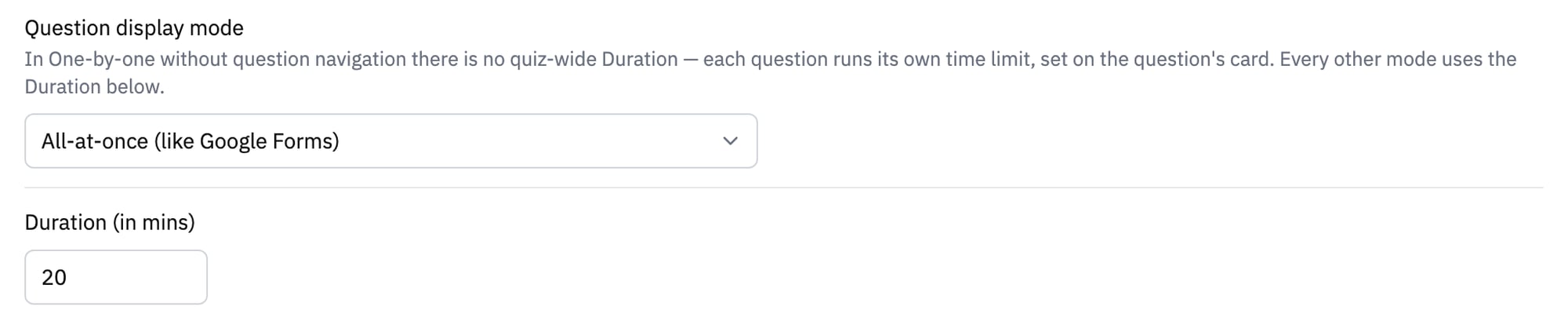
One Duration for the whole quiz
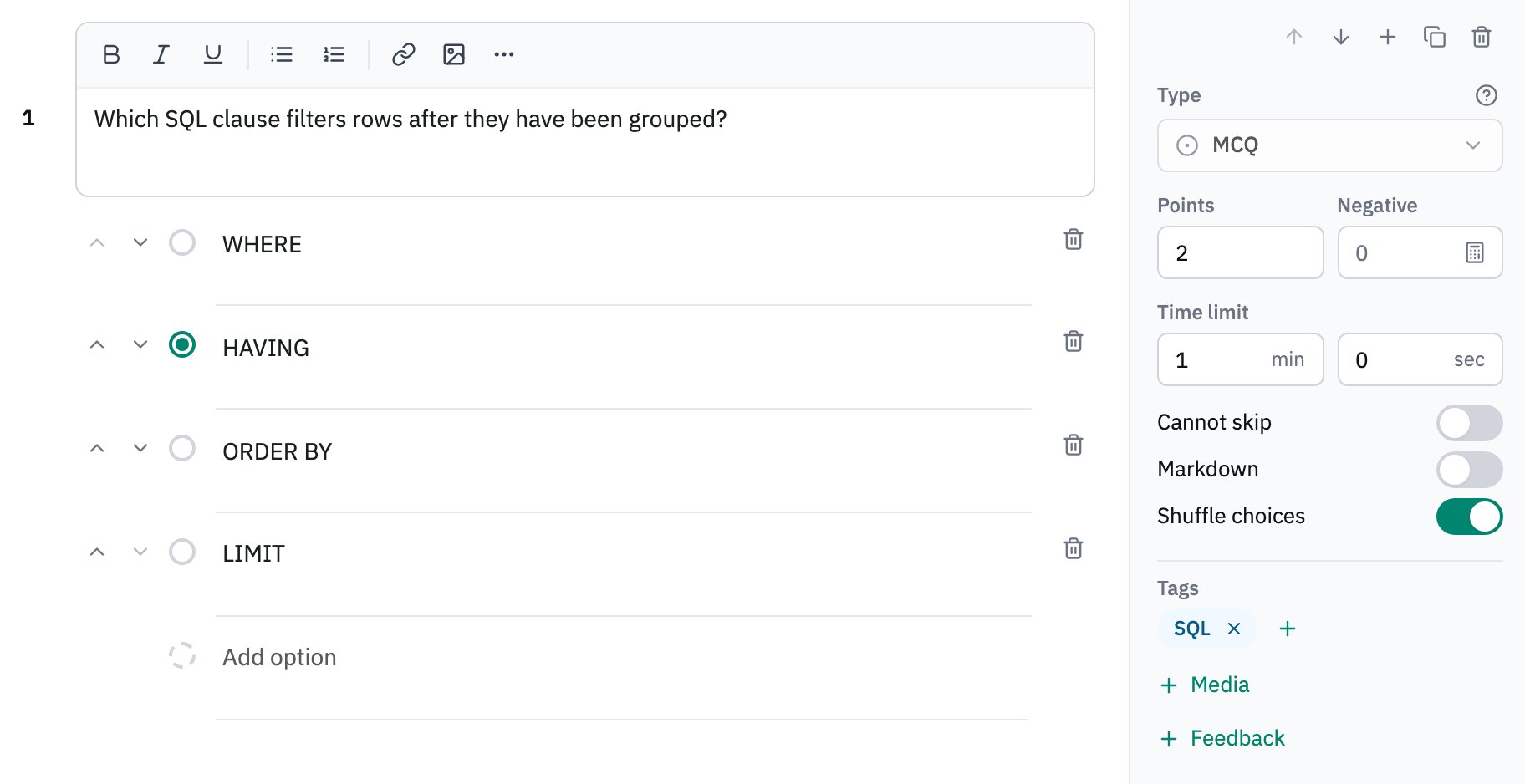
A time limit on each question, in one-by-one mode without navigation
If you are using Equip Content, every question already has a fixed timer that cannot be changed. See Time Limits on Equip for how those timers work.
Quiz-Wide Duration
In all-at-once and one-by-one with navigation quizzes, one countdown runs for the whole quiz and candidates choose how to spend it across questions. To control how long candidates spend on each question, switch the quiz to one-by-one without navigation instead.There is no time limit for an entire assessment, only for the tests and questions inside it. If a custom test has questions without timers, the Estimated Assessment Duration can be inaccurate. See Assessment Duration for details.
Switching Between Display Modes
You can change a quiz’s display mode at any time, and the timer model switches with it. For what candidates see in each mode, see Quiz Display Modes.Related Resources
- Quiz Display Modes - What candidates see in each of the three modes
- Time Limits on Equip - Which test types support timers and at what level
- Assessment Duration - Why assessments have no overall time limit
- Import Questions from Excel - Set question timers in bulk via the import template