Start Equip assessments and AI interviews from an Ashby interview plan, and see each candidate’s status and score on their Ashby profile.
The Ashby integration lets your team run Equip without leaving Ashby. You add an Equip assessment or AI interview to a job’s interview plan, start it for a candidate from Ashby, and Ashby shows the status and score on the candidate’s profile as soon as Equip has them.
Equip shows your Equip secret together with the partner base URL. Copy the secret straight away: it is shown only once.
4
Enable the integration in Ashby
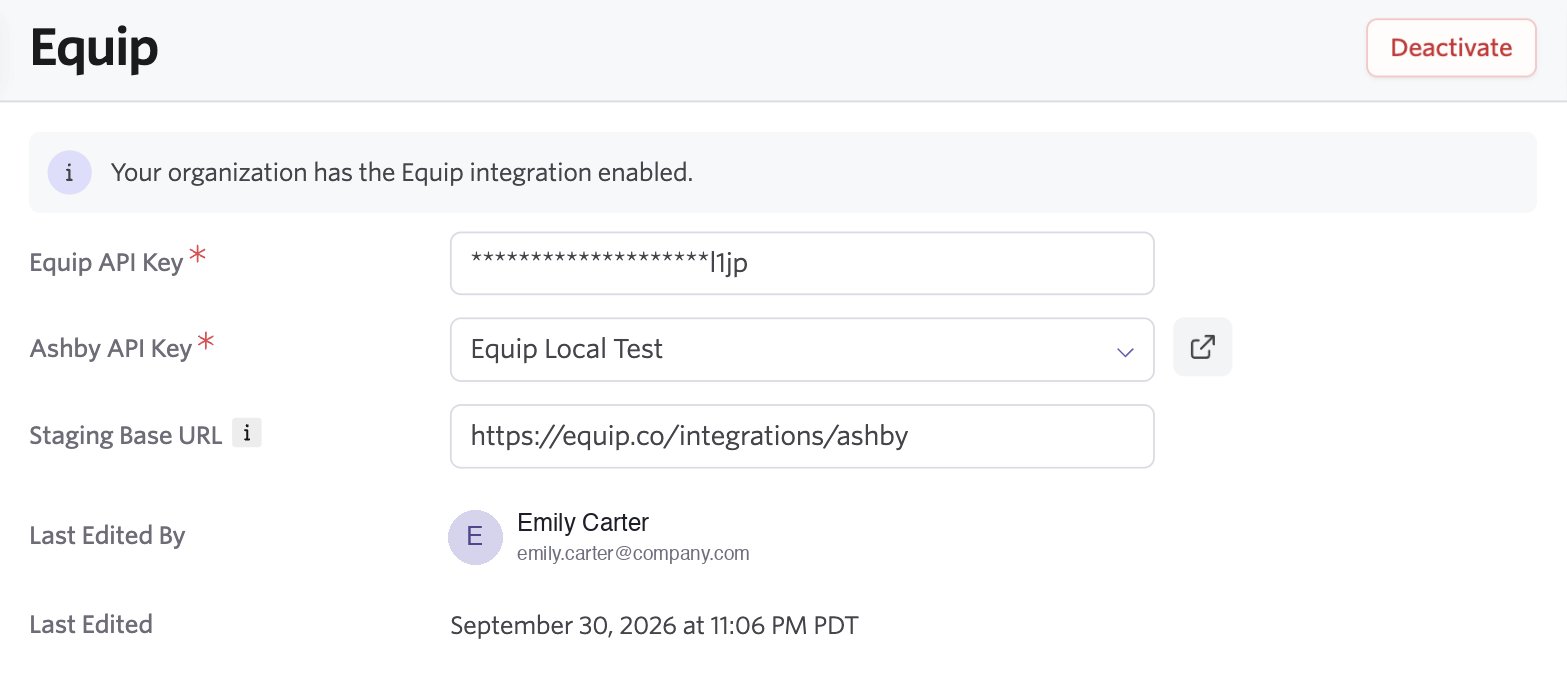
Back on the Equip tile in Ashby, paste the Equip secret into the Equip API Key field, choose the Ashby key you created in the first step, and enable the integration.
5
Test the connection
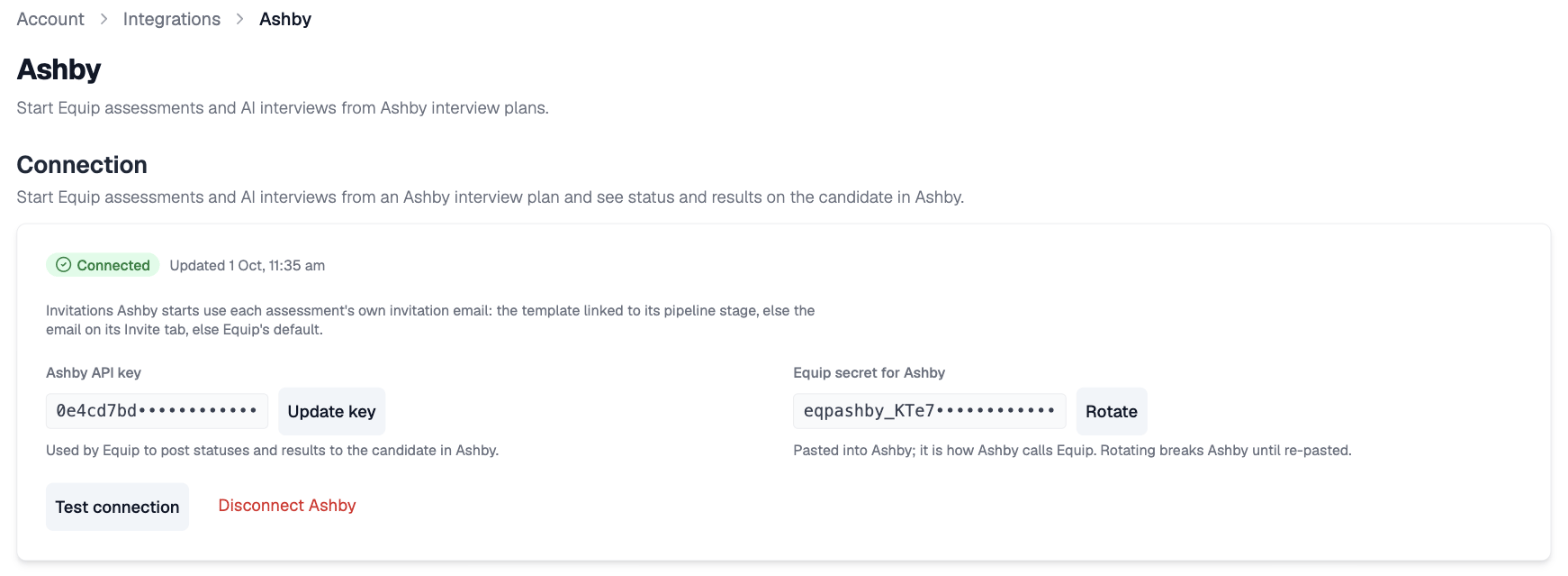
In Equip, click Test connection on the Ashby page.
The Ashby page in Equip once connected
If you close the secret dialog without copying the secret, click Rotate on the Ashby page in Equip to get a new one. Rotating replaces the old secret, so paste the new one into Ashby before Ashby next calls Equip.
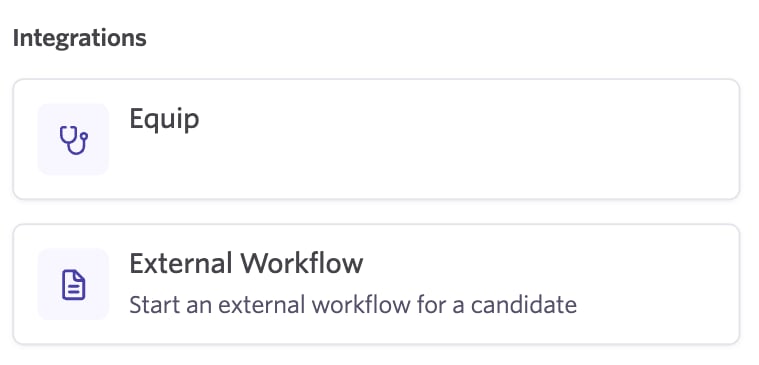
Open the job’s Interview Plan in Ashby, click Add Activity on the stage where the assessment belongs, and choose Equip under Integrations.
Equip in Ashby's Add Activity panel
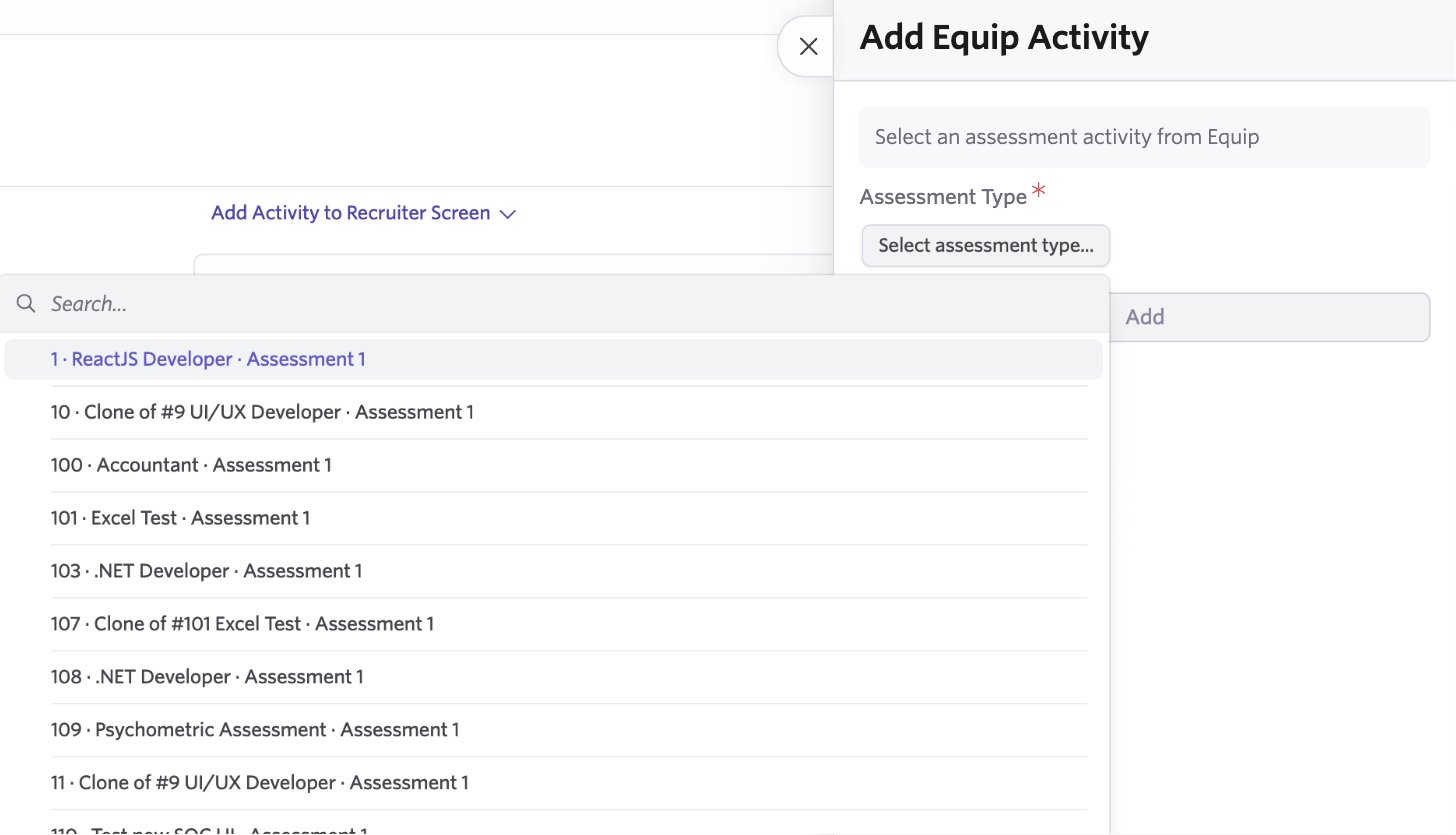
Then pick the assessment or AI interview. Ashby lists everything active in your Equip account, named as opening number · job title · stage.
Picking the Equip assessment for the stage
An Equip assessment on the Technical Quiz stage
2
Start it for a candidate
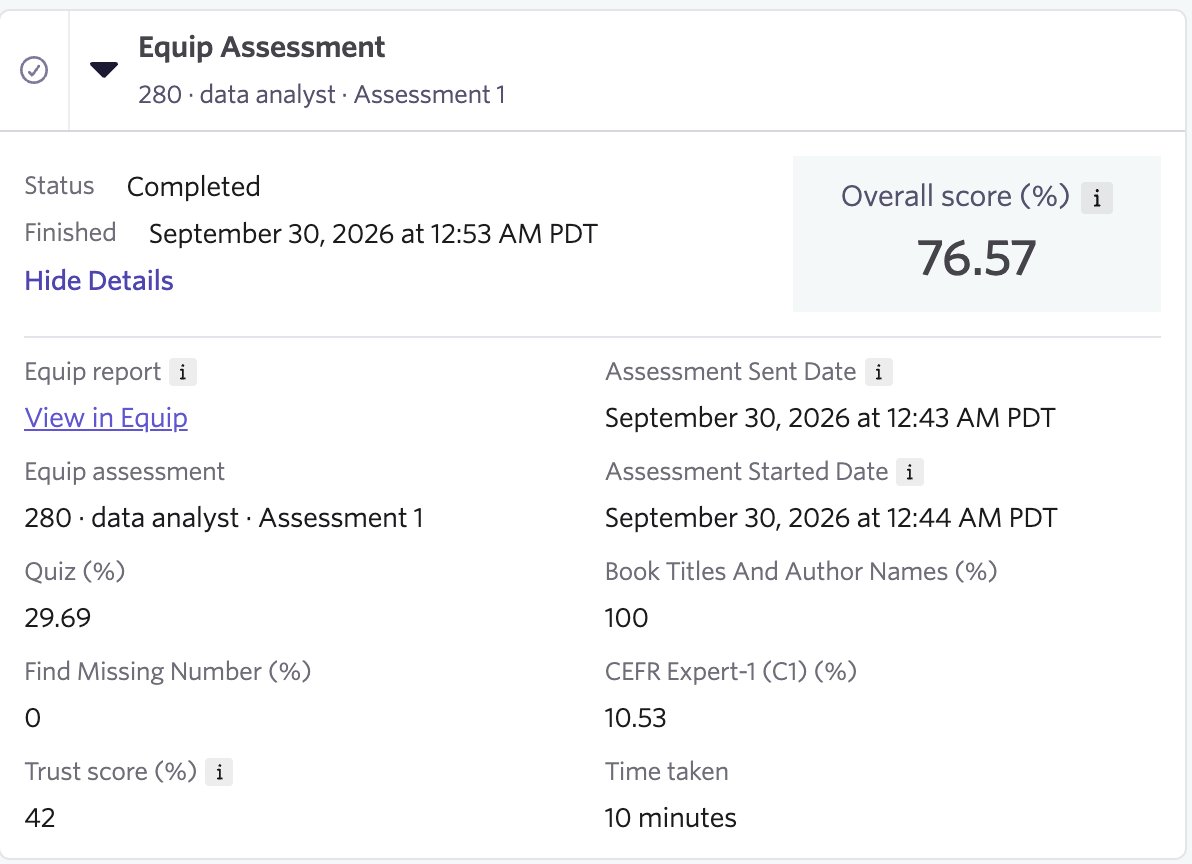
When a candidate reaches that stage, start the assessment from their Ashby profile. Equip emails the candidate the invitation, and the status and score appear on the same profile.
The invitation is the email set up for that stage or assessment in Equip, otherwise Equip’s default. Replies go to the first member of the job’s hiring team in Ashby.
Ashby says something went wrong when enabling the integration
The Equip secret in Ashby is missing or out of date. Open the Ashby page in Equip, click Rotate to get a new secret, and paste it into Ashby.
Results are not appearing in Ashby
Click Test connection on the Ashby page in Equip. If Ashby rejects the key, or the key cannot write to candidates, create a new key from the Equip tile in Ashby and click Update key in Equip. Results arrive within about a minute of scoring; an attempt that needs manual grading is reported once you finalize the grade.
Ashby cannot start the assessment
Ashby shows the reason. The usual ones are: the candidate has no email address in Ashby; the assessment was archived or deleted in Equip; your Equip plan no longer includes integrations.
I disconnected Ashby by mistake
Disconnecting removes the stored keys. Reconnect by pasting a key from Ashby again; Equip issues a new secret, which you paste into Ashby.
{"docsConfig":{"theme":"maple","$schema":"https://mintlify.com/docs.json","name":"Equip Help Center","colors":{"primary":"#1F3B88","light":"#8FA6E5","dark":"#1F3B88"},"logo":{"light":"https://mintcdn.com/equip-hq/vQd37bopkSPi3pHx/logo/equip-logo.png?fit=max\u0026auto=format\u0026n=vQd37bopkSPi3pHx\u0026q=85\u0026s=9033a85c51b141256de5d20515fab563","dark":"https://mintcdn.com/equip-hq/vQd37bopkSPi3pHx/logo/equip-logo.png?fit=max\u0026auto=format\u0026n=vQd37bopkSPi3pHx\u0026q=85\u0026s=9033a85c51b141256de5d20515fab563","href":"/"},"favicon":"https://mintcdn.com/equip-hq/vQd37bopkSPi3pHx/favicon.png?fit=max\u0026auto=format\u0026n=vQd37bopkSPi3pHx\u0026q=85\u0026s=f044b83ed25c8786dcdb2b8b4a70a579","appearance":{"default":"light","strict":true},"background":{"decoration":"grid"},"navbar":{},"footer":{"socials":{"website":"https://equip.co/","linkedin":"https://www.linkedin.com/company/equiphq"}},"seo":{"metatags":{"og:site_name":"Equip Help Center"}},"fonts":{"heading":{"family":"DM Sans","weight":700},"body":{"family":"Inter"}},"styling":{"latex":false},"navigation":{"pages":[]}},"deployment":{"deploymentMetadataValue":{"subdomain":"equip-hq","hasAudioNarration":false,"actualSubdomain":"equip-hq","customDomains":["help.equip.co"],"gitSource":{"type":"github","owner":"socrateasehq","repo":"eqp-mintlify-docs","deployBranch":"main","contentDirectory":"","isPrivate":true,"mountPath":"","label":""},"chroma":{"latestBuiltDeploymentHistoryId":"6ad5fed9f018c792bed45856","collectionId":"f8a586c1-48c6-4076-a057-0bd1315c3cdd","liveDeploymentHistoryId":"6ad5fed9f018c792bed45856","schemaVersion":"v3"},"entitlements":{},"buildId":"6ad5fed9f018c792bed45856","clientVersion":"0.0.3908","searchFilterCounts":[{"language":"default","tag":"Assessments","count":44},{"language":"default","tag":"ATS","count":29},{"language":"default","tag":"Candidate Experience","count":25},{"language":"default","tag":"Tests \u0026 Questions","count":23},{"language":"default","tag":"Account \u0026 Billing","count":18},{"language":"default","tag":"Custom Content","count":14},{"language":"default","tag":"Evaluate","count":11},{"language":"default","tag":"AI Interviews","count":9},{"language":"default","tag":"Job Openings","count":8},{"language":"default","tag":"Taking Tests \u0026 Interviews","count":8}]},"assistantConfig":{"enableAskAiButton":false,"enableStarterQuestions":false,"enableContextualStarterQuestions":false,"enableAskAiSearchBar":true},"hasChatPermissions":false,"hasWebMcpPermissions":false,"toggles":[{"name":"kill-isr","enabled":true,"variant":{"name":"disabled","enabled":false,"feature_enabled":true},"impressionData":false},{"name":"agent-mintlify-slack","enabled":true,"variant":{"name":"disabled","enabled":false,"feature_enabled":true},"impressionData":false},{"name":"editor-v7-file-tree","enabled":true,"variant":{"name":"disabled","enabled":false,"feature_enabled":true},"impressionData":false},{"name":"agent-integrations-settings","enabled":true,"variant":{"name":"disabled","enabled":false,"feature_enabled":true},"impressionData":false},{"name":"automations-pr-grouping","enabled":true,"variant":{"name":"disabled","enabled":false,"feature_enabled":true},"impressionData":false},{"name":"custom-prefix","enabled":true,"variant":{"name":"disabled","enabled":false,"feature_enabled":true},"impressionData":false},{"name":"analytics-v7","enabled":true,"variant":{"name":"disabled","enabled":false,"feature_enabled":true},"impressionData":false},{"name":"user-flows-analytics","enabled":true,"variant":{"name":"disabled","enabled":false,"feature_enabled":true},"impressionData":false},{"name":"no-publish-flow","enabled":true,"variant":{"name":"disabled","enabled":false,"feature_enabled":true},"impressionData":false},{"name":"workos-onboarding","enabled":true,"variant":{"name":"disabled","enabled":false,"feature_enabled":true},"impressionData":false},{"name":"llms-txt-v2","enabled":true,"variant":{"name":"disabled","enabled":false,"feature_enabled":true},"impressionData":false},{"name":"pause-universal-search-reconcile","enabled":true,"variant":{"name":"disabled","enabled":false,"feature_enabled":true},"impressionData":false},{"name":"snapshot-serving-live","enabled":true,"variant":{"name":"disabled","enabled":false,"feature_enabled":true},"impressionData":false},{"name":"stripTemperatureMiddleware","enabled":true,"variant":{"name":"disabled","enabled":false,"feature_enabled":true},"impressionData":false},{"name":"per-site-search-delta","enabled":true,"variant":{"name":"disabled","enabled":false,"feature_enabled":true},"impressionData":false},{"name":"support-platform-pylon-zendesk","enabled":true,"variant":{"name":"disabled","enabled":false,"feature_enabled":true},"impressionData":false},{"name":"editor-branches-v2-autocommit","enabled":true,"variant":{"name":"disabled","enabled":false,"feature_enabled":true},"impressionData":false},{"name":"editor-branches-v2","enabled":true,"variant":{"name":"disabled","enabled":false,"feature_enabled":true},"impressionData":false},{"name":"snapshot-serving","enabled":true,"variant":{"name":"disabled","enabled":false,"feature_enabled":true},"impressionData":false},{"name":"instant-rollback","enabled":true,"variant":{"name":"disabled","enabled":false,"feature_enabled":true},"impressionData":false},{"name":"granular-notifications-server","enabled":true,"variant":{"name":"disabled","enabled":false,"feature_enabled":true},"impressionData":false},{"name":"granular-notifications","enabled":true,"variant":{"name":"disabled","enabled":false,"feature_enabled":true},"impressionData":false},{"name":"editor-private-page-search","enabled":true,"variant":{"name":"disabled","enabled":false,"feature_enabled":true},"impressionData":false},{"name":"automations-fable","enabled":true,"variant":{"name":"disabled","enabled":false,"feature_enabled":true},"impressionData":false},{"name":"fixed-ai-action-pricing","enabled":true,"variant":{"name":"disabled","enabled":false,"feature_enabled":true},"impressionData":false},{"name":"automation-resolve-merge-conflict","enabled":true,"variant":{"name":"disabled","enabled":false,"feature_enabled":true},"impressionData":false},{"name":"scoped-publishing","enabled":true,"variant":{"name":"disabled","enabled":false,"feature_enabled":true},"impressionData":false},{"name":"mintql","enabled":true,"variant":{"name":"disabled","enabled":false,"feature_enabled":true},"impressionData":false},{"name":"page-level-analytics","enabled":true,"variant":{"name":"disabled","enabled":false,"feature_enabled":true},"impressionData":false},{"name":"teamspace","enabled":true,"variant":{"name":"disabled","enabled":false,"feature_enabled":true},"impressionData":false},{"name":"editor-version-history-v2","enabled":true,"variant":{"name":"disabled","enabled":false,"feature_enabled":true},"impressionData":false},{"name":"vite-origin","enabled":true,"variant":{"name":"disabled","enabled":false,"feature_enabled":true},"impressionData":false},{"name":"editor-nav-generations","enabled":true,"variant":{"name":"disabled","enabled":false,"feature_enabled":true},"impressionData":false},{"name":"billing-page-v2","enabled":true,"variant":{"name":"disabled","enabled":false,"feature_enabled":true},"impressionData":false},{"name":"workspace-projects","enabled":true,"variant":{"name":"disabled","enabled":false,"feature_enabled":true},"impressionData":false},{"name":"assistant-v5","enabled":true,"variant":{"name":"disabled","enabled":false,"feature_enabled":true},"impressionData":false},{"name":"byok-sep-25","enabled":true,"variant":{"name":"disabled","enabled":false,"feature_enabled":true},"impressionData":false},{"name":"fork-pr-previews","enabled":true,"variant":{"name":"disabled","enabled":false,"feature_enabled":true},"impressionData":false},{"name":"revalidation-jwt","enabled":true,"variant":{"name":"disabled","enabled":false,"feature_enabled":true},"impressionData":false},{"name":"editor-agent-model-picker","enabled":true,"variant":{"name":"disabled","enabled":false,"feature_enabled":true},"impressionData":false},{"name":"client-snapshot-docs-config","enabled":true,"variant":{"name":"disabled","enabled":false,"feature_enabled":true},"impressionData":false},{"name":"hobby-abuse-scan","enabled":true,"variant":{"name":"disabled","enabled":false,"feature_enabled":true},"impressionData":false},{"name":"dashboard-inbox","enabled":true,"variant":{"name":"disabled","enabled":false,"feature_enabled":true},"impressionData":false}],"isAtlas":false,"googleFontsInlined":true},"customCss":[{"filePath":"custom.css","content":"#content-area{max-width:60rem;container-type:inline-size}@media (min-width:1024px){.lg\\:ml-\\[19rem\\]{padding-left:3rem!important;padding-right:2rem!important}}#sidebar>ul:has(>li>div:empty){display:none!important}.eyebrow,footer a[href*=\"mintlify.com\"]{display:none!important}#sidebar{background:#f3f7fa;border-right:1px solid #e2e9ef!important}#navigation-items>div+div{border-top:1px solid #e1e8ee;margin-top:.375rem;padding-top:.375rem}.sidebar-group-header{padding:.5rem .625rem;margin-bottom:0!important;border-radius:10px;color:#6b7280}.sidebar-group-header:hover{background:#e6edf3}.sidebar-group-header[data-eqp-open=\"1\"]{color:#1f3b88}h3.sidebar-title{font-size:.90625rem;font-weight:600;letter-spacing:0;color:#1f2937}ul.sidebar-group>li>button{border-left:0!important;margin-left:1.5rem!important}ul.sidebar-group>li>button>div>span{font-size:.84375rem;font-weight:500;color:#5f6776;-webkit-font-smoothing:antialiased}ul.sidebar-group>li>button:hover>div>span{color:#111827}.plan-gate a,ul.sidebar-group>li>button[aria-expanded=true]>div>span{color:#111827;font-weight:600}ul.sidebar-group a{font-weight:400;font-size:.875rem;color:#4b5563;border-left:0!important;margin:2px 6px 2px 1.5rem!important;padding-left:.75rem!important;border-radius:8px}ul.sidebar-group li>ul a{margin-left:2.5rem!important}ul.sidebar-group a,ul.sidebar-group>li>button{width:auto!important}ul.sidebar-group a:hover{background:#e6edf3;color:#111827}ul.sidebar-group a[aria-current=page]{background:#fff;color:#1f3b88;font-weight:600;text-shadow:none!important;box-shadow:0 0 0 1px #e3e6ee,0 1px 2px rgba(15,23,42,.06)}#pagination{display:none!important}.frame{width:fit-content;max-width:100%;margin-left:auto;margin-right:auto;--tray:#e3ecf2;padding:0!important;background:0 0!important;border-radius:0!important;overflow:visible!important}.frame img{max-width:100%;height:auto}.frame>div.absolute{display:none}.frame>div.relative{padding:16px;background:var(--tray);border-radius:14px!important}.frame>div.relative img{border-radius:8px!important;box-shadow:0 0 0 1px rgba(25,55,85,.14)}.frame>figcaption{contain:inline-size;margin-top:.625rem!important;padding:0 .5rem!important;font-size:.875rem;color:#6b7280}#content a.link,#content a.link strong{color:#2563eb}#content a.link{border-bottom-color:#2563eb;text-decoration-color:#2563eb}#content a.link:hover,#content a.link:hover strong{color:#1d4ed8}.plan-gate{display:flex;width:fit-content;align-items:center;gap:.5rem;margin:1rem 0;padding:.375rem .875rem;border:1px solid #f5d48a;border-radius:999px;background:#fffaeb;color:#7a4b00;font-size:.875rem;line-height:1.4}.plan-gate-lock{flex:none;color:#d97706}.plan-gate a{color:#1f3b88;text-decoration:underline;text-underline-offset:2px}"}],"page":{"pagePath":"ashby-integration","slug":"/ashby-integration","pageMetadata":{"title":"Ashby Integration","description":"Start Equip assessments and AI interviews from an Ashby interview plan, and see each candidate's status and score on their Ashby profile.","href":"/ashby-integration"},"description":{"compiledSource":"\"use strict\";\nconst {jsx: _jsx} = arguments[0];\nconst {useMDXComponents: _provideComponents} = arguments[0];\nfunction _createMdxContent(props) {\n const _components = {\n p: \"p\",\n ..._provideComponents(),\n ...props.components\n };\n return _jsx(_components.p, {\n children: \"Start Equip assessments and AI interviews from an Ashby interview plan, and see each candidate’s status and score on their Ashby profile.\"\n });\n}\nfunction MDXContent(props = {}) {\n const {wrapper: MDXLayout} = {\n ..._provideComponents(),\n ...props.components\n };\n return MDXLayout ? _jsx(MDXLayout, {\n ...props,\n children: _jsx(_createMdxContent, {\n ...props\n })\n }) : _createMdxContent(props);\n}\nreturn {\n default: MDXContent\n};\n","frontmatter":{},"scope":{}},"pageType":"default","mdx":{"mdxSource":{"compiledSource":"\"use strict\";const{Fragment:_Fragment,jsx:_jsx,jsxs:_jsxs}=arguments[0];const{useMDXComponents:_provideComponents}=arguments[0];const PlanGate=({plan,annual,noTrial})=>{const _components={a:`a`,..._provideComponents()};return _jsxs(`div`,{className:`plan-gate`,children:[_jsx(`svg`,{className:`plan-gate-lock`,viewBox:`0 0 24 24`,width:`16`,height:`16`,\"aria-hidden\":`true`,children:_jsx(`path`,{fill:`currentColor`,d:`M12 2a5 5 0 0 0-5 5v3H6a2 2 0 0 0-2 2v8a2 2 0 0 0 2 2h12a2 2 0 0 0 2-2v-8a2 2 0 0 0-2-2h-1V7a5 5 0 0 0-5-5Zm-3 8V7a3 3 0 1 1 6 0v3H9Z`})}),_jsxs(`span`,{children:[plan===`Elite`?`Available on the Elite plan.`:`Available on the ${annual?`annual `:``}Premium and Elite plans.`,noTrial?` Not included in the free trial.`:``,` `,_jsx(_components.a,{href:`/compare-plans`,children:`Compare plans`})]})]})};function _createMdxContent(props){const _components={a:`a`,li:`li`,p:`p`,strong:`strong`,tbody:`tbody`,td:`td`,th:`th`,thead:`thead`,tr:`tr`,ul:`ul`,..._provideComponents(),...props.components},{Accordion,AccordionGroup,Frame,Heading,Note,OptimizedImage,Step,Steps,Table,Warning,_MdxComponentBoundary}=_components;if(!Accordion)_missingMdxReference(`Accordion`,true);if(!AccordionGroup)_missingMdxReference(`AccordionGroup`,true);if(!Frame)_missingMdxReference(`Frame`,true);if(!Heading)_missingMdxReference(`Heading`,true);if(!Note)_missingMdxReference(`Note`,true);if(!OptimizedImage)_missingMdxReference(`OptimizedImage`,true);if(!Step)_missingMdxReference(`Step`,true);if(!Steps)_missingMdxReference(`Steps`,true);if(!Table)_missingMdxReference(`Table`,true);if(!Warning)_missingMdxReference(`Warning`,true);if(!_MdxComponentBoundary)_missingMdxReference(`_MdxComponentBoundary`,true);return _jsxs(_Fragment,{children:[_jsxs(_components.p,{children:[`The `,_jsx(_components.strong,{children:`Ashby integration`}),` lets your team run Equip without leaving Ashby. You add an Equip assessment or AI interview to a job’s interview plan, start it for a candidate from Ashby, and Ashby shows the status and score on the candidate’s profile as soon as Equip has them.`]}),`\n`,_jsx(_MdxComponentBoundary,{name:`PlanGate`,children:_jsx(PlanGate,{plan:`Elite`,noTrial:true})}),`\n`,_jsx(Heading,{level:`2`,id:`connecting-ashby-to-equip`,children:`Connecting Ashby to Equip`}),`\n`,_jsxs(_components.p,{children:[`You need to be an `,_jsx(_components.strong,{children:`Owner`}),` or `,_jsx(_components.strong,{children:`Admin`}),` in Equip, and an admin in Ashby.`]}),`\n`,_jsxs(Steps,{children:[_jsx(Step,{title:`Create an API key for Equip in Ashby`,children:_jsxs(_components.p,{children:[`In Ashby, open `,_jsx(_components.strong,{children:`Admin → Integrations`}),` and find the Equip tile under Assessments. Create a key in the `,_jsx(_components.strong,{children:`Ashby API Key`}),` field and copy it.`]})}),_jsx(Step,{title:`Paste the key into Equip`,children:_jsxs(_components.p,{children:[`In Equip, go to `,_jsx(_components.a,{href:`https://equip.co/recruiter/account/integrations/ashby/`,children:_jsx(_components.strong,{children:`Account → Integrations → Ashby`})}),`, paste the key, and click `,_jsx(_components.strong,{children:`Connect`}),`.`]})}),_jsx(Step,{title:`Copy the Equip secret`,children:_jsxs(_components.p,{children:[`Equip shows your `,_jsx(_components.strong,{children:`Equip secret`}),` together with the partner base URL. Copy the secret straight away: it is shown only once.`]})}),_jsxs(Step,{title:`Enable the integration in Ashby`,children:[_jsxs(_components.p,{children:[`Back on the Equip tile in Ashby, paste the Equip secret into the `,_jsx(_components.strong,{children:`Equip API Key`}),` field, choose the Ashby key you created in the first step, and enable the integration.`]}),_jsx(Frame,{children:_jsx(OptimizedImage,{src:`https://mintcdn.com/equip-hq/vUok0iINYTyjN860/images/ashby-integration-ashby-tile.png?fit=max\u0026auto=format\u0026n=vUok0iINYTyjN860\u0026q=85\u0026s=a9083a7ed775d279a89e6e9241731452`,width:`640`,alt:`The Equip tile in Ashby with its key fields filled in`,\"data-og-width\":`1567`,\"data-og-height\":`681`,\"data-path\":`images/ashby-integration-ashby-tile.png`,\"data-optimize\":`true`,\"data-opv\":`3`,srcset:`https://mintcdn.com/equip-hq/vUok0iINYTyjN860/images/ashby-integration-ashby-tile.png?w=280\u0026fit=max\u0026auto=format\u0026n=vUok0iINYTyjN860\u0026q=85\u0026s=4186e8099aca25d680a1d99d5f47bcd6 280w, https://mintcdn.com/equip-hq/vUok0iINYTyjN860/images/ashby-integration-ashby-tile.png?w=560\u0026fit=max\u0026auto=format\u0026n=vUok0iINYTyjN860\u0026q=85\u0026s=3181e43b6cf4e91be64226a4435517b6 560w, https://mintcdn.com/equip-hq/vUok0iINYTyjN860/images/ashby-integration-ashby-tile.png?w=840\u0026fit=max\u0026auto=format\u0026n=vUok0iINYTyjN860\u0026q=85\u0026s=177b7c7695a03bcae12b87a94785106f 840w, https://mintcdn.com/equip-hq/vUok0iINYTyjN860/images/ashby-integration-ashby-tile.png?w=1100\u0026fit=max\u0026auto=format\u0026n=vUok0iINYTyjN860\u0026q=85\u0026s=11da66818c88fdca1ea1cac66a1ad4a3 1100w, https://mintcdn.com/equip-hq/vUok0iINYTyjN860/images/ashby-integration-ashby-tile.png?w=1650\u0026fit=max\u0026auto=format\u0026n=vUok0iINYTyjN860\u0026q=85\u0026s=0ad3772030545e0f5afe94d2324b8b7f 1650w, https://mintcdn.com/equip-hq/vUok0iINYTyjN860/images/ashby-integration-ashby-tile.png?w=2500\u0026fit=max\u0026auto=format\u0026n=vUok0iINYTyjN860\u0026q=85\u0026s=99b8a14c72c283d0896bb1e4f51e6574 2500w`})})]}),_jsxs(Step,{title:`Test the connection`,children:[_jsxs(_components.p,{children:[`In Equip, click `,_jsx(_components.strong,{children:`Test connection`}),` on the Ashby page.`]}),_jsx(Frame,{caption:`The Ashby page in Equip once connected`,children:_jsx(OptimizedImage,{src:`https://mintcdn.com/equip-hq/vUok0iINYTyjN860/images/ashby-integration-equip-connected.png?fit=max\u0026auto=format\u0026n=vUok0iINYTyjN860\u0026q=85\u0026s=b06e0cd34e6a6c57e28ed62e02f74f32`,width:`640`,alt:`Equip's Ashby integration page showing Connected`,\"data-og-width\":`1568`,\"data-og-height\":`576`,\"data-path\":`images/ashby-integration-equip-connected.png`,\"data-optimize\":`true`,\"data-opv\":`3`,srcset:`https://mintcdn.com/equip-hq/vUok0iINYTyjN860/images/ashby-integration-equip-connected.png?w=280\u0026fit=max\u0026auto=format\u0026n=vUok0iINYTyjN860\u0026q=85\u0026s=0df310979a173b39722e2dcbacc7dfc1 280w, https://mintcdn.com/equip-hq/vUok0iINYTyjN860/images/ashby-integration-equip-connected.png?w=560\u0026fit=max\u0026auto=format\u0026n=vUok0iINYTyjN860\u0026q=85\u0026s=1545ad92a5861cfcd324c8fea2566fcf 560w, https://mintcdn.com/equip-hq/vUok0iINYTyjN860/images/ashby-integration-equip-connected.png?w=840\u0026fit=max\u0026auto=format\u0026n=vUok0iINYTyjN860\u0026q=85\u0026s=97c9bc2d412bd249cdfe3be22290cfde 840w, https://mintcdn.com/equip-hq/vUok0iINYTyjN860/images/ashby-integration-equip-connected.png?w=1100\u0026fit=max\u0026auto=format\u0026n=vUok0iINYTyjN860\u0026q=85\u0026s=68a279a4919038894fc83568051be282 1100w, https://mintcdn.com/equip-hq/vUok0iINYTyjN860/images/ashby-integration-equip-connected.png?w=1650\u0026fit=max\u0026auto=format\u0026n=vUok0iINYTyjN860\u0026q=85\u0026s=fe11f6fa3b68b9eeb673004c000b5a7f 1650w, https://mintcdn.com/equip-hq/vUok0iINYTyjN860/images/ashby-integration-equip-connected.png?w=2500\u0026fit=max\u0026auto=format\u0026n=vUok0iINYTyjN860\u0026q=85\u0026s=2a78922c3eb0d8e74d03f7b86529c206 2500w`})})]})]}),`\n`,_jsx(Warning,{children:_jsxs(_components.p,{children:[`If you close the secret dialog without copying the secret, click `,_jsx(_components.strong,{children:`Rotate`}),` on the Ashby page in Equip to get a new one. Rotating replaces the old secret, so paste the new one into Ashby before Ashby next calls Equip.`]})}),`\n`,_jsx(Heading,{level:`2`,id:`using-equip-from-ashby`,children:`Using Equip from Ashby`}),`\n`,_jsxs(Steps,{children:[_jsxs(Step,{title:`Add Equip to an interview plan`,children:[_jsxs(_components.p,{children:[`Open the job’s `,_jsx(_components.strong,{children:`Interview Plan`}),` in Ashby, click `,_jsx(_components.strong,{children:`Add Activity`}),` on the stage where the assessment belongs, and choose `,_jsx(_components.strong,{children:`Equip`}),` under Integrations.`]}),_jsx(Frame,{caption:`Equip in Ashby's Add Activity panel`,children:_jsx(OptimizedImage,{src:`https://mintcdn.com/equip-hq/vUok0iINYTyjN860/images/ashby-integration-add-activity.png?fit=max\u0026auto=format\u0026n=vUok0iINYTyjN860\u0026q=85\u0026s=16b14c6db3581b69bc5fefd3f2e3e498`,width:`380`,alt:`Ashby's Add Activity panel with Equip listed under Integrations`,\"data-og-width\":`759`,\"data-og-height\":`365`,\"data-path\":`images/ashby-integration-add-activity.png`,\"data-optimize\":`true`,\"data-opv\":`3`,srcset:`https://mintcdn.com/equip-hq/vUok0iINYTyjN860/images/ashby-integration-add-activity.png?w=280\u0026fit=max\u0026auto=format\u0026n=vUok0iINYTyjN860\u0026q=85\u0026s=dbea3bc2b6570bd98037ce00fe679d56 280w, https://mintcdn.com/equip-hq/vUok0iINYTyjN860/images/ashby-integration-add-activity.png?w=560\u0026fit=max\u0026auto=format\u0026n=vUok0iINYTyjN860\u0026q=85\u0026s=2477fa29ae3200de2abf9b96b2837812 560w, https://mintcdn.com/equip-hq/vUok0iINYTyjN860/images/ashby-integration-add-activity.png?w=840\u0026fit=max\u0026auto=format\u0026n=vUok0iINYTyjN860\u0026q=85\u0026s=945de0d30cb579c94d8bf8898e7bc219 840w, https://mintcdn.com/equip-hq/vUok0iINYTyjN860/images/ashby-integration-add-activity.png?w=1100\u0026fit=max\u0026auto=format\u0026n=vUok0iINYTyjN860\u0026q=85\u0026s=5abb8635b50bc3a0af8be46fcf5595d8 1100w, https://mintcdn.com/equip-hq/vUok0iINYTyjN860/images/ashby-integration-add-activity.png?w=1650\u0026fit=max\u0026auto=format\u0026n=vUok0iINYTyjN860\u0026q=85\u0026s=13bffd086cefd66f5e2cceeb846dd9ce 1650w, https://mintcdn.com/equip-hq/vUok0iINYTyjN860/images/ashby-integration-add-activity.png?w=2500\u0026fit=max\u0026auto=format\u0026n=vUok0iINYTyjN860\u0026q=85\u0026s=040f817db82fc14b04205773b09ea0b3 2500w`})}),_jsxs(_components.p,{children:[`Then pick the assessment or AI interview. Ashby lists everything active in your Equip account, named as `,_jsx(_components.strong,{children:`opening number · job title · stage`}),`.`]}),_jsx(Frame,{caption:`Picking the Equip assessment for the stage`,children:_jsx(OptimizedImage,{src:`https://mintcdn.com/equip-hq/vUok0iINYTyjN860/images/ashby-integration-assessment-picker.png?fit=max\u0026auto=format\u0026n=vUok0iINYTyjN860\u0026q=85\u0026s=1c19a1dbd2b511c72c38c3b04c0fae3a`,width:`620`,alt:`Ashby's Add Equip Activity panel with the assessment picker open`,\"data-og-width\":`1456`,\"data-og-height\":`835`,\"data-path\":`images/ashby-integration-assessment-picker.png`,\"data-optimize\":`true`,\"data-opv\":`3`,srcset:`https://mintcdn.com/equip-hq/vUok0iINYTyjN860/images/ashby-integration-assessment-picker.png?w=280\u0026fit=max\u0026auto=format\u0026n=vUok0iINYTyjN860\u0026q=85\u0026s=36316ccc853ec745caf3b909f68967d5 280w, https://mintcdn.com/equip-hq/vUok0iINYTyjN860/images/ashby-integration-assessment-picker.png?w=560\u0026fit=max\u0026auto=format\u0026n=vUok0iINYTyjN860\u0026q=85\u0026s=efae2b933d70342b22d614a1165bd512 560w, https://mintcdn.com/equip-hq/vUok0iINYTyjN860/images/ashby-integration-assessment-picker.png?w=840\u0026fit=max\u0026auto=format\u0026n=vUok0iINYTyjN860\u0026q=85\u0026s=b2dfb49dd8b68d6ab7336a9a1c6103ec 840w, https://mintcdn.com/equip-hq/vUok0iINYTyjN860/images/ashby-integration-assessment-picker.png?w=1100\u0026fit=max\u0026auto=format\u0026n=vUok0iINYTyjN860\u0026q=85\u0026s=2887bb7fde880f36b87d4f80aec760de 1100w, https://mintcdn.com/equip-hq/vUok0iINYTyjN860/images/ashby-integration-assessment-picker.png?w=1650\u0026fit=max\u0026auto=format\u0026n=vUok0iINYTyjN860\u0026q=85\u0026s=c9b63e41bb34b938ed155ff0a16c46ee 1650w, https://mintcdn.com/equip-hq/vUok0iINYTyjN860/images/ashby-integration-assessment-picker.png?w=2500\u0026fit=max\u0026auto=format\u0026n=vUok0iINYTyjN860\u0026q=85\u0026s=bed7506bcd7c833288361fb0ade18a09 2500w`})}),_jsx(Frame,{caption:`An Equip assessment on the Technical Quiz stage`,children:_jsx(OptimizedImage,{src:`https://mintcdn.com/equip-hq/vUok0iINYTyjN860/images/ashby-integration-interview-plan-stage.png?fit=max\u0026auto=format\u0026n=vUok0iINYTyjN860\u0026q=85\u0026s=47f3ee72ac169ed3ba02d9546a85bf1c`,alt:`An Ashby interview plan stage with an Equip Assessment activity`,\"data-og-width\":`1568`,width:`1568`,\"data-og-height\":`251`,height:`251`,\"data-path\":`images/ashby-integration-interview-plan-stage.png`,\"data-optimize\":`true`,\"data-opv\":`3`,srcset:`https://mintcdn.com/equip-hq/vUok0iINYTyjN860/images/ashby-integration-interview-plan-stage.png?w=280\u0026fit=max\u0026auto=format\u0026n=vUok0iINYTyjN860\u0026q=85\u0026s=2d44cdc23551b928022d4f4c204ad78c 280w, https://mintcdn.com/equip-hq/vUok0iINYTyjN860/images/ashby-integration-interview-plan-stage.png?w=560\u0026fit=max\u0026auto=format\u0026n=vUok0iINYTyjN860\u0026q=85\u0026s=e2ea3b040b34bc331c74b53d9c5d1e15 560w, https://mintcdn.com/equip-hq/vUok0iINYTyjN860/images/ashby-integration-interview-plan-stage.png?w=840\u0026fit=max\u0026auto=format\u0026n=vUok0iINYTyjN860\u0026q=85\u0026s=5e32491a75f983676642438c854003e4 840w, https://mintcdn.com/equip-hq/vUok0iINYTyjN860/images/ashby-integration-interview-plan-stage.png?w=1100\u0026fit=max\u0026auto=format\u0026n=vUok0iINYTyjN860\u0026q=85\u0026s=18c0453625d711db9e6508d16172089f 1100w, https://mintcdn.com/equip-hq/vUok0iINYTyjN860/images/ashby-integration-interview-plan-stage.png?w=1650\u0026fit=max\u0026auto=format\u0026n=vUok0iINYTyjN860\u0026q=85\u0026s=40dc153ee52410cea62c809654b74945 1650w, https://mintcdn.com/equip-hq/vUok0iINYTyjN860/images/ashby-integration-interview-plan-stage.png?w=2500\u0026fit=max\u0026auto=format\u0026n=vUok0iINYTyjN860\u0026q=85\u0026s=edc74d407b3084e8a4e5e178bfb5a2ff 2500w`})})]}),_jsx(Step,{title:`Start it for a candidate`,children:_jsx(_components.p,{children:`When a candidate reaches that stage, start the assessment from their Ashby profile. Equip emails the candidate the invitation, and the status and score appear on the same profile.`})})]}),`\n`,_jsx(Note,{children:_jsx(_components.p,{children:`The invitation is the email set up for that stage or assessment in Equip, otherwise Equip’s default. Replies go to the first member of the job’s hiring team in Ashby.`})}),`\n`,_jsx(Heading,{level:`2`,id:`what-ashby-shows-on-the-candidate`,children:`What Ashby shows on the candidate`}),`\n`,_jsx(_components.p,{children:`Equip writes only to the candidate’s Ashby profile.`}),`\n`,_jsxs(Table,{children:[_jsx(_components.thead,{children:_jsxs(_components.tr,{children:[_jsx(_components.th,{children:`Status`}),_jsx(_components.th,{children:`When`}),_jsx(_components.th,{children:`What Ashby shows`})]})}),_jsxs(_components.tbody,{children:[_jsxs(_components.tr,{children:[_jsx(_components.td,{children:_jsx(_components.strong,{children:`Invited`})}),_jsx(_components.td,{children:`You start the assessment from Ashby`}),_jsx(_components.td,{children:`The name of the Equip assessment`})]}),_jsxs(_components.tr,{children:[_jsx(_components.td,{children:_jsx(_components.strong,{children:`Started`})}),_jsx(_components.td,{children:`The candidate opens the invitation link`}),_jsx(_components.td,{children:`The start time`})]}),_jsxs(_components.tr,{children:[_jsx(_components.td,{children:_jsx(_components.strong,{children:`Completed`})}),_jsx(_components.td,{children:`Equip has scored the attempt`}),_jsxs(_components.td,{children:[`Overall score as a percentage, a score per test, the `,_jsx(_components.a,{href:`/trust-score`,children:`Trust Score`}),`, time taken, and a link to the full report in Equip`]})]})]})]}),`\n`,_jsx(Frame,{caption:`A completed Equip assessment on a candidate's Ashby profile`,children:_jsx(OptimizedImage,{src:`https://mintcdn.com/equip-hq/vUok0iINYTyjN860/images/ashby-integration-candidate-result.png?fit=max\u0026auto=format\u0026n=vUok0iINYTyjN860\u0026q=85\u0026s=74d1328cce9a22df79bbe809ddff96c4`,width:`560`,alt:`A completed Equip Assessment activity with scores on an Ashby candidate profile`,\"data-og-width\":`1192`,\"data-og-height\":`864`,\"data-path\":`images/ashby-integration-candidate-result.png`,\"data-optimize\":`true`,\"data-opv\":`3`,srcset:`https://mintcdn.com/equip-hq/vUok0iINYTyjN860/images/ashby-integration-candidate-result.png?w=280\u0026fit=max\u0026auto=format\u0026n=vUok0iINYTyjN860\u0026q=85\u0026s=d50121d06b7724ac3144e8d50d646ae1 280w, https://mintcdn.com/equip-hq/vUok0iINYTyjN860/images/ashby-integration-candidate-result.png?w=560\u0026fit=max\u0026auto=format\u0026n=vUok0iINYTyjN860\u0026q=85\u0026s=2d4c439129a1f55b7ed05ef83850e629 560w, https://mintcdn.com/equip-hq/vUok0iINYTyjN860/images/ashby-integration-candidate-result.png?w=840\u0026fit=max\u0026auto=format\u0026n=vUok0iINYTyjN860\u0026q=85\u0026s=ea446e1e623603198d9582a22f18e13d 840w, https://mintcdn.com/equip-hq/vUok0iINYTyjN860/images/ashby-integration-candidate-result.png?w=1100\u0026fit=max\u0026auto=format\u0026n=vUok0iINYTyjN860\u0026q=85\u0026s=297b1886cc720fdbcadcec40abeb0a74 1100w, https://mintcdn.com/equip-hq/vUok0iINYTyjN860/images/ashby-integration-candidate-result.png?w=1650\u0026fit=max\u0026auto=format\u0026n=vUok0iINYTyjN860\u0026q=85\u0026s=a8c4ea414e6a6bf58f3ead3cd20cbe08 1650w, https://mintcdn.com/equip-hq/vUok0iINYTyjN860/images/ashby-integration-candidate-result.png?w=2500\u0026fit=max\u0026auto=format\u0026n=vUok0iINYTyjN860\u0026q=85\u0026s=a7e79b0a3fa100daf8329824b36126a7 2500w`})}),`\n`,_jsxs(_components.p,{children:[`The full report, with answers, recordings and proctoring evidence, stays in Equip behind the `,_jsx(_components.strong,{children:`View in Equip`}),` link.`]}),`\n`,_jsx(Heading,{level:`2`,id:`cancelling-an-assessment`,children:`Cancelling an assessment`}),`\n`,_jsx(_components.p,{children:`Cancel from Ashby, not from Equip.`}),`\n`,_jsxs(Table,{children:[_jsx(_components.thead,{children:_jsxs(_components.tr,{children:[_jsx(_components.th,{children:`Situation`}),_jsx(_components.th,{children:`What happens`})]})}),_jsxs(_components.tbody,{children:[_jsxs(_components.tr,{children:[_jsx(_components.td,{children:`The candidate has not opened the link yet`}),_jsxs(_components.td,{children:[`Equip revokes the link, refunds the credit, and Ashby shows `,_jsx(_components.strong,{children:`Cancelled`})]})]}),_jsxs(_components.tr,{children:[_jsx(_components.td,{children:`The candidate has already opened the link`}),_jsx(_components.td,{children:`It can no longer be cancelled. The attempt continues and the result still reaches Ashby`})]})]})]}),`\n`,_jsx(Note,{children:_jsx(_components.p,{children:`Starting the same assessment twice for the same application is refused while the first one is open. Cancel it first, or wait for it to complete.`})}),`\n`,_jsx(Heading,{level:`2`,id:`troubleshooting`,children:`Troubleshooting`}),`\n`,_jsxs(AccordionGroup,{children:[_jsx(Accordion,{title:`Ashby says something went wrong when enabling the integration`,id:`ashby-says-something-went-wrong-when-enabling-the-integration`,children:_jsxs(_components.p,{children:[`The Equip secret in Ashby is missing or out of date. Open the Ashby page in Equip, click `,_jsx(_components.strong,{children:`Rotate`}),` to get a new secret, and paste it into Ashby.`]})}),_jsx(Accordion,{title:`Results are not appearing in Ashby`,id:`results-are-not-appearing-in-ashby`,children:_jsxs(_components.p,{children:[`Click `,_jsx(_components.strong,{children:`Test connection`}),` on the Ashby page in Equip. If Ashby rejects the key, or the key cannot write to candidates, create a new key from the Equip tile in Ashby and click `,_jsx(_components.strong,{children:`Update key`}),` in Equip. Results arrive within about a minute of scoring; an attempt that needs `,_jsx(_components.a,{href:`/manual-grading`,children:`manual grading`}),` is reported once you finalize the grade.`]})}),_jsx(Accordion,{title:`Ashby cannot start the assessment`,id:`ashby-cannot-start-the-assessment`,children:_jsx(_components.p,{children:`Ashby shows the reason. The usual ones are: the candidate has no email address in Ashby; the assessment was archived or deleted in Equip; your Equip plan no longer includes integrations.`})}),_jsx(Accordion,{title:`I disconnected Ashby by mistake`,id:`i-disconnected-ashby-by-mistake`,children:_jsx(_components.p,{children:`Disconnecting removes the stored keys. Reconnect by pasting a key from Ashby again; Equip issues a new secret, which you paste into Ashby.`})})]}),`\n`,_jsx(Heading,{level:`2`,id:`related-resources`,children:`Related Resources`}),`\n`,_jsxs(_components.ul,{children:[`\n`,_jsxs(_components.li,{children:[_jsx(_components.a,{href:`/webhooks`,children:`Webhooks`}),` - send completion events to your own systems`]}),`\n`,_jsxs(_components.li,{children:[_jsx(_components.a,{href:`/trust-score`,children:`Trust Score`}),` - what the proctoring score on the candidate means`]}),`\n`,_jsxs(_components.li,{children:[_jsx(_components.a,{href:`/manual-grading`,children:`Manual Grading`}),` - how attempts that need a human grade reach their final score`]}),`\n`,_jsxs(_components.li,{children:[_jsx(_components.a,{href:`/how-credits-work`,children:`How Credits Work`}),` - what an assessment started from Ashby costs`]}),`\n`]})]})}function MDXContent(props={}){const{wrapper:MDXLayout}={..._provideComponents(),...props.components};return MDXLayout?_jsx(MDXLayout,{...props,children:_jsx(_createMdxContent,{...props})}):_createMdxContent(props)}return{PlanGate,default:MDXContent};function _missingMdxReference(id,component){throw new Error(`Expected `+(component?`component`:`object`)+\" `\"+id+\"` to be defined: you likely forgot to import, pass, or provide it.\")}","frontmatter":{},"scope":{"config":{},"pageMetadata":{"title":"Ashby Integration","description":"Start Equip assessments and AI interviews from an Ashby interview plan, and see each candidate's status and score on their Ashby profile.","href":"/ashby-integration"}}},"mdxSourceWithNoJs":null,"noJsSplices":[[144,832,")=>null;function _cr"]]},"mdxExtracts":{"tableOfContents":[{"title":"Connecting Ashby to Equip","slug":"connecting-ashby-to-equip","depth":2,"children":[]},{"title":"Using Equip from Ashby","slug":"using-equip-from-ashby","depth":2,"children":[]},{"title":"What Ashby shows on the candidate","slug":"what-ashby-shows-on-the-candidate","depth":2,"children":[]},{"title":"Cancelling an assessment","slug":"cancelling-an-assessment","depth":2,"children":[]},{"title":"Troubleshooting","slug":"troubleshooting","depth":2,"children":[]},{"title":"Related Resources","slug":"related-resources","depth":2,"children":[]}],"codeExamples":{}},"jsLinks":["/_mintlify/custom/equip-hq/b8af8aae1928f70e/custom.js"],"subdomain":"equip-hq","siteName":"Equip Help Center","title":"Ashby Integration - Equip Help Center","navMaps":{"firstHrefInVersion":{},"firstHrefInLanguage":{}},"lastModified":"2026-10-19T11:28:34.345Z","originalFileLocation":"ashby-integration.mdx"},"headHtml":"\u003cscript data-mint-head>(function(){var d=document.documentElement,p=\"light\";if(!p){try{p=localStorage.getItem(\"isDarkMode\")}catch(e){}if(p==='true')p='dark';else if(p==='false')p='light';if(p!=='light'\u0026\u0026p!=='dark'\u0026\u0026p!=='system')p=\"light\"}var r=p==='system'?(matchMedia(\"(prefers-color-scheme: dark)\").matches?'dark':'light'):p;d.classList.remove(r==='dark'?'light':'dark');d.classList.add(r);d.setAttribute(\"data-theme-preference\",p)})();\u003c/script>\u003cmeta data-mint-head name=\"description\" content=\"Start Equip assessments and AI interviews from an Ashby interview plan, and see each candidate\u0026#x27;s status and score on their Ashby profile.\">\u003cmeta data-mint-head name=\"application-name\" content=\"Equip Help Center\">\u003cmeta data-mint-head name=\"generator\" content=\"Mintlify\">\u003clink data-mint-head rel=\"icon\" type=\"image/png\" sizes=\"192x192\" href=\"/mintlify-assets/_mintlify/favicons/equip-hq/HUiBt148VY8QHPrT/_generated/favicon/android-chrome-192x192.png\" media=\"(prefers-color-scheme: light)\">\u003clink data-mint-head rel=\"apple-touch-icon\" type=\"image/png\" sizes=\"180x180\" href=\"/mintlify-assets/_mintlify/favicons/equip-hq/HUiBt148VY8QHPrT/_generated/favicon/apple-touch-icon.png\">\u003clink data-mint-head rel=\"icon\" type=\"image/png\" sizes=\"16x16\" href=\"/mintlify-assets/_mintlify/favicons/equip-hq/HUiBt148VY8QHPrT/_generated/favicon/favicon-16x16.png\" media=\"(prefers-color-scheme: light)\">\u003clink data-mint-head rel=\"icon\" type=\"image/png\" sizes=\"32x32\" href=\"/mintlify-assets/_mintlify/favicons/equip-hq/HUiBt148VY8QHPrT/_generated/favicon/favicon-32x32.png\" media=\"(prefers-color-scheme: light)\">\u003clink data-mint-head rel=\"shortcut icon\" type=\"image/x-icon\" href=\"/mintlify-assets/_mintlify/favicons/equip-hq/HUiBt148VY8QHPrT/_generated/favicon/favicon.ico\" media=\"(prefers-color-scheme: light)\">\u003clink data-mint-head rel=\"icon\" type=\"image/png\" sizes=\"192x192\" href=\"/mintlify-assets/_mintlify/favicons/equip-hq/HUiBt148VY8QHPrT/_generated/favicon-dark/android-chrome-192x192.png\" media=\"(prefers-color-scheme: dark)\">\u003clink data-mint-head rel=\"icon\" type=\"image/png\" sizes=\"16x16\" href=\"/mintlify-assets/_mintlify/favicons/equip-hq/HUiBt148VY8QHPrT/_generated/favicon-dark/favicon-16x16.png\" media=\"(prefers-color-scheme: dark)\">\u003clink data-mint-head rel=\"icon\" type=\"image/png\" sizes=\"32x32\" href=\"/mintlify-assets/_mintlify/favicons/equip-hq/HUiBt148VY8QHPrT/_generated/favicon-dark/favicon-32x32.png\" media=\"(prefers-color-scheme: dark)\">\u003clink data-mint-head rel=\"shortcut icon\" type=\"image/x-icon\" href=\"/mintlify-assets/_mintlify/favicons/equip-hq/HUiBt148VY8QHPrT/_generated/favicon-dark/favicon.ico\" media=\"(prefers-color-scheme: dark)\">\u003cmeta data-mint-head property=\"og:title\" content=\"Ashby Integration - Equip Help Center\">\u003cmeta data-mint-head property=\"og:description\" content=\"Start Equip assessments and AI interviews from an Ashby interview plan, and see each candidate\u0026#x27;s status and score on their Ashby profile.\">\u003cmeta data-mint-head property=\"og:site_name\" content=\"Equip Help Center\">\u003cmeta data-mint-head property=\"og:url\" content=\"https://help.equip.co/ashby-integration\">\u003cmeta data-mint-head property=\"og:type\" content=\"website\">\u003cmeta data-mint-head name=\"twitter:card\" content=\"summary_large_image\">\u003cmeta data-mint-head name=\"twitter:title\" content=\"Ashby Integration - Equip Help Center\">\u003cmeta data-mint-head name=\"twitter:description\" content=\"Start Equip assessments and AI interviews from an Ashby interview plan, and see each candidate\u0026#x27;s status and score on their Ashby profile.\">\u003cmeta data-mint-head name=\"msapplication-config\" content=\"/mintlify-assets/_mintlify/favicons/equip-hq/HUiBt148VY8QHPrT/_generated/favicon/browserconfig.xml\">\u003cmeta data-mint-head name=\"apple-mobile-web-app-title\" content=\"Equip Help Center\">\u003cmeta data-mint-head name=\"msapplication-TileColor\" content=\"#1F3B88\">\u003clink data-mint-head rel=\"canonical\" href=\"https://help.equip.co/ashby-integration\">\u003clink data-mint-head rel=\"alternate\" type=\"application/xml\" href=\"/sitemap.xml\">\u003clink data-mint-head rel=\"alternate\" type=\"text/markdown\" href=\"/ashby-integration.md\">\u003cscript data-mint-head type=\"application/ld+json\">{\"@context\":\"https://schema.org\",\"@graph\":[{\"@type\":\"Organization\",\"@id\":\"https://help.equip.co/#organization\",\"name\":\"Equip Help Center\",\"url\":\"https://help.equip.co\",\"logo\":{\"@type\":\"ImageObject\",\"url\":\"https://mintcdn.com/equip-hq/vQd37bopkSPi3pHx/logo/equip-logo.png?fit=max\u0026auto=format\u0026n=vQd37bopkSPi3pHx\u0026q=85\u0026s=9033a85c51b141256de5d20515fab563\"}},{\"@type\":\"WebSite\",\"@id\":\"https://help.equip.co#website\",\"name\":\"Equip Help Center\",\"url\":\"https://help.equip.co\",\"publisher\":{\"@id\":\"https://help.equip.co/#organization\"}},{\"@type\":\"WebPage\",\"@id\":\"https://help.equip.co/ashby-integration#webpage\",\"url\":\"https://help.equip.co/ashby-integration\",\"name\":\"Ashby Integration\",\"description\":\"Start Equip assessments and AI interviews from an Ashby interview plan, and see each candidate's status and score on their Ashby profile.\",\"dateModified\":\"2026-10-19T11:28:34.345Z\",\"isPartOf\":{\"@id\":\"https://help.equip.co#website\"},\"breadcrumb\":{\"@id\":\"https://help.equip.co/ashby-integration#breadcrumb\"}},{\"@type\":\"BreadcrumbList\",\"@id\":\"https://help.equip.co/ashby-integration#breadcrumb\",\"itemListElement\":[{\"@type\":\"ListItem\",\"position\":1,\"name\":\"Account \u0026 Billing\",\"item\":\"https://help.equip.co/how-credits-work\"},{\"@type\":\"ListItem\",\"position\":2,\"name\":\"Ashby Integration\",\"item\":\"https://help.equip.co/ashby-integration\"}]},{\"@type\":[\"Article\",\"TechArticle\"],\"@id\":\"https://help.equip.co/ashby-integration#article\",\"headline\":\"Ashby Integration\",\"name\":\"Ashby Integration\",\"description\":\"Start Equip assessments and AI interviews from an Ashby interview plan, and see each candidate's status and score on their Ashby profile.\",\"url\":\"https://help.equip.co/ashby-integration\",\"mainEntityOfPage\":{\"@id\":\"https://help.equip.co/ashby-integration#webpage\"},\"dateModified\":\"2026-10-19T11:28:34.345Z\",\"publisher\":{\"@id\":\"https://help.equip.co/#organization\"},\"isPartOf\":{\"@id\":\"https://help.equip.co#website\"}}]}\u003c/script>\u003cscript data-mint-head type=\"application/ld+json\">{\"@context\":\"https://schema.org\",\"@type\":\"WebSite\",\"name\":\"Equip Help Center\",\"creator\":{\"@type\":\"Organization\",\"name\":\"Mintlify\",\"url\":\"https://mintlify.com\"}}\u003c/script>","siteName":"Equip Help Center","nav":{"global":null,"pages":[{"group":"ATS","icon":"briefcase","expanded":true,"pages":[{"group":"Job Openings","pages":[{"group":"Creating a Job Opening","pages":[{"title":"The Job Post","href":"/job-post"},{"title":"The Application Form","href":"/application-form"},{"title":"The Candidate Pipeline","href":"/candidate-pipeline"}]},{"title":"Job Requisitions","href":"/job-requisitions"},{"title":"Sharing Job Posts","href":"/sharing-job-posts"},{"title":"Your Careers Page","href":"/careers-page"},{"title":"What Job Boards Does Equip Publish To?","href":"/job-boards"},{"title":"Duplicate Applications","href":"/duplicate-applications"}]},{"group":"Resume Screening","pages":[{"title":"What is the Job Fit Score?","href":"/job-fit-score"},{"title":"How CV Parsing Works","href":"/cv-parsing"},{"title":"Bulk CV Import","href":"/bulk-cv-import"}]},{"group":"Applications Dashboard","pages":[{"title":"Candidates and CVs","href":"/candidates-and-cvs"},{"title":"Candidate Profile","href":"/candidate-profile"},{"title":"Changing Stages","href":"/changing-stages"},{"title":"Pipeline Stages","href":"/pipeline-stages"},{"title":"Scorecards","href":"/scorecards"},{"title":"Email Templates","href":"/email-templates"}]},{"group":"Live Interviews","pages":[{"title":"Scheduling Live Interviews","href":"/scheduling-live-interviews"},{"title":"Interview Panels and Locations","href":"/interview-panels"},{"title":"Interview Feedback and Results","href":"/interview-feedback-and-results"}]},{"group":"Offers","pages":[{"title":"Offer Documents and Packets","href":"/offer-documents-and-packets"},{"title":"Sending and Tracking Offers","href":"/sending-offers"}]},{"group":"Automation","pages":[{"title":"Automate a Hiring Pipeline End to End","href":"/automated-hiring-pipeline"},{"title":"Stage Automation","href":"/stage-automation"},{"title":"Automation Triggers, Conditions, and Actions","href":"/automation-rule-reference"},{"title":"Automation Webhooks and External Updates","href":"/automation-webhooks"}]},{"group":"Insights \u0026 Rediscovery","pages":[{"title":"ATS Insights: Hiring Analytics","href":"/ats-insights"},{"title":"Talent Rediscovery","href":"/talent-rediscovery"},{"title":"Candidate Search","href":"/candidate-search"}]}]},{"group":"Assessments","icon":"clipboard-list","expanded":true,"pages":[{"group":"Create","pages":[{"title":"How to Create an Assessment","href":"/create-assessment"},{"title":"Assessments, Tests, and Questions: The Hierarchy","href":"/assessment-hierarchy"},{"title":"Equip Content vs Custom Content","href":"/equip-vs-custom-content"},{"title":"Testing for Multiple Skills at Once","href":"/testing-multiple-skills"},{"title":"Determining Assessment Duration","href":"/assessment-duration"},{"title":"Time Limits on Tests","href":"/time-limits"},{"title":"Assessment Settings Explained","href":"/assessment-settings"}]},{"group":"Tests \u0026 Questions","pages":[{"title":"Test Types in an Assessment","href":"/test-types"},{"title":"Question Difficulty Levels and Years of Experience","href":"/question-difficulty-levels"},{"title":"Question Limits per Test Type","href":"/question-limits"},{"title":"Do Candidates See the Same or Random Questions?","href":"/same-or-random-questions"},{"title":"Screen-by-Screen vs All-at-Once Quizzes","href":"/quiz-display-modes"},{"title":"Can't Find a Role or Skill to Assess For?","href":"/cant-find-role-or-skill"},{"group":"Equip Test Library","pages":[{"title":"Supported Programming Languages","href":"/programming-languages"},{"title":"Psychometric Tests: DISC and Big Five","href":"/psychometric-tests"},{"title":"The Communication (CEFR) Test","href":"/communication-test"}]},{"group":"Custom Content","pages":[{"title":"Creating Custom Tests","href":"/custom-tests"},{"title":"Question Types in Custom Quizzes","href":"/custom-quiz-question-types"},{"title":"AI-Graded Questions: Text, Audio, and Video Answers","href":"/ai-graded-questions"},{"title":"Multilingual Tests","href":"/multilingual-tests"},{"title":"Creating a Custom Question Bank Quiz","href":"/question-bank-quiz"},{"title":"Import Questions Using Excel","href":"/import-questions-from-excel"},{"title":"Creating a Custom Programming Test","href":"/custom-programming-test"},{"title":"Writing a Boilerplate and Test Cases","href":"/custom-programming-test-example"},{"title":"Creating a Custom SQL Test","href":"/custom-sql-test"},{"title":"Randomizing Programming and SQL Questions","href":"/randomize-coding-questions"},{"title":"Setting Time Limits for a Custom Quiz","href":"/custom-quiz-time-limits"},{"title":"Using Documents in Custom Tests","href":"/documents-in-custom-tests"},{"title":"Adding Video Response Questions","href":"/video-response-questions"},{"title":"Issues with Custom Coding Challenges","href":"/custom-coding-challenge-issues"}]}]},{"group":"Run","pages":[{"title":"Previewing an Assessment","href":"/preview-assessment"},{"title":"Tracking Live Progress of Your Assessment","href":"/live-progress"},{"title":"Archiving an Assessment","href":"/archive-assessment"}]},{"group":"Evaluate","pages":[{"title":"Test Scores and Overall Score: How Assessments Are Evaluated","href":"/test-scores-and-overall-score"},{"title":"How Tests Are Graded on Equip","href":"/grading-tests"},{"title":"How to Manually Grade Tests","href":"/manual-grading"},{"title":"Negative Marking: When It Applies","href":"/negative-marking"},{"title":"What Is a Good Assessment Score?","href":"/good-assessment-score"},{"title":"Understanding CEFR Adaptive Test Scores","href":"/cefr-scores"},{"title":"Why Psychometric Tests Don't Have a Score","href":"/psychometric-scores"},{"title":"Downloading Results and Reports","href":"/download-reports"},{"title":"Write Results to Google Sheets","href":"/write-results-to-google-sheets"},{"title":"Why Are Some Assessment Results Missing?","href":"/missing-results"},{"title":"Why Can't I See Quiz Questions?","href":"/cannot-see-quiz-questions"}]}]},{"group":"AI Interviews","icon":"comments","expanded":true,"pages":[{"group":"Interview Types","pages":[{"title":"One-Way vs Conversational AI Interviews","href":"/one-way-vs-conversational"},{"title":"Interview Languages","href":"/interview-languages"},{"title":"The Workspace: Code and Written Answers","href":"/interview-workspace"}]},{"group":"Creating Interviews","pages":[{"title":"Creating a One-Way AI Interview","href":"/create-one-way-interview"},{"title":"Creating a Conversational AI Interview","href":"/create-conversational-interview"},{"title":"Questions, Topics, and Scenarios","href":"/interview-content-types"},{"title":"Interview Settings","href":"/interview-settings"}]},{"group":"Reports \u0026 Templates","pages":[{"title":"AI Interview Reports","href":"/interview-reports"},{"title":"Custom Report Templates","href":"/custom-report-templates"}]}]},{"group":"Candidate Experience","icon":"life-ring","expanded":true,"pages":[{"group":"Invitations \u0026 Access","pages":[{"title":"Sharing via URL vs Email Invitations","href":"/share-url-vs-email"},{"title":"Sending Email Invitations","href":"/email-invitations"},{"title":"Email Status: Delivered, Opened, Clicked","href":"/email-status"},{"title":"Changing the Sender Name and Email","href":"/custom-sender-email"},{"title":"How Invitation Links Work","href":"/invitation-links"},{"title":"Invitations vs Previews","href":"/invitations-vs-preview"},{"title":"Can a Candidate Re-Attempt?","href":"/candidate-reattempts"},{"title":"Redirect URL After Completion","href":"/redirect-after-completion"}]},{"group":"Taking Tests \u0026 Interviews","pages":[{"title":"Taking an Assessment on Equip","href":"/taking-an-assessment"},{"title":"Taking an AI Interview","href":"/taking-an-ai-interview"},{"title":"Signing Your Offer","href":"/signing-an-offer"},{"title":"Candidate Login Methods","href":"/candidate-login-methods"},{"title":"Device and Browser Compatibility","href":"/device-compatibility"},{"title":"Language Support on Equip","href":"/language-support"},{"title":"Demo and Practice Tests","href":"/demo-tests"},{"title":"How to Resume Your Attempt","href":"/resume-your-attempt"}]},{"group":"Proctoring \u0026 Anti-Cheating","pages":[{"title":"Ensuring Candidates Don't Cheat: AI Proctoring","href":"/ai-proctoring"},{"title":"Proctoring Settings and How to Change Them","href":"/proctoring-settings"},{"title":"Anti-Cheating Settings","href":"/anti-cheating-settings"},{"title":"Disabling Camera and Mic Tracking","href":"/disable-camera-mic"},{"title":"Candidate Session Recording","href":"/session-recording"},{"title":"ChatGPT and AI Usage Detection","href":"/ai-usage-detection"},{"title":"What Is the Trust Score?","href":"/trust-score"}]},{"group":"Troubleshooting","pages":[{"title":"A Candidate Faced (or Is Facing) Issues","href":"/candidate-issues"},{"title":"Candidate Says They Submitted, But I Can't See It","href":"/candidate-says-submitted"}]}]},{"group":"Account \u0026 Billing","icon":"credit-card","expanded":true,"pages":[{"group":"Credits \u0026 Billing","pages":[{"title":"How Credits Work","href":"/how-credits-work"},{"title":"Compare Plans","href":"/compare-plans"},{"title":"Credit Deduction Policy","href":"/credit-deduction-policy"},{"title":"Reclaiming Credits from Unattempted Invitations","href":"/reclaim-credits"},{"title":"Viewing and Downloading Invoices","href":"/invoices"},{"title":"Changing Business Information After an Invoice","href":"/change-billing-information"},{"title":"Demo and Trial Accounts","href":"/demo-or-trial-account"}]},{"group":"Organization \u0026 Team","pages":[{"title":"Members and Seats","href":"/manage-team-members"},{"title":"Roles and Permissions","href":"/roles-and-permissions"},{"title":"Departments","href":"/departments"},{"title":"Organization Settings","description":"Manage your brand name, legal entity name, timezone, logo, auto-join and organization-wide defaults.","href":"/organization-settings"}]},{"group":"Integrations \u0026 API","pages":[{"title":"Ashby Integration","href":"/ashby-integration"},{"title":"API Integrations","description":"Use Equip's REST APIs to invite candidates and pull results from your own ATS or internal systems.","href":"/api-integrations"},{"title":"Webhooks","href":"/webhooks"}]},{"group":"Support \u0026 Policies","pages":[{"title":"Frequently Asked Questions","href":"/faqs"},{"title":"Contacting Equip Support","href":"/contact-support"},{"title":"Custom Service Agreements (SLAs)","href":"/custom-slas"},{"title":"Security, Privacy \u0026 Candidate Data","href":"/security-privacy"}]}]}]},"title":"Ashby Integration - Equip Help Center","buildId":"dpl_CUnGQP1HgFUzoxatVC37y4zP83Vx","deploymentId":"dpl_CUnGQP1HgFUzoxatVC37y4zP83Vx","dynamics":["07c022d89b","a74be98ba7"],"chunks":["Frame-BCFzRGe_.js","DynamicMarkdown-BUuAYxJE.js","zoom-image-lightbox-DQ5W4Q2v.js","PlusIcon-jZ8vgk6R.js","lightbox-handle-r17bVUz3.js"]}