
Generate or Rotate Your API Key
An organization Owner or Admin manages the key on the Developers page. Your organization has a single key, and the plaintext is shown exactly once.1
Open the Developers page
Go to Account → Developers. The API Key card shows No API key yet until one exists.
2
Generate the key
Click Generate API Key and confirm. A dialog titled Your new API key shows the full key, which starts with
eqp_.3
Copy it now
Click Copy and store the key in your secrets manager or password vault. Once you close the dialog, the key is never shown again; the card only shows its first characters followed by dots.
4
Rotate when needed
To replace the key, click Rotate API Key and confirm. The current key stops working immediately, and anything that uses it needs the new key.
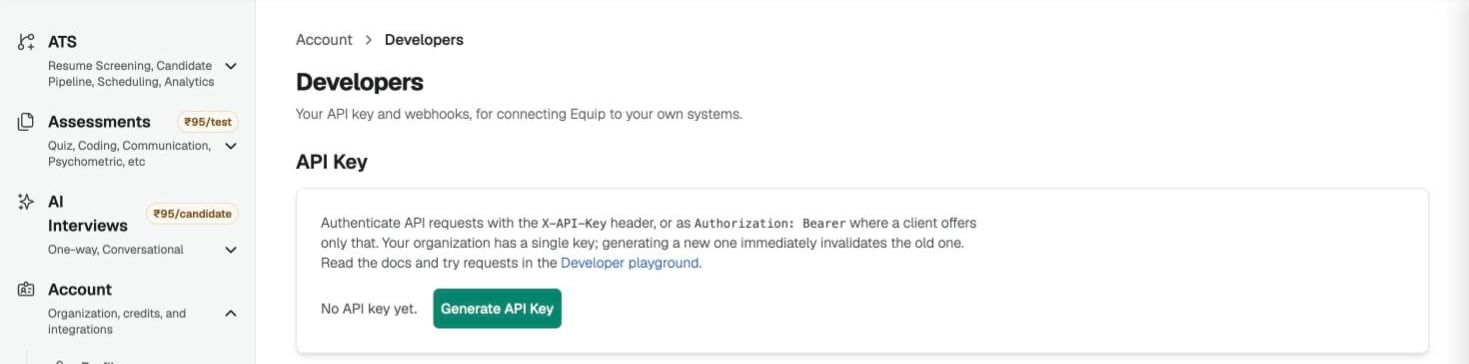
The API Key card on the Developers page
If you lose the key, there is no way to view it again. Rotate it to get a new one, then update every system that uses the old key.
Send the Key With Each Request
Put the key in theX-API-Key header. Equip also accepts Authorization: Bearer eqp_... for clients that only offer a bearer token, such as MCP clients. When both headers are present, X-API-Key wins and the Authorization header is ignored.
https://equip.co/api/v3/. The full list, with request and response schemas, is in the Developer Playground and in the OpenAPI document at https://equip.co/api/v3/openapi.json.
One Key per Organization
The API key belongs to the organization, not to the person who generated it. There is exactly one active key at a time, and it is shared by every integration your organization runs.
Recruiters who are not Owners or Admins see a notice on the Developers page telling them who to ask. Rotation is the only way to revoke a key, so treat it as your response to any suspected leak.
What the Key Can and Cannot Do
A key may do what a recruiter may do in the dashboard, with a few areas locked down because a leaked key must not be able to re-key itself or spend money.
Both refusals come back as a 403 with the message above in the
message field. See API Rate Limits and Errors for the other error shapes.
Plan Checks on Every Request
API keys and webhooks are the API & Webhooks feature. Until your plan includes it, the Developers page shows an upgrade prompt instead of the key card; see Compare Plans.Equip checks your plan on every API request, not only when the key is created. If your organization’s plan stops including the feature or its subscription lapses, requests return a 403 with
error_code FEATURE_NOT_IN_PLAN until the plan is restored. The MCP server uses the same key but is gated separately.Related Resources
- API Integrations - What the REST API lets you read and write
- Developer Playground - Browse every endpoint and run read requests from your browser
- API Rate Limits and Errors - Limits per plan, response headers and every error body
- Connect Your AI Assistant to Equip - The MCP server that uses the same key as a bearer token