> ## Documentation Index
> Fetch the complete documentation index at: https://help.equip.co/llms.txt
> Use this file to discover all available pages before exploring further.
# Job Requisitions
> Let hiring managers request headcount, approve the request, and open a job from it.
export const PlanGate = ({plan, annual, noTrial}) =>
{plan === "Elite" ? "Available on the Elite plan." : `Available on the ${annual ? "annual " : ""}Premium and Elite plans.`}
{noTrial ? " Not included in the free trial." : ""} Compare plans
;
A **job requisition** is a request for headcount. Hiring managers raise one, a recruiter approves it, and the job opening is created from the approved request, so every opening traces back to a decision.
## Add Your Hiring Team
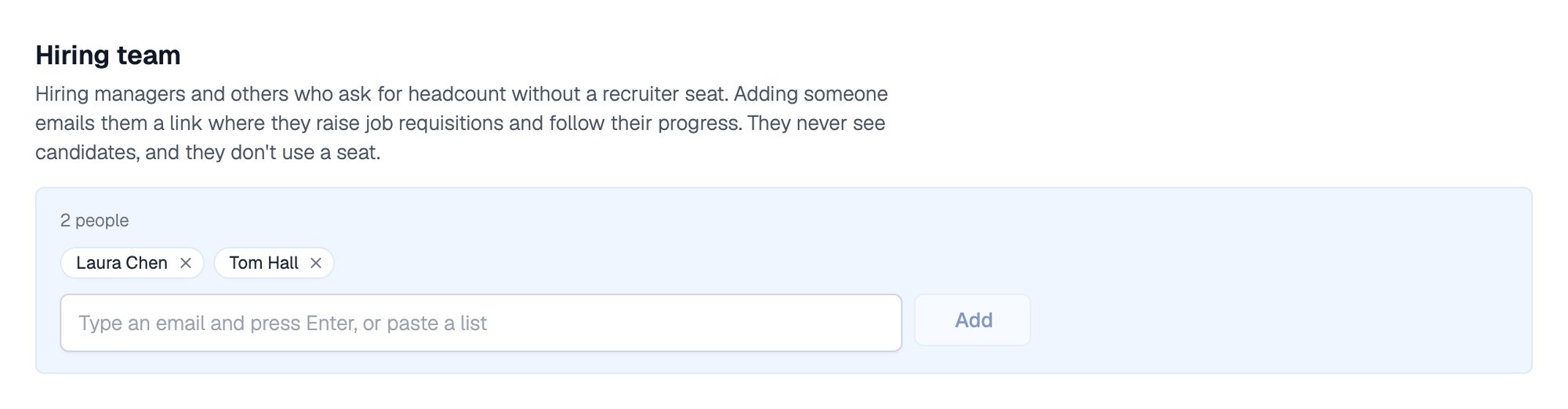
Hiring managers raise requisitions without a recruiter seat. They never see candidates.
Go to [**Account > Organization > People**](https://equip.co/recruiter/account/organization/people/) and scroll to **Hiring team**.
Each person gets an email with a link to a portal where they raise requisitions and follow their progress.
## Review and Approve Requisitions
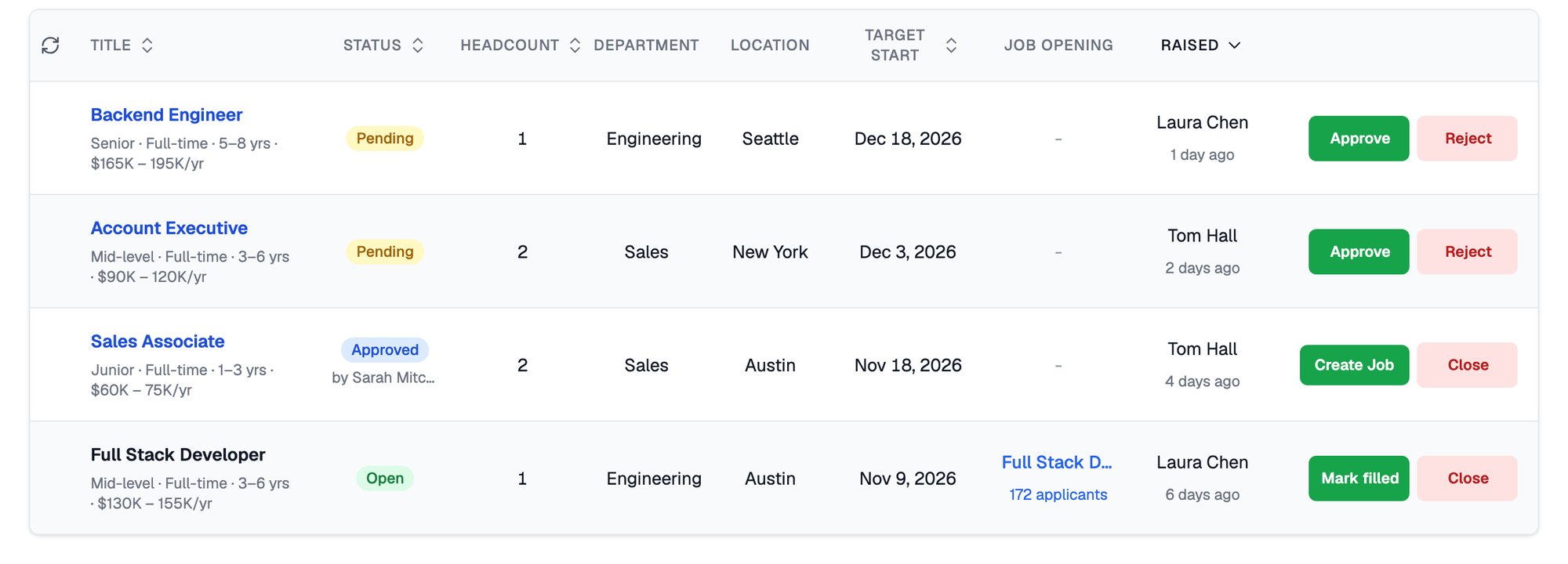
Open **Requisitions** from the [Job Openings dashboard](https://equip.co/recruiter/job-openings/dashboard/). Recruiters can also raise a requisition themselves with **+ Job Requisition**.
| Status | What you can do |
| - | - |
| **Pending** | **Approve**, or **Reject** with an optional note that is emailed to the requester |
| **Approved** | **Create Job** to open the job opening, or **Close** |
| **Open** | **Mark filled** once you have hired, or **Close** |
Any recruiter can approve a requisition they can see. The person who raised it can edit or withdraw it while it is still Pending.
## Related Resources
* [Job Post](/job-post) - The job opening you create from an approved requisition
* [Roles and Permissions](/roles-and-permissions) - What each organization role can do
* [Departments](/departments) - Keep each department's requisitions separate
* [Compare Plans](/compare-plans) - What each plan includes
This documentation is built and hosted on [Mintlify](https://mintlify.com), a developer documentation platform.
 ## Review and Approve Requisitions
Open **Requisitions** from the [Job Openings dashboard](https://equip.co/recruiter/job-openings/dashboard/). Recruiters can also raise a requisition themselves with **+ Job Requisition**.
| Status | What you can do |
| - | - |
| **Pending** | **Approve**, or **Reject** with an optional note that is emailed to the requester |
| **Approved** | **Create Job** to open the job opening, or **Close** |
| **Open** | **Mark filled** once you have hired, or **Close** |
Any recruiter can approve a requisition they can see. The person who raised it can edit or withdraw it while it is still Pending.
## Review and Approve Requisitions
Open **Requisitions** from the [Job Openings dashboard](https://equip.co/recruiter/job-openings/dashboard/). Recruiters can also raise a requisition themselves with **+ Job Requisition**.
| Status | What you can do |
| - | - |
| **Pending** | **Approve**, or **Reject** with an optional note that is emailed to the requester |
| **Approved** | **Create Job** to open the job opening, or **Close** |
| **Open** | **Mark filled** once you have hired, or **Close** |
Any recruiter can approve a requisition they can see. The person who raised it can edit or withdraw it while it is still Pending.
 ## Related Resources
* [Job Post](/job-post) - The job opening you create from an approved requisition
* [Roles and Permissions](/roles-and-permissions) - What each organization role can do
* [Departments](/departments) - Keep each department's requisitions separate
* [Compare Plans](/compare-plans) - What each plan includes
This documentation is built and hosted on [Mintlify](https://mintlify.com), a developer documentation platform.
## Related Resources
* [Job Post](/job-post) - The job opening you create from an approved requisition
* [Roles and Permissions](/roles-and-permissions) - What each organization role can do
* [Departments](/departments) - Keep each department's requisitions separate
* [Compare Plans](/compare-plans) - What each plan includes
This documentation is built and hosted on [Mintlify](https://mintlify.com), a developer documentation platform.