> ## Documentation Index
> Fetch the complete documentation index at: https://help.equip.co/llms.txt
> Use this file to discover all available pages before exploring further.
# Departments
> Split your organization into departments so each group of recruiters sees only its own job openings and candidates.
export const PlanGate = ({plan, annual, noTrial}) =>
{plan === "Elite" ? "Available on the Elite plan." : `Available on the ${annual ? "annual " : ""}Premium and Elite plans.`}
{noTrial ? " Not included in the free trial." : ""} Compare plans
;
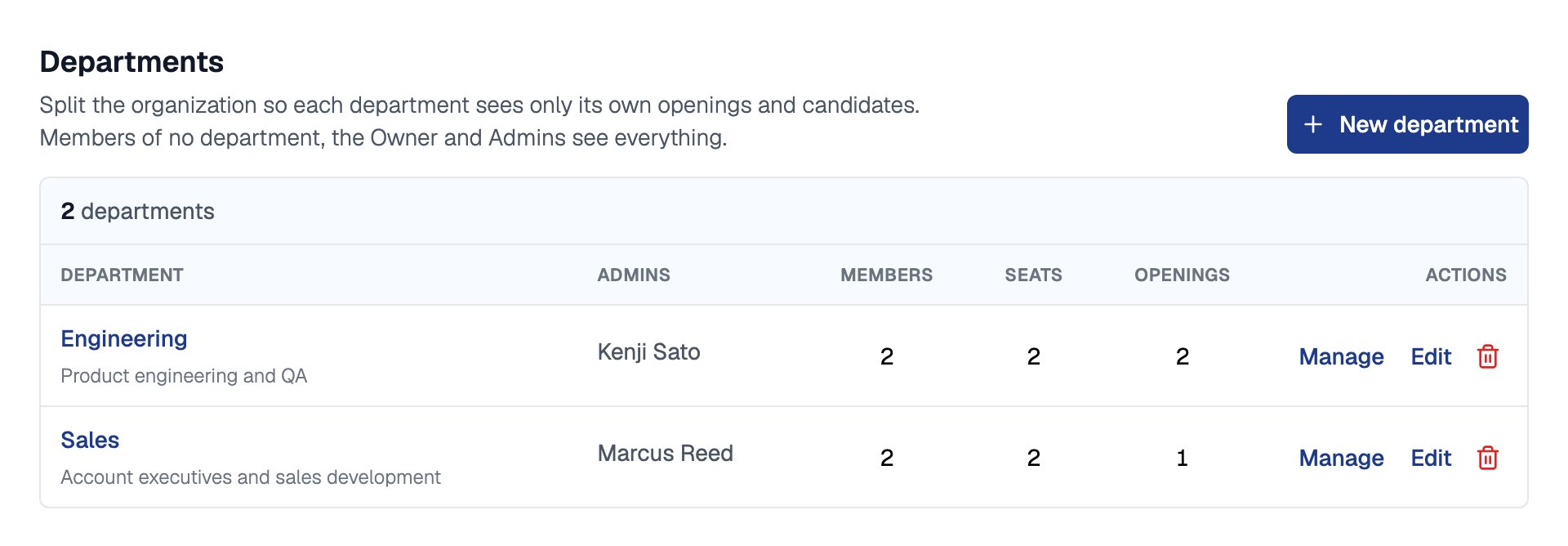
**Departments** split one organization into groups, such as Engineering and Sales. Recruiters in a department see only that department's job openings, candidates and requisitions, plus anything org-wide.
## Create a Department
Go to [**Account > Organization > Departments**](https://equip.co/recruiter/account/organization/departments/) and click **New department**.
Enter a name and, optionally, a description, then save.
Click **Manage** on the department, then **Add a member** and pick a recruiter. Set each person's role to **Department admin** or **Member**.
You can also put new people straight into a department when you [invite them](/manage-team-members#invite-members).
## Who Sees What
| Person | Sees | Can assign a job opening to |
| - | - | - |
| **Owner, Admins and recruiters in no department** | Everything | Any department, or **Org-wide** |
| **Department admins and members** | Org-wide work, plus their own departments' | One of their own departments |
A **Department admin** can also invite people into their department and manage its members.
When someone opens a job opening, application or requisition from another department, Equip shows which department it belongs to and offers **Ask for access**. The [Job Openings dashboard](https://equip.co/recruiter/job-openings/dashboard/) has a **Department** filter, and an opening created from a [job requisition](/job-requisitions) takes the requisition's department.
Until you create your first department, nothing changes: everyone sees everything and no department fields appear.
## Delete a Department
Click the bin icon on the department's row. Its members stay in your organization, and its job openings and requisitions become org-wide.
After you delete a department, its openings and candidates become visible to every recruiter.
## Related Resources
* [Roles and Permissions](/roles-and-permissions) - Who can create departments and manage members
* [Members and Seats](/manage-team-members) - Invite people straight into a department
* [Job Requisitions](/job-requisitions) - Requests for headcount, which carry a department too
* [Compare Plans](/compare-plans) - What each plan includes
This documentation is built and hosted on [Mintlify](https://mintlify.com), a developer documentation platform.
 You can also put new people straight into a department when you [invite them](/manage-team-members#invite-members).
## Who Sees What
| Person | Sees | Can assign a job opening to |
| - | - | - |
| **Owner, Admins and recruiters in no department** | Everything | Any department, or **Org-wide** |
| **Department admins and members** | Org-wide work, plus their own departments' | One of their own departments |
A **Department admin** can also invite people into their department and manage its members.
When someone opens a job opening, application or requisition from another department, Equip shows which department it belongs to and offers **Ask for access**. The [Job Openings dashboard](https://equip.co/recruiter/job-openings/dashboard/) has a **Department** filter, and an opening created from a [job requisition](/job-requisitions) takes the requisition's department.
You can also put new people straight into a department when you [invite them](/manage-team-members#invite-members).
## Who Sees What
| Person | Sees | Can assign a job opening to |
| - | - | - |
| **Owner, Admins and recruiters in no department** | Everything | Any department, or **Org-wide** |
| **Department admins and members** | Org-wide work, plus their own departments' | One of their own departments |
A **Department admin** can also invite people into their department and manage its members.
When someone opens a job opening, application or requisition from another department, Equip shows which department it belongs to and offers **Ask for access**. The [Job Openings dashboard](https://equip.co/recruiter/job-openings/dashboard/) has a **Department** filter, and an opening created from a [job requisition](/job-requisitions) takes the requisition's department.