> ## Documentation Index
> Fetch the complete documentation index at: https://help.equip.co/llms.txt
> Use this file to discover all available pages before exploring further.
# Ashby Integration
> Start Equip assessments and AI interviews from an Ashby interview plan, and see each candidate's status and score on their Ashby profile.
The **Ashby integration** lets your team run Equip without leaving Ashby. You add an Equip assessment or AI interview to a job's interview plan, start it for a candidate from Ashby, and Ashby shows the status and score on the candidate's profile as soon as Equip has them.
Setup takes about five minutes and needs two things: an **Ashby API key** created from the Equip tile in Ashby, and an **Equip secret** that Equip shows you once when you connect. You paste each one into the other product.
## Connecting Ashby to Equip
You need to be the **primary admin** of your Equip team, on a plan that includes integrations, and an admin in Ashby.
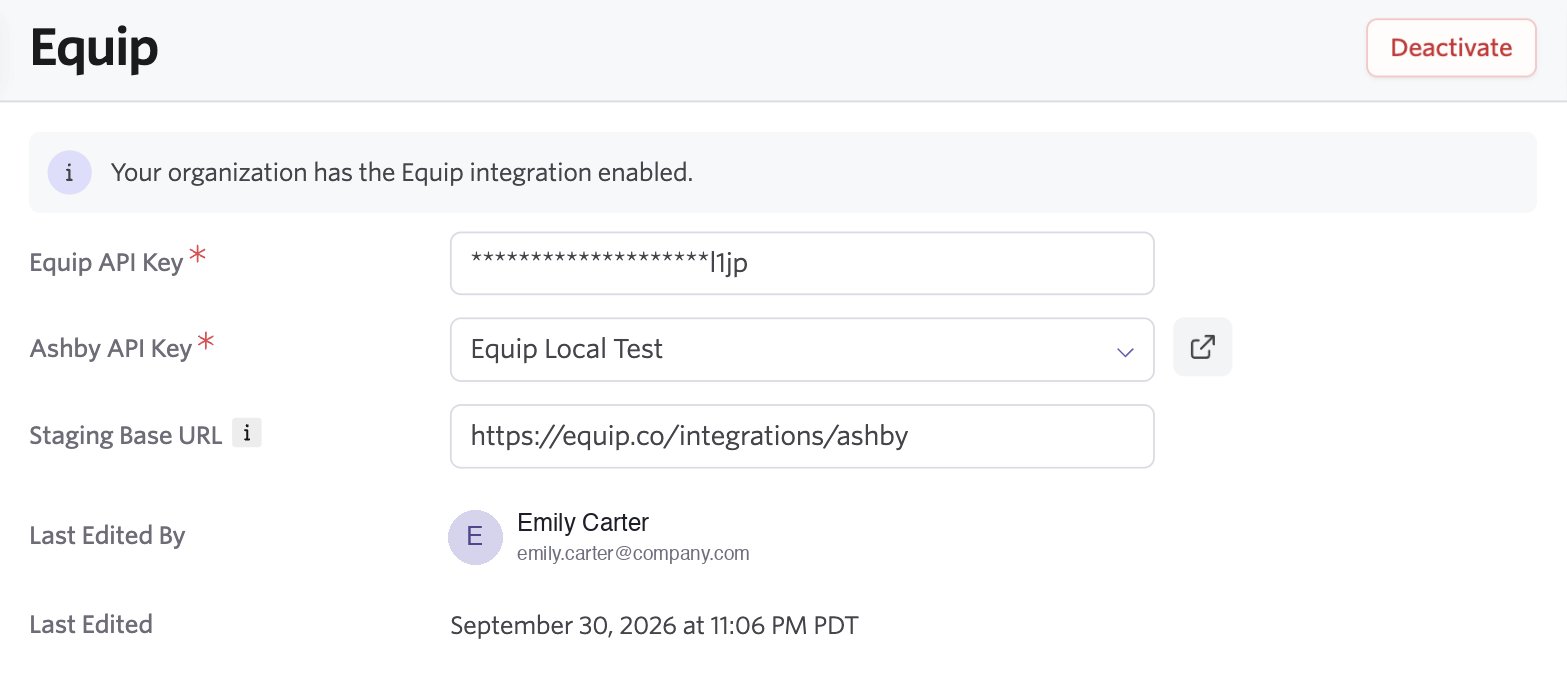
In Ashby, open **Admin → Integrations** and find the **Equip** tile under Assessments. In the **Ashby API Key** field, create a key for Equip (the link icon next to the field opens Ashby's API Credentials page). Ashby pre-selects the permissions Equip needs, including writing to candidates. Copy the key.
In Equip, go to **Account → Integrations → Ashby**, paste the key, and click **Connect**.
Equip now shows your **Equip secret** together with the partner base URL. Copy the secret straight away: it is shown only this once.
Back on the Equip tile in Ashby, paste the Equip secret into the **Equip API Key** field, choose the Ashby key you created in the first step, and enable the integration.
 In Equip, click **Test connection** on the Ashby page. Equip checks that Ashby accepts your key and that it can write results to candidates.
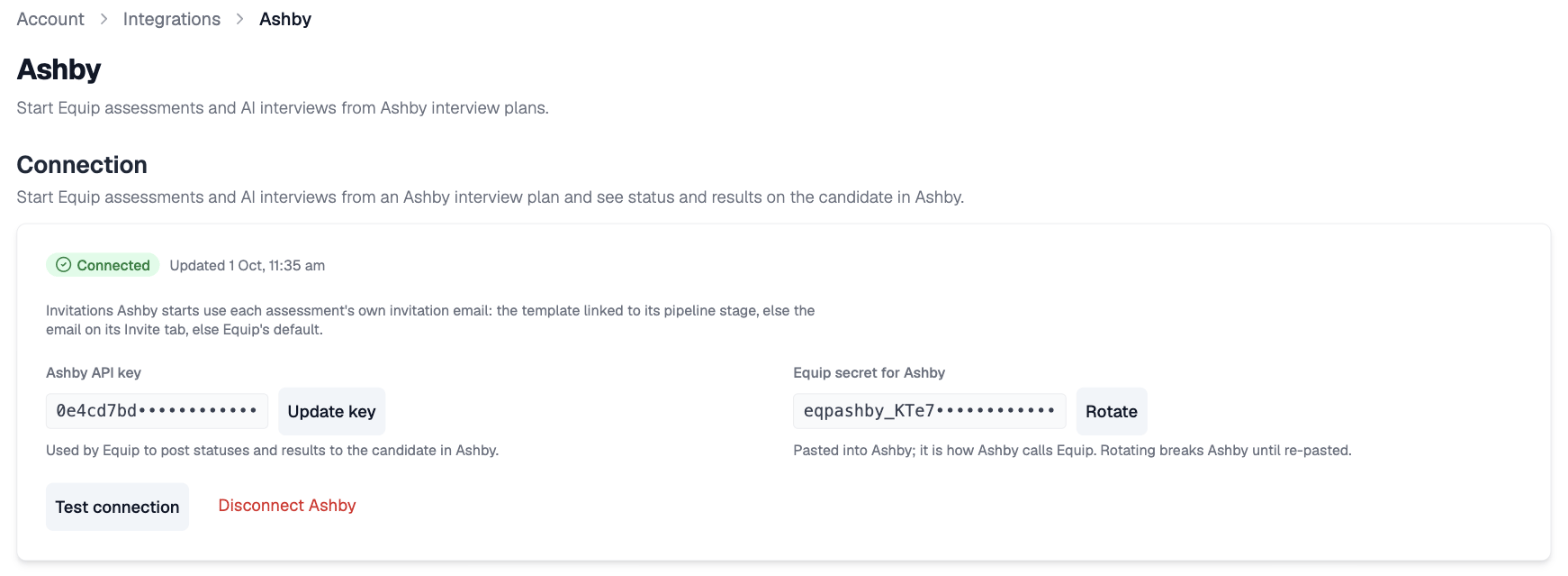 If you close the secret dialog without copying the secret, click **Rotate** on the Ashby page in Equip to get a new one. Rotating replaces the old secret, so paste the new one into Ashby before Ashby next calls Equip.
## Using Equip from Ashby
Once connected, Equip appears as an assessment option in Ashby's interview plans.
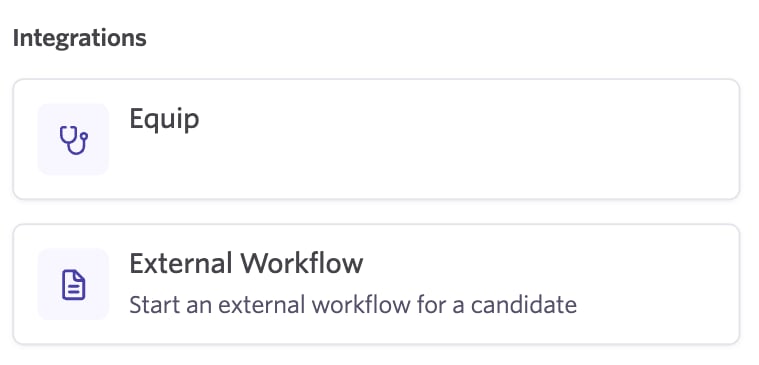
Open the job's **Interview Plan** in Ashby, click **Add Activity** on the stage where the assessment belongs, and choose **Equip** under Integrations.
If you close the secret dialog without copying the secret, click **Rotate** on the Ashby page in Equip to get a new one. Rotating replaces the old secret, so paste the new one into Ashby before Ashby next calls Equip.
## Using Equip from Ashby
Once connected, Equip appears as an assessment option in Ashby's interview plans.
Open the job's **Interview Plan** in Ashby, click **Add Activity** on the stage where the assessment belongs, and choose **Equip** under Integrations.
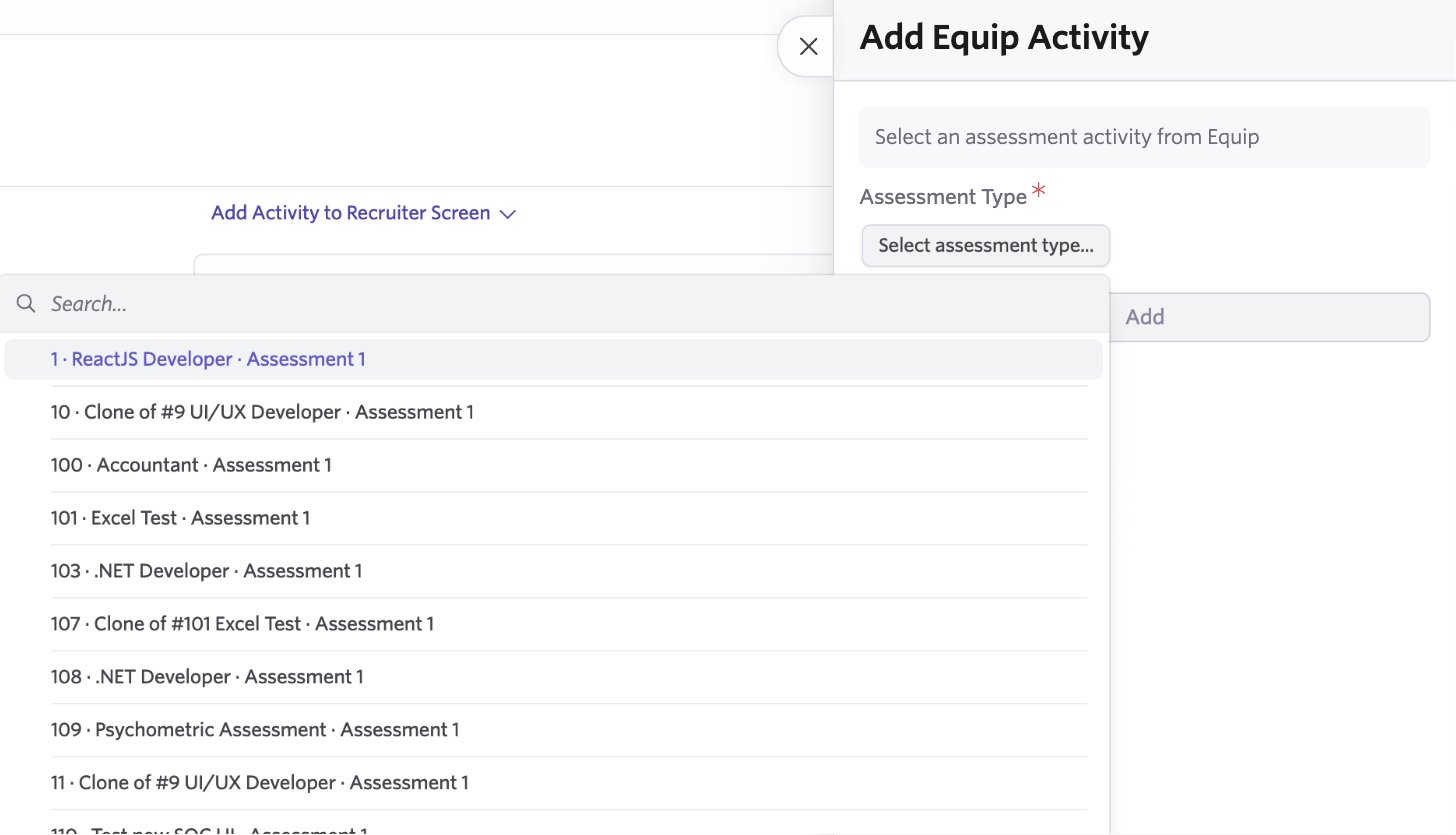
 Then pick the assessment or AI interview. Ashby lists everything active in your Equip account, named as **opening number · job title · stage**, so you can tell apart assessments that belong to different jobs.
 When a candidate reaches that stage, start the assessment from their Ashby profile. Equip emails the candidate the invitation and Ashby shows the status **Invited**.
When the candidate opens the link, the status changes to **Started**. When Equip has finished scoring, it changes to **Completed** and the score appears.
The invitation email is the one set up for that stage in Equip: the template linked to the pipeline stage, otherwise the email on the assessment's Invite tab, otherwise Equip's default. Replies go to the first member of the job's hiring team in Ashby.
## What Ashby shows on the candidate
Equip writes to the candidate's Ashby profile at each step. Nothing else in Ashby is changed.
| Status | When | What Ashby shows |
| - | - | - |
| **Invited** | You start the assessment from Ashby | The name of the Equip assessment |
| **Started** | The candidate opens the invitation link | The start time |
| **Completed** | Equip has scored the attempt | Overall score as a percentage, a score per test, the [Trust Score](/trust-score), time taken, and a link to the full report in Equip |
When a candidate reaches that stage, start the assessment from their Ashby profile. Equip emails the candidate the invitation and Ashby shows the status **Invited**.
When the candidate opens the link, the status changes to **Started**. When Equip has finished scoring, it changes to **Completed** and the score appears.
The invitation email is the one set up for that stage in Equip: the template linked to the pipeline stage, otherwise the email on the assessment's Invite tab, otherwise Equip's default. Replies go to the first member of the job's hiring team in Ashby.
## What Ashby shows on the candidate
Equip writes to the candidate's Ashby profile at each step. Nothing else in Ashby is changed.
| Status | When | What Ashby shows |
| - | - | - |
| **Invited** | You start the assessment from Ashby | The name of the Equip assessment |
| **Started** | The candidate opens the invitation link | The start time |
| **Completed** | Equip has scored the attempt | Overall score as a percentage, a score per test, the [Trust Score](/trust-score), time taken, and a link to the full report in Equip |
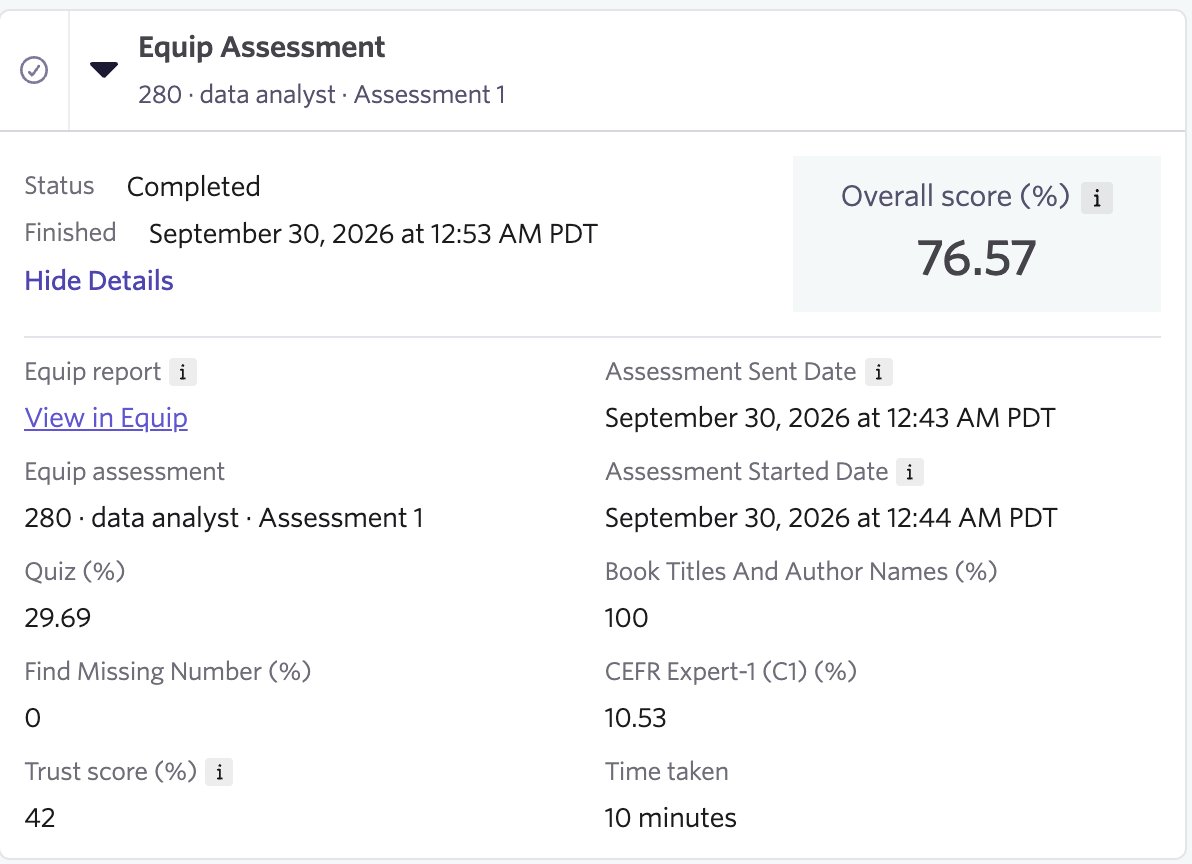 The full report, with answers, recordings and proctoring evidence, stays in Equip. The **View in Equip** link on the candidate's Ashby profile opens it.
## Cancelling an assessment
Cancel from Ashby, not from Equip.
| Situation | What happens |
| - | - |
| The candidate has not opened the link yet | Equip revokes the link, refunds the credit, and Ashby shows **Cancelled** |
| The candidate has already opened the link | Ashby shows a message that it can no longer be cancelled. The attempt continues and the result still reaches Ashby |
Starting the same assessment twice for the same application is refused while the first one is open. Cancel it first, or wait for it to complete.
## Troubleshooting
The Equip secret in Ashby is missing or out of date. Open the Ashby page in Equip, click **Rotate** to get a new secret, and paste it into Ashby.
Click **Test connection** on the Ashby page in Equip. If Ashby rejects the key, or the key cannot write to candidates, create a new key from the Equip tile in Ashby and click **Update key** in Equip. Results arrive within about a minute of scoring; an attempt that needs [manual grading](/manual-grading) is reported once you finalize the grade.
Ashby shows the reason. The usual ones are: the candidate has no email address in Ashby; the assessment was archived or deleted in Equip; your Equip plan no longer includes integrations. Fix the cause in Equip or Ashby and start it again.
Disconnecting removes the stored keys, so Ashby can no longer start assessments and results stop flowing. Reconnect by pasting a key from Ashby again; Equip issues a new secret, which you paste into Ashby.
## Related Resources
* [Webhooks](/webhooks) - send completion events to your own systems
* [Trust Score](/trust-score) - what the proctoring score on the candidate means
* [Manual Grading](/manual-grading) - how attempts that need a human grade reach their final score
* [How Credits Work](/how-credits-work) - what an assessment started from Ashby costs
The full report, with answers, recordings and proctoring evidence, stays in Equip. The **View in Equip** link on the candidate's Ashby profile opens it.
## Cancelling an assessment
Cancel from Ashby, not from Equip.
| Situation | What happens |
| - | - |
| The candidate has not opened the link yet | Equip revokes the link, refunds the credit, and Ashby shows **Cancelled** |
| The candidate has already opened the link | Ashby shows a message that it can no longer be cancelled. The attempt continues and the result still reaches Ashby |
Starting the same assessment twice for the same application is refused while the first one is open. Cancel it first, or wait for it to complete.
## Troubleshooting
The Equip secret in Ashby is missing or out of date. Open the Ashby page in Equip, click **Rotate** to get a new secret, and paste it into Ashby.
Click **Test connection** on the Ashby page in Equip. If Ashby rejects the key, or the key cannot write to candidates, create a new key from the Equip tile in Ashby and click **Update key** in Equip. Results arrive within about a minute of scoring; an attempt that needs [manual grading](/manual-grading) is reported once you finalize the grade.
Ashby shows the reason. The usual ones are: the candidate has no email address in Ashby; the assessment was archived or deleted in Equip; your Equip plan no longer includes integrations. Fix the cause in Equip or Ashby and start it again.
Disconnecting removes the stored keys, so Ashby can no longer start assessments and results stop flowing. Reconnect by pasting a key from Ashby again; Equip issues a new secret, which you paste into Ashby.
## Related Resources
* [Webhooks](/webhooks) - send completion events to your own systems
* [Trust Score](/trust-score) - what the proctoring score on the candidate means
* [Manual Grading](/manual-grading) - how attempts that need a human grade reach their final score
* [How Credits Work](/how-credits-work) - what an assessment started from Ashby costs